Phantom_1024_V2.023_en.PDF http://www.codelight.com
13
Press the corresponding button to run macro. Run a macro needs time. When it’s running, the
corresponding macro function will display in white, it will resume to normal display after finish running.
Press S6 [Cancel] to exit Macro menu.
3.6. Change the Attribute Values of Fixtures
After select the fixtures and the Attribute button, you can change the attributes by control wheels.
Example: Use control wheels to change the Pan and Tilt positions.
Select fixtures;
Press the button Tilt/Pan in the Attribute section;
Use control wheel A to change the Tilt value, and use control wheel B to change the Pan value.
3.7. Fixture Location and Fan Mode
If you choose a row of fixtures and turn them on by locating, you will see a line of white light beams. Fan mode
can produce a Fan of light beams, like rays of sunlight. The Fan Mode, while normally used on Pan or Tilt
attribute, can be applied to any attributes; if the fixtures can mix colours, and Fan Mode can produce colourful
effect. We kindly suggest you using no less than 4 fixtures to achieve a better effect.
Select some fixtures in line;
Press Locate;
Press S1 [Locate Fixture] and the selected fixtures show a row of white light beams;
Press Locate;
Press S3 [Fan mode];
Press Attribute button Tilt/Pan;
Use control wheel to control the horizontal or vertical Fan effect;
Press S6 [Cancel] to return to “Live Show Mode” when finish adjusting, and the Fan effect of the fixtures
continues.
Now you can carry on setting up the Tilt/Pan attribute of these fixtures, so that they will move to the proper
location of the stage.
3.8. Manual Clear
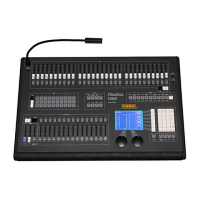
Manually-controlled dimmer channels and fixtures can be
cleared by pressing Clear , especially when you editing Cue
and Chase, you can quickly clear those unneeded effects.
The LCD screen of “Live Show Mode” after clearing shows as
follows:


 To Next Page