Phantom_1024_V2.023_en.PDF http://www.codelight.com
3
1.2.3. Playback
Cue/Playback section contains Playback pages, Playback faders and Playback buttons.
Phantom 1024 contain 40 Playback pages, each of which contains 15 playback faders. So, it can memorize
600 Effects. Pressing or can change the page, led number display the present Unit page.
All the preset Cue and Chase need to be saved in the Playback. You can use faders to playback the
programmed Effects.
There are 15 playback buttons which above Playback faders, has three functions:
1. The Flash function of Playback. When you don’t fade in the Playback faders, you can press and
hold still the button to run the program, which as the same as you fade in the Playback fader. The
program will be turned off as soon as you release the button.
2. The manual function of Playback. After fade in the fader, the button is used for manual operation,
to run one-step of the playback. (Notice: you must set the steps of the playback to Link Off, or set
the link mode of playback to manual when it is running).
3. Press Shift + Playback buttons to switch the present effective Playback. (You can use the control
wheels to change the speed of the present Playback program.)
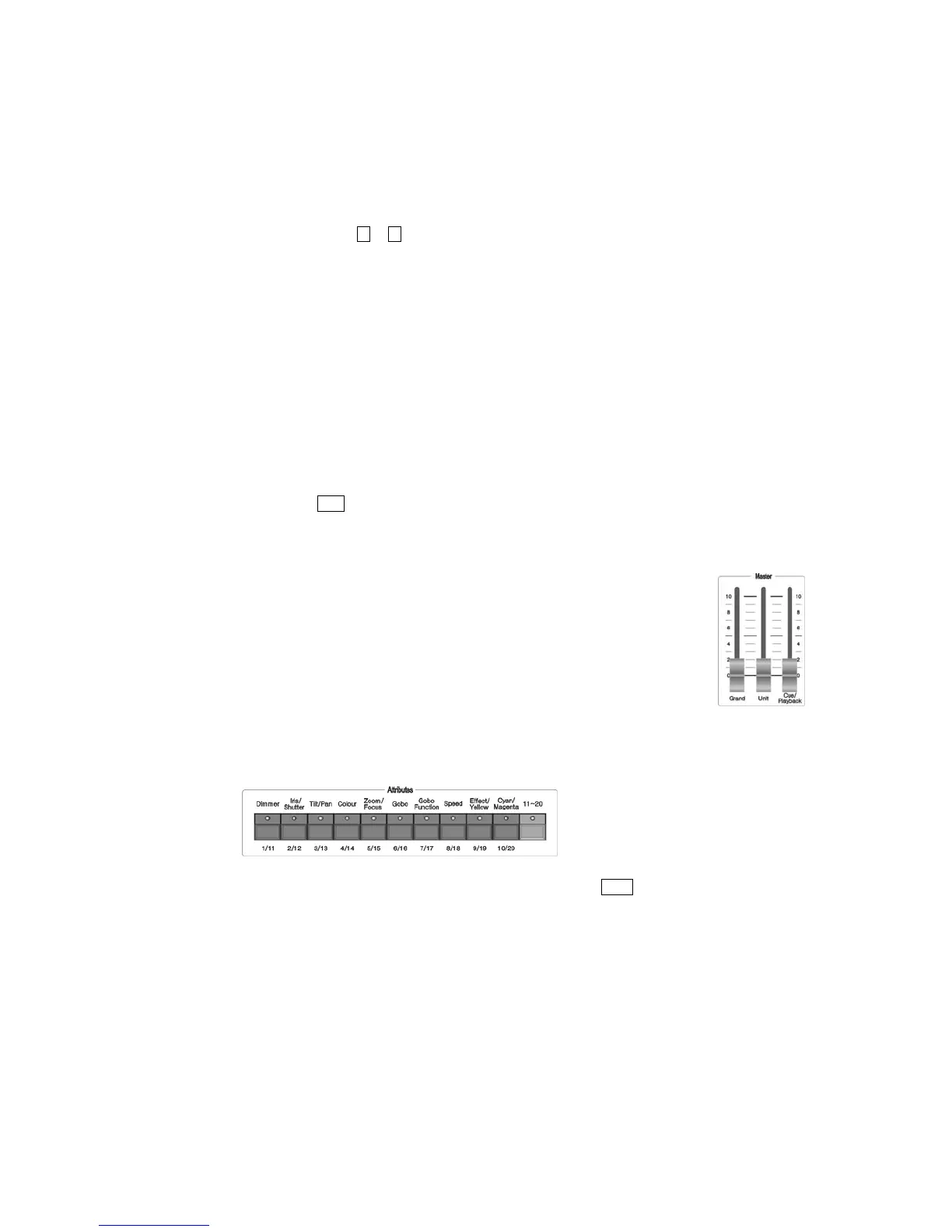
1.2.4. Master
There are 3 faders in the Master section.
Grand – controlling the general output level;
Unit – generally controlling the faders in the Unit section;
Playback – generally controlling the Playback..
1.2.5. Attributes
In the Attributes section, there are 10 Attribute buttons and one 11-20 switch button. Usually, the ten
attribute buttons stand for the 10 attributes printed on the board; after press the switch button, they
symbolize another 10 attributes, that’s the 11-20 attributes. After you select the units, using these attribute
buttons with control wheels, you can set up the assigned attributes of the Units.
According to the differences between various fixtures, the LCD screen will display the name of the
attribute after you press the Attribute buttons. Each Attribute button can carry 2 attributes, and the LCD
screen also shows you which attribute will be controlled by wheel A or B.


 To Next Page