Phantom_1024_V2.023_en.PDF http://www.codelight.com
8
Press No. 21-26 Unit buttons in the Unit section in turn to finish the patching of DMX address 1-6 to Unit
21-26;
Press Patch to exit patching and return to “Live Show Mode”.
Example: Use DMX address 7
th
-12
th
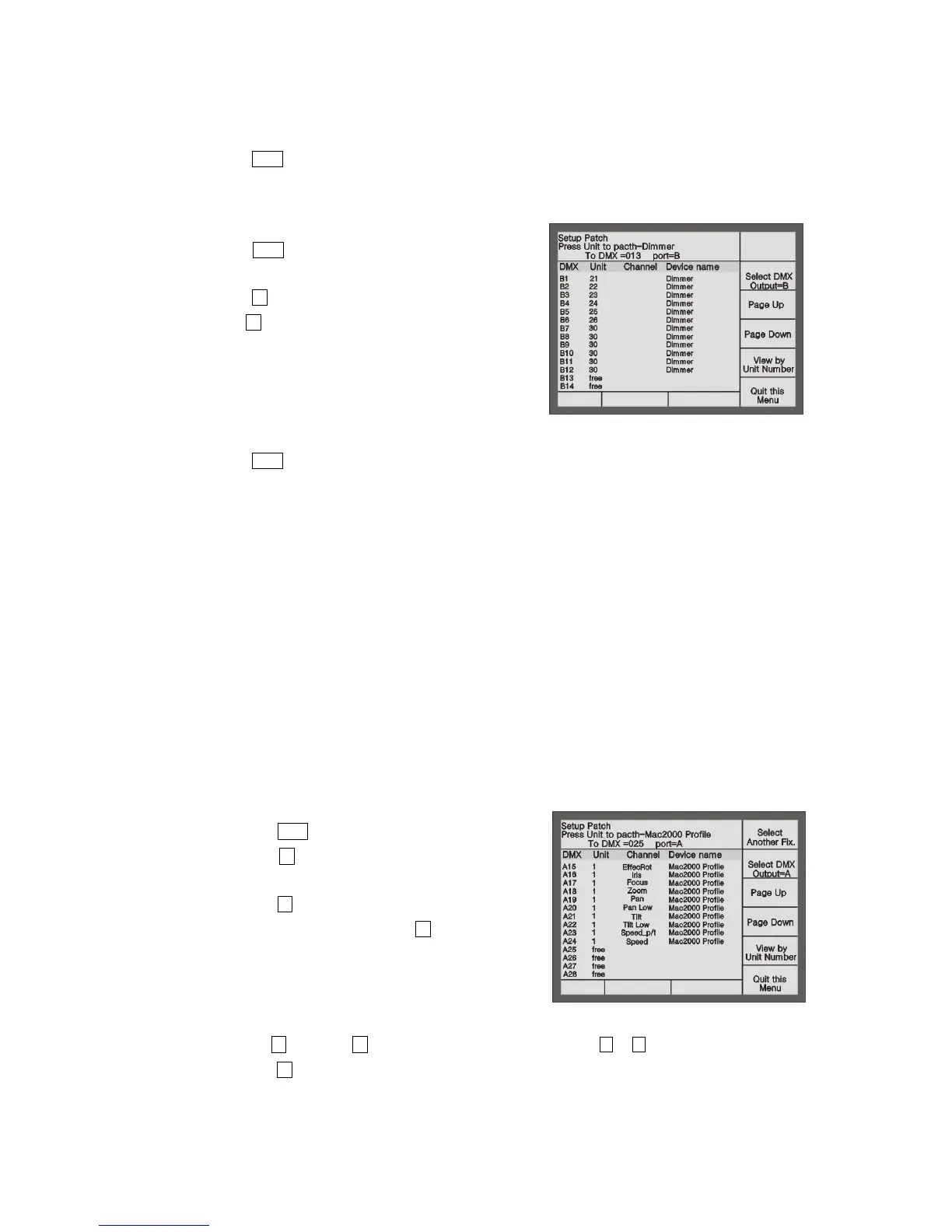
of DMX output port B to patch a 6 channeled dimmer to Unit 30, that’s one
Unit button control 6 dimmer channels.
Press Patch in the Function section to enter “Setup Patch”
menu;
Press S2 [Patch Dimmer] to enter the menu;
Use S2 to select [Select DMX Output = B], then the LCD
screen will display the patching information of Port B,
“Free” means the channel is not patched;
Press 007 by the Numeric keypad to set the DMX initial
address as 7
Press Unit button 30 for 6 times to complete the patching of DMX address 7-12 to Unit 30;
Press Patch to exit the patching and return to “Live Show Mode”.
2.3. Patch Fixtures
Fixture patching is a little bit different from dimmer channel patching. Dimmer channels have only one attribute,
brightness, while fixtures have many attributes. After the patching of fixtures, you can use the faders to change the
brightness, but other attributes not.
There are two types of Libraries in the console:
1. System fixture Library. The console has been uploaded the latest light library when it’s on sale. You can
visit our website to download the newest library and upload it to your console.
2. User fixture Library. When you can’t find the model of your fixtures in the System Fixture Library, you can
build one yourself.
When choosing the fixture, you can look over the details of the fixture, to make sure your choice correctly.
Example: Patch a Martin Mac2000 Profile fixture with 24 channels to Unit button 1 of the 1
st
page, using port A
of DMX output, DMX initial address =1.
Press Patch to enter “Setup Patch” menu;
Press S3 [Patch Fixtures] to enter “Select a Library”
menu;
Press S1 [System Fix. Library];
Select the sort order mode with S5. Here, we search by
Manufacturer;
Use Unit buttons (with English letters) to fast skip to
the initial letter of the Manufacturer. Here, we press
Unit 13 (the letter M);
Use S3 [Page Up], S4 [Page Down] to switch the pages, use the or button to select Martin. Then
press S1 [Confirm], it will display all fixture models of Martin;
Use Unit buttons (with English letters) to fast skip to the initial letter of the fixture model. Here, we press
Unit 13 (the letter M);


 To Next Page