Troubleshooting an Ethernet Connection
If your reader does not appear in the DataMan Setup Tool’s list of detected network devices, adjust your network
settings.
1. Check your Ethernet connection and click Refresh in the DataMan Setup Tool.
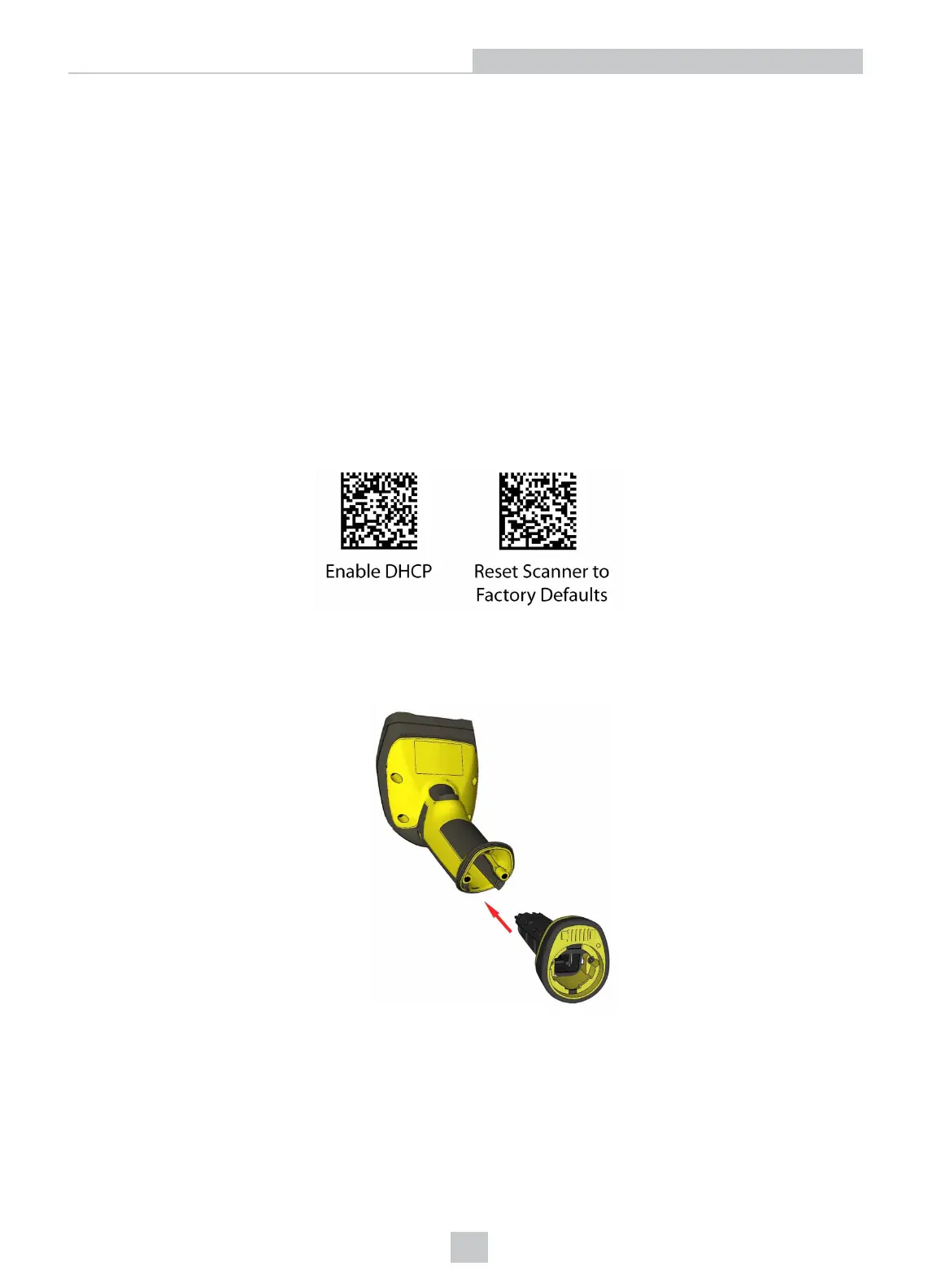
2. Scan the Enable DHCP code (which you can find in the DataMan Reader Configuration Codes document
available from the Windows Start menu or the Setup Tool Help menu). This allows the reader to acquire a
suitable IP address from a DHCP server on your subnet.
If the reader still does not appear, you can use the Add Device option in the DataMan Setup Tool.
If you know the IP address of the reader, use the Add Network Device option under Repair & Support. This method
allows the DataMan 8600 reader to appear in the list of Network devices so that you can connect to it through the
DataMan Setup Tool and your Ethernet connection.
If none of the above helps, reset your reader to factory defaults by scanning the Reset Scanner to Factory Defaults
code below.
Connecting a DataMan 8600 Through RS-232
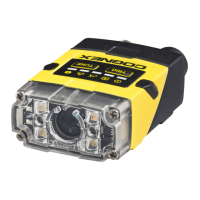
1. Connect the serial slide-in (DMCM-SERIALM-00) to your DataMan 8600.
19
Connection Options



 To Next Page