EasyManua.ls Logo

Commodore 1541-II - Printing a Directory; Reading a Directory as a File; Another Way to be Selective

Commodore 1541-II
104 pages
Print Icon
To Next Page IconTo Next Page
To Previous Page IconTo Previous Page
Loading...
PRINTING
A
DIRECTORY
To
make
a
permanent
copy
of
a
directory,
perhaps
to
fasten
to
the
diskette's
outer
(paper)
envelope,
you
will
need
to
send
the
directory
to
a
printer,
such
as
Commodore's
MPS
801,
1520 and
1526
serial
bus
models.
To
do
this,
you
may
need
to
refer
to
your
printer
manual,
but
briefly
the
procedure
for
listing
a
directory
to
device
4
is
as
follows:
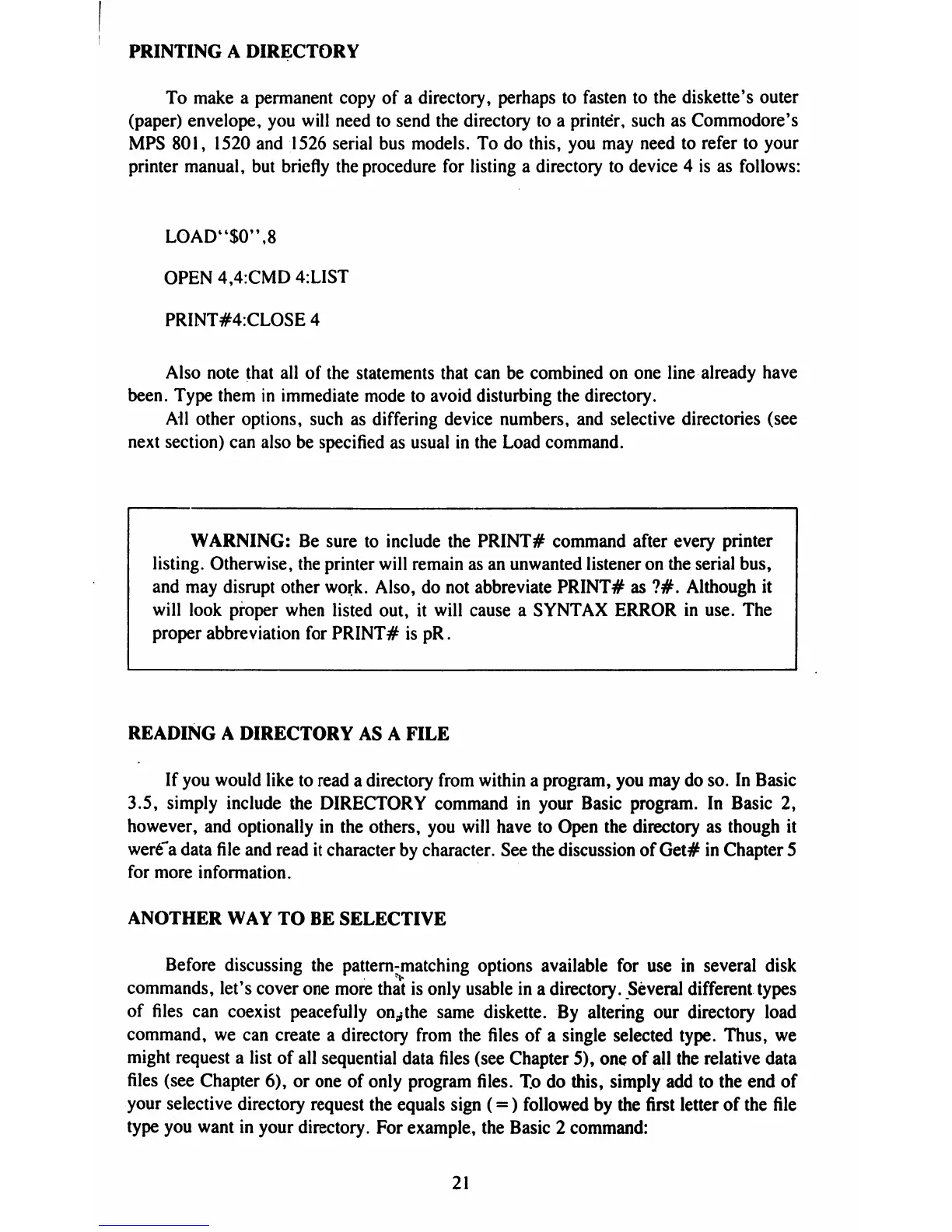
LOAD44$0",8
OPEN
4,4:CMD
4:LIST
PRINT#4:CLOSE
4
Also
note
that
all
of
the
statements
that
can be
combined
on
one
line
already
have
been.
Type
them
in
immediate
mode
to
avoid
disturbing
the
directory.
All
other
options,
such
as
differing
device
numbers,
and
selective
directories
(see
next
section)
can
also
be
specified
as
usual
in
the
Load
command.
WARNING:
Be
sure
to
include
the
PRINT#
command
after
every
printer
listing.
Otherwise,
the
printer
will
remain
as
an
unwanted
listener
on
the
serial
bus,
and
may
disrupt
other
work.
Also,
do
not
abbreviate
PRINT#
as
?#.
Although
it
will
look
proper
when
listed
out,
it
will
cause
a
SYNTAX
ERROR
in
use.
The
proper
abbreviation
for
PRINT#
is
pR.
READING
A
DIRECTORY
AS
A
FILE
If
you
would
like
to
read
a
directory
from
within
a
program,
you
may
do
so.
In
Basic
3.5,
simply
include
the
DIRECTORY
command
in
your
Basic
program.
In
Basic
2,
however,
and
optionally
in
the
others,
you
will
have
to
Open
the
directory
as
though
it
were"a
data
file
and
read
it
character
by
character.
See
the
discussion
of
Get#
in
Chapter
5
for
more
information.
ANOTHER
WAY
TO
BE
SELECTIVE
Before
discussing
the
pattern-matching
options
available
for
use
in
several
disk
commands,
let's
cover
one
more
that
is
only
usable
in
a
directory.
Several
different
types
of
files
can
coexist
peacefully
on^the
same
diskette.
By
altering
our
directory
load
command,
we
can
create
a
directory
from
the
files
of
a
single
selected
type.
Thus,
we
might
request
a
list
of
all
sequential
data
files
(see
Chapter
5),
one
of
all
the
relative
data
files
(see
Chapter
6),
or
one
of
only
program
files.
To
do
this,
simply
add
to
the
end
of
your
selective
directory
request
the
equals
sign
(=)
followed
by
the
first
letter
of
the
file
type
you
want
in
your
directory.
For
example,
the
Basic
2
command:
21

Table of Contents

Related product manuals