CRADLEPOINT CBR400| USER MANUAL Firmware ver. 3.3.0
© 2011 CRADLEPOINT, INC. PLEASE VISIT HTTP://KNOWLEDGEBASE.CRADLEPOINT.COM/ FOR MORE HELP AND RESOURCES PAGE 133
8.3 Hotspot Services (Advanced Mode only)
Any of your networks can be enabled as a hotspot. To
enable a hotspot, you need to select a network and
set it as a hotspot in Network Settings → WiFi /
Local Networks.
NOTE: Although any network can be a hotspot, the CBR400
allows only one hotspot.
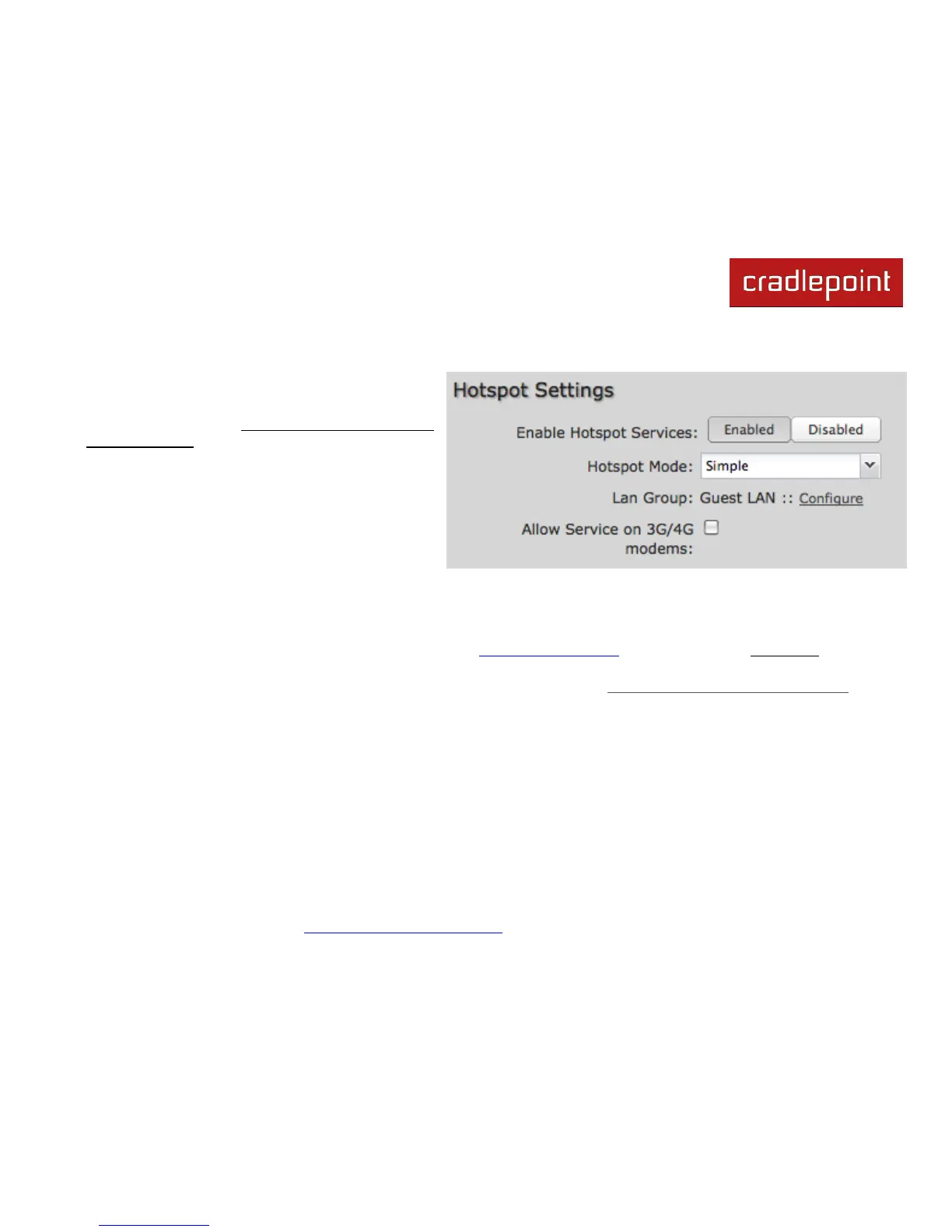
Enable Hotspot Services: Disabled by default. Click
Enabled to activate Hotspot options.
Hotspot Mode: Choose from the following dropdown
options:
Simple: Allows ―Terms of Use‖ page and
timeout settings controlled within the router.
RADIUS/UAM: Allows you to set up external authentication servers.
LAN Group: A single LAN Group—including both WiFi and Ethernet—can be configured as your hotspot. If you do not
already have a LAN Group configured as a hotspot, go to the WiFi / Local Networks page (you can click Configure to link
to this page) and set the Routing Mode to "Hotspot" for the LAN Group you want to use.
NOTE: Routing Mode is in the Local Network Editor under the IP Settings tab. Select a network in Network Settings → WiFi / Local Networks
and click Edit to open the Local Network Editor. The IP Settings tab will already be open: the Routing Mode dropdown menu is at the bottom.
Allow Service on 3G/4G Modems: Allows you to enable or disable hotspot access to the internet over a modem. This is
often used if the router has a main wired link and a secondary modem for failover (typically with a more expensive/limited
data plan). Select this option if you want the router to allow data traffic over the modem if the wired connection goes down.




 To Next Page