Page 39Vortex8 User Manual
Version 1.2
7. Camera Sync
7.3 Setting up Camera Syncing with Sync/Genlock Output using the Accessory BNC Cable
Use the Creamsource Accessory BNC Cable (CSV-ACC-BNC) to setup cameras that are capable outputting a sync signal.
Plug the Creamsource Accessory to BNC Cable directly into the BNC SYNC/AUX port of the camera.
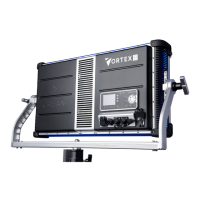
Plug the other end of the Creamsource Accessory to BNC Cable to the Accessory Input port of the Vortex8.
Setup the camera to output the sync signal (refer to the user manual for device).
Once sync is established, a green bar will be highlighted on the top of the status bar of the Vortex8 indicating
the device is synchronised. The frame rate will also be displayed beneath the status bar.
Calibrate the Vortex8 (see 7.5 Calibrate Sync for details).
1
2
3
4
5
7
7 9
8


 To Next Page