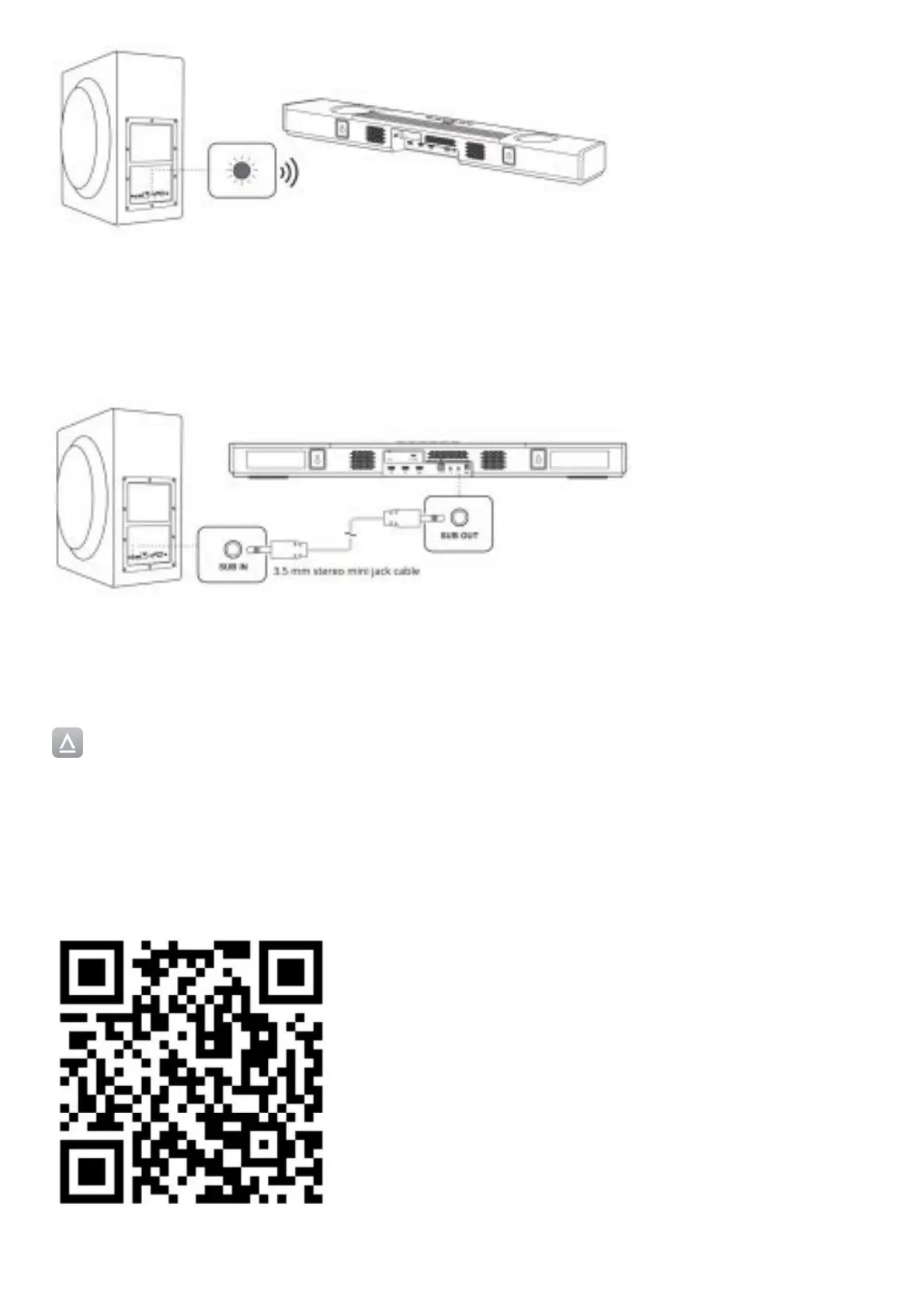
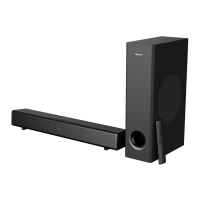
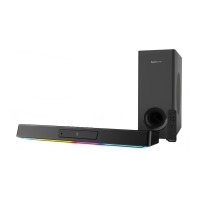
Creative SXFI CARRIER soundbar and subwoofer are pre-paired at the factory; they will automatically and wirelessly
connect to each other when connected to a power source and the status light on the subwoofer will light up in green.
If the subwoofer’s status light is not lit, please ensure that the subwoofer is plugged in and the power source is turned
on.
If the subwoofer’s status light remains in red when the soundbar is turned on, interference could have prevented the
subwoofer from responding wirelessly to soundbar.
Alternatively, you may also use a standard 3.5 mm stereo mini jack cable*
to establish a wired connection between the soundbar and subwoofer.
Mobile App – Creative
The Creative app provides you with various configuration options to enhance the performance of your product,
as well as to customize and personalize your audio settings. Available on both Apple’s App Store and Google Play
Store, the app allows you to customize and control your SXFI CARRIER, such as seamless device pairing, Super X-
Fi setup, custom buttons configurations, speaker setup and calibration settings, and the ability to run diagnosis for
technical support.
To start using the app, follow the on-screen instructions to connect to the soundbar.
Download Creative app from:




 To Next Page