36 • HD-MD8X8-4KZ-E, HD-MD8X4-4KZ-E, and HD-MD4X4-4KZ-E Web Interface Configuration Guide — Doc. 8908C
Configure Audio Follows Video
1. Move the Aux1 Audio Follows Video slider to specify whether audio-follows-video will be
enabled (right) or disabled (left). If Aux1 Audio Follows Video is enabled, select the output
from the Output Select drop-down menu.
2. Move the Aux2 Audio Follows Video slider to specify whether audio-follows-video will be
enabled (right) or disabled (left). If Aux2 Audio Follows Video is enabled, select the output
from the Output Select drop-down menu.
NOTE: By default, the Aux Audio Follows Video slider is enabled.
Configure Priority Routing
NOTE: For Priority Routing to work, make sure that Auto Routing is enabled.
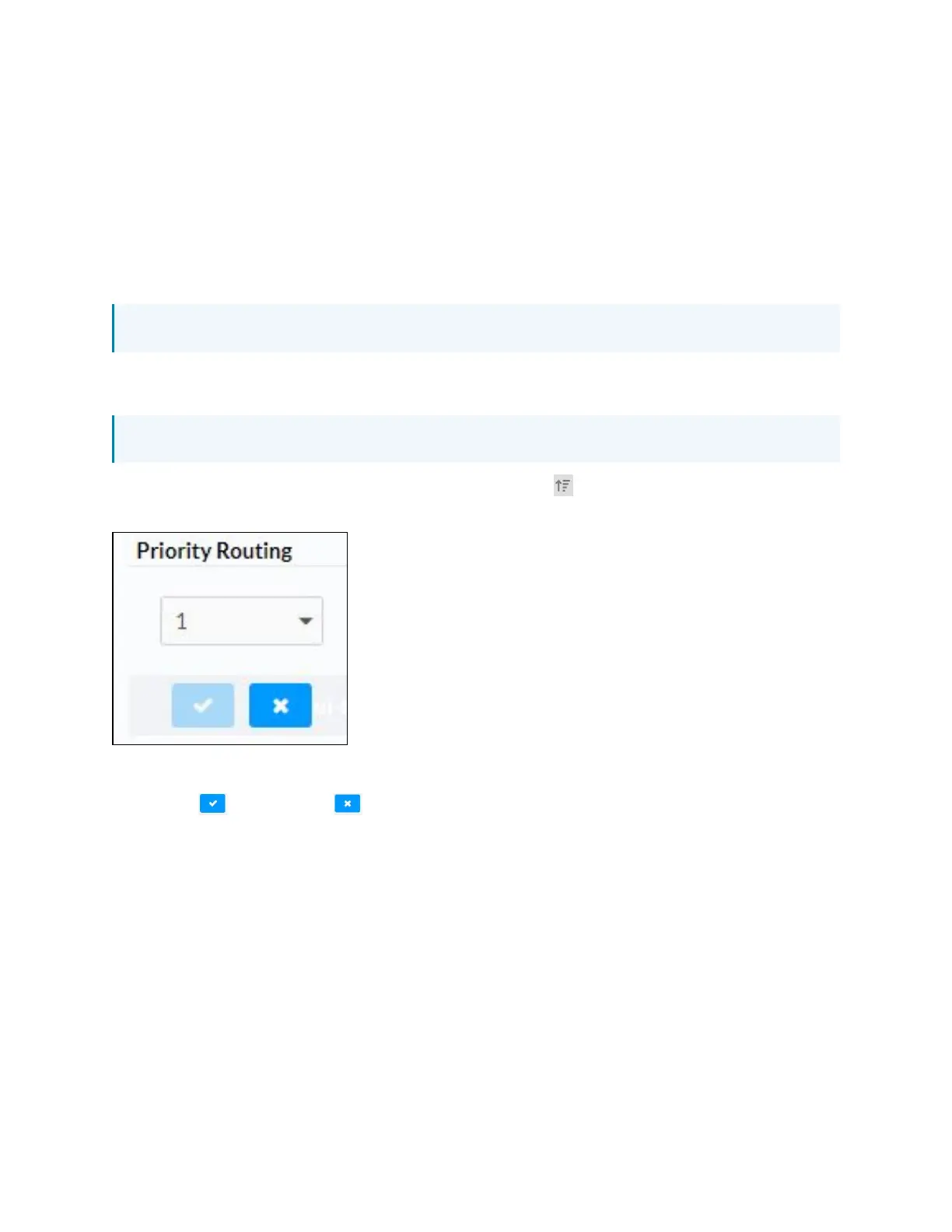
To configure priority routing, click the priority routing icon ( ). The Priority Routing dialog
appears.
1. Select the priority level from the Priority drop-down menu.
2.
Click to save. Click to cancel the changes.







 To Next Page