Product Manual — Doc. 7927K TSW-560, TSW-760, and TSW-1060 • 55
Auto Update
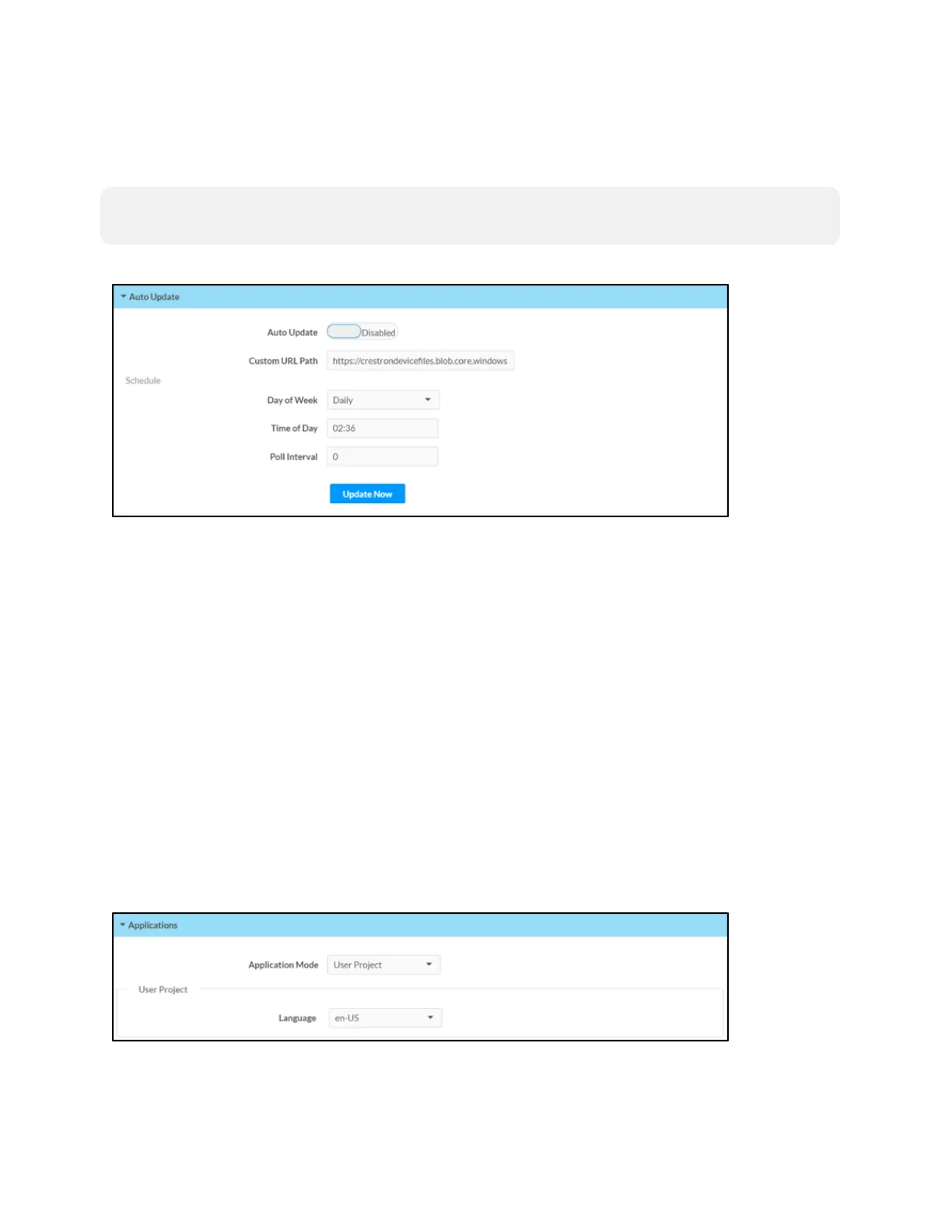
Click Auto Update to configure automatic firmware updates for the touch screen.
NOTE: The Auto Update accordion can be used to configure auto update settings for firmware
only. Automatic application updates are not affected by these settings.
Settings Tab - Auto-Update
l Auto Update: Toggle the switch to enable or disable automatic firmware updates.
l Control URL Path: Enter the URL path for the update server.
l Day of Week: Select the day of week when the touch screen will check for updates. Select
Daily to have the touch screen check for updates every day.
l Time of Day: Enter a time of day (in 24-hour format) when the touch screen will check
updates on the scheduled day.
l Poll Interval: Enter the polling interval (in hours) for when the touch screen will poll the server
for updates.
l Click Update Now to check the update server for new firmware and to update the touch
screen immediately if new firmware is available.
Applications
Click Applications to a select an application to run on the touch screen.
Settings Tab - Applications
Use the Application Mode drop-down menu to select a touch screen application from the available
selections. User Project is selected by default.










 To Next Page