Product Manual — Doc. 7927K TSW-560, TSW-760, and TSW-1060 • 59
Crestron Room Scheduling Application
To set up the Crestron room scheduling application on the touch screen:
NOTE: A scheduling calendar connection to Crestron Fusion software, Microsoft® Exchange
software, the Google Calendar™ calendaring application (via a Google® software account),
CollegeNet® 25Live® software, or Ad Astra™ Schedule software is required for this application.
1. Access the touch screen web configuration interface. For more information, refer to Web
Configuration (on page27).
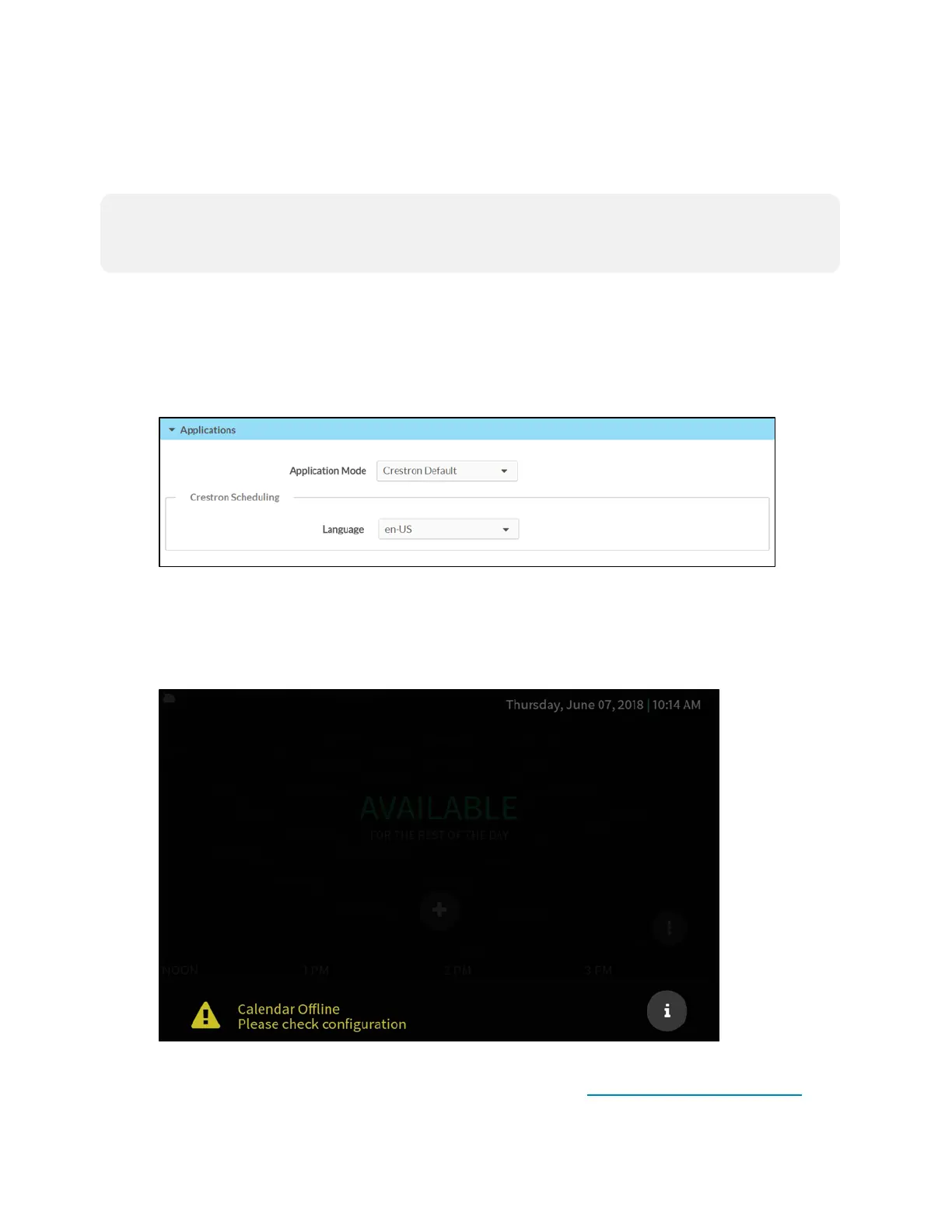
2. Navigate to Settings > Applications.
3. Select Crestron Default from the Application Mode drop-down menu.
Settings Tab - Applications(CrestronDefault)
4. Select a language for the application from the Language drop-down menu.
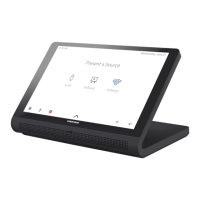
5. Reboot the touch screen. The Crestron room scheduling application user interface is
displayed on the touch screen following the reboot.
Crestron Room Scheduling Application
6. Complete the remaining setup and configuration procedures as described in the Crestron
Room Scheduling Panels Operations Guide (Doc. 8205) at www.crestron.com/manuals.










 To Next Page