7
2. INSTALLATION AND SETUP FOR CRICKET BROADBAND
This section will guide you through the
installation and setup process for
Cricket Broadband. Before getting started,
you should become familiar with the
documentation that came with your USB
Modem.
Installing Software
Warnings
• Make sure to complete the unplugging/
ejection process before removing the
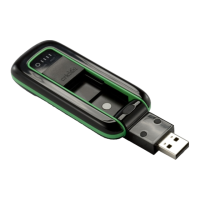
Cricket A600. If you remove the device
improperly, the modem may be damaged.
Notes
• If you have inserted the device properly,
Windows will inform you of the new
hardware. Wait until Windows completes
the “Found New Hardware” task.
Note: In Windows 2000, several windows
similar to “Found New Hardware” window
can appear and disappear automatically.
In Windows XP, several tool tips similar to
the “Found New Hardware” function will
appear and disappear in the system tray
automatically. In Windows Vista, several tool
tips similar to the “Installing device driver
software” function will appear and
disappear in the system tray automatically.
Once hardware detection is complete, you
will be prompted to start activation.
• It is normal to hear a short beep sound
each time you insert or remove the Cricket
A600. It is an audible notification that your
PC recognizes the new hardware.
Getting Started (Windows)
To install the Cricket Broadband software:
1. Turn on your computer then close all
applications.


 To Next Page