21/38
Sept.
2014
V3.1
CybTouch 8 PS User Manual
How to create or
modify a die?
If no die is yet created, the die will have no name (??? is displayed). If a die already exists,
then the last one used will be selected, here 30_12 (modifications will not alter the
existing die as they will be saved under another name).
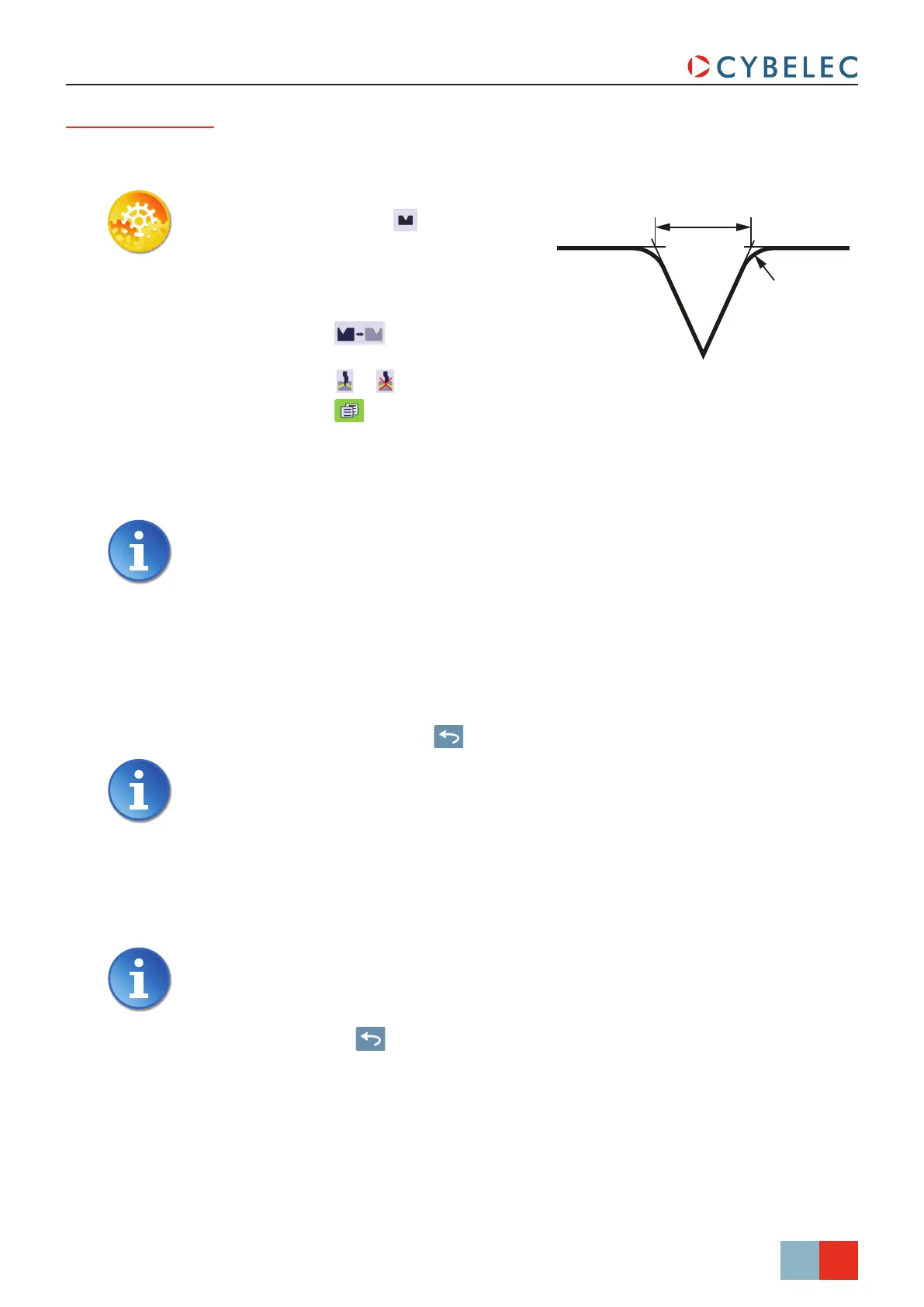
Ve
R
1. Touch the die icon to access the
die details.
2. Enter the basic characteristics (Ve,
α (die angle), Height, Radius and
Ton/m) for the new die to be created.
3. Touch the
button to invert the
die if necessary.
4. Select the
or icon to define the tool as resistant for bottoming.
5. Touch the
button to display the More page.
6. Enter the more specific dimensions L1 to Lx by referring to the graphic
representation on the right of the screen. Touching this image will display the default
representation of the tool, making it easier to identify the various dimensions.
The dimensions L1 to Lx are the same as the ones used in PC 1200, DNC 880S,
ModEva’s. If you use the same tools, print them from PC1200 to easily program
them in the CybTouch. Of course consider giving the same tools the same
name.
7. Enter the following values:
• Safety XS: Security distance between the tool and the back gauge for X axis.
• Safety RS: Security distance between the tool and the back gauge for R axis.
• Retr. zone: Retraction zone.
8. Return to previous page
.
To be allowed to save a tool, a level 2 password is required.
9. Touch the die name (here 30_12).
10. Touch Save die to overwrite the existing tool or Save die as if you want to save your
tool under another name.
11. Enter the name of the new die using the alphanumerical keypad.
We recommend that you follow the naming conventions explained in Naming
Tools (see page 22).
12. Touching the button brings you back to the program page, with the die you just
saved being selected and ready to be used.
Ve
R


 To Next Page