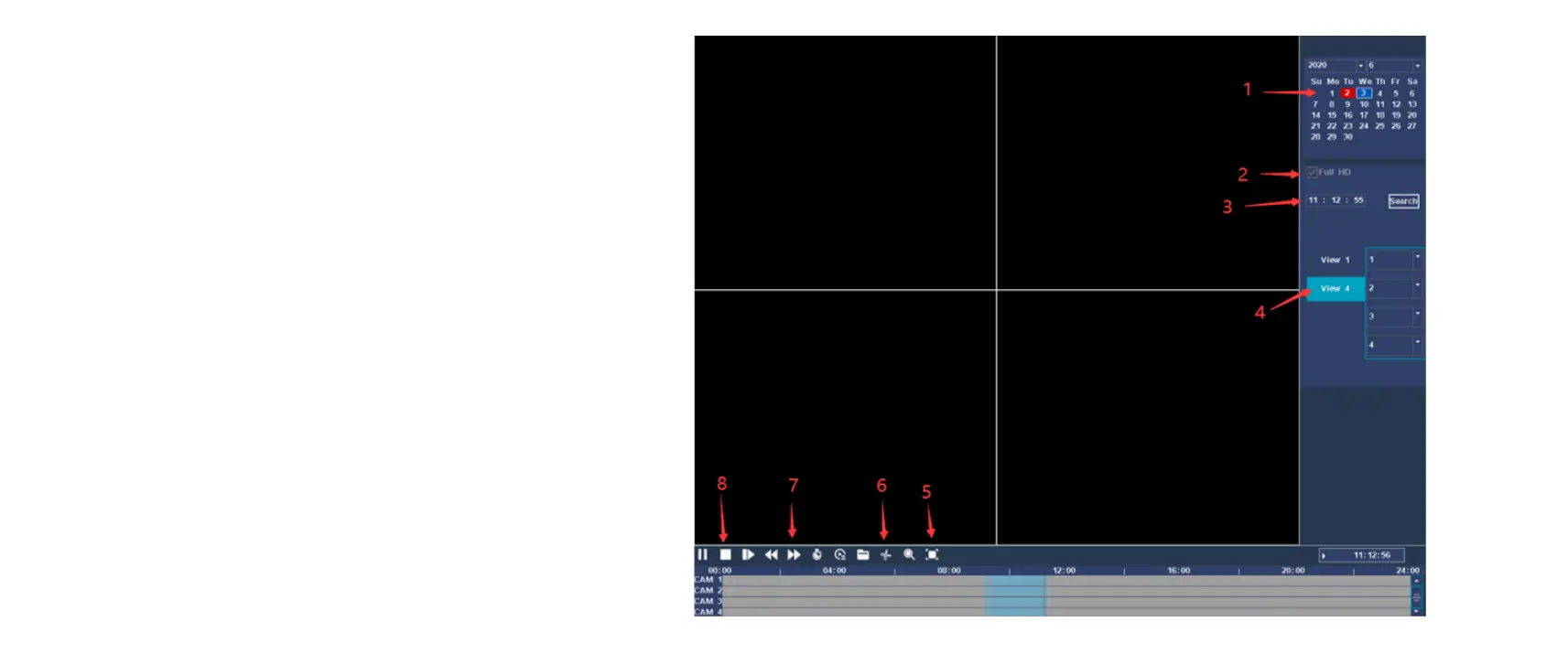
Video playback
Function description: Play back the video files in the hard disk.
You can enter the video playback interface through the shortcut
menu of the right mouse button and click the 【Video Playback】
option, as shown in the following figure:
1.Time and date : Select the time and date. The date with a white
border is the current system date; the date with a red background
indicates that there is a recording on the current date
2.Full HD : Select sub-stream playback/mainstream playback.
3. Time selection : Choose a good time and date, you can
search for a specific time recording
4.Channel selection : Select the specified channel to record.
3. Full screen mode : Mouse click all full screen to enter the full-
screen playback interface
4. File backup : Jump to the backup interface for the backup
operation. Click the button to pop up Figure 3.5, you can follow the
instructions below. Note: Before backing up files, you need to
install a storage device that is sufficient to hold the stored files; the
backup is terminated midway, and files that have been copied to
the storage device can be played back independently.
7. Play ratio : Display the speed multiple of fast or slow
playback.
8. Stop playback : Video recording stops playing.



 To Next Page