EasyManua.ls Logo

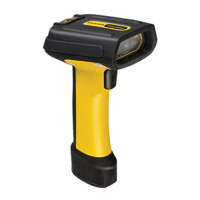
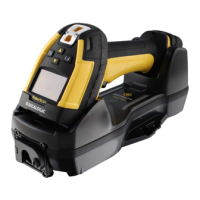
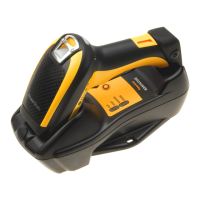
Datalogic PowerScan PD9630-SR - User Manual

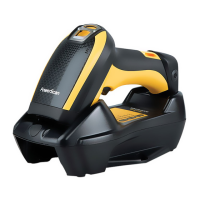
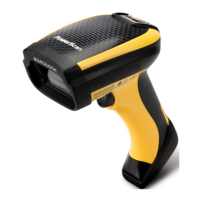
Datalogic PowerScan PD9630-SR
360 pages
Print Icon
To Next Page IconTo Next Page
Loading...
L
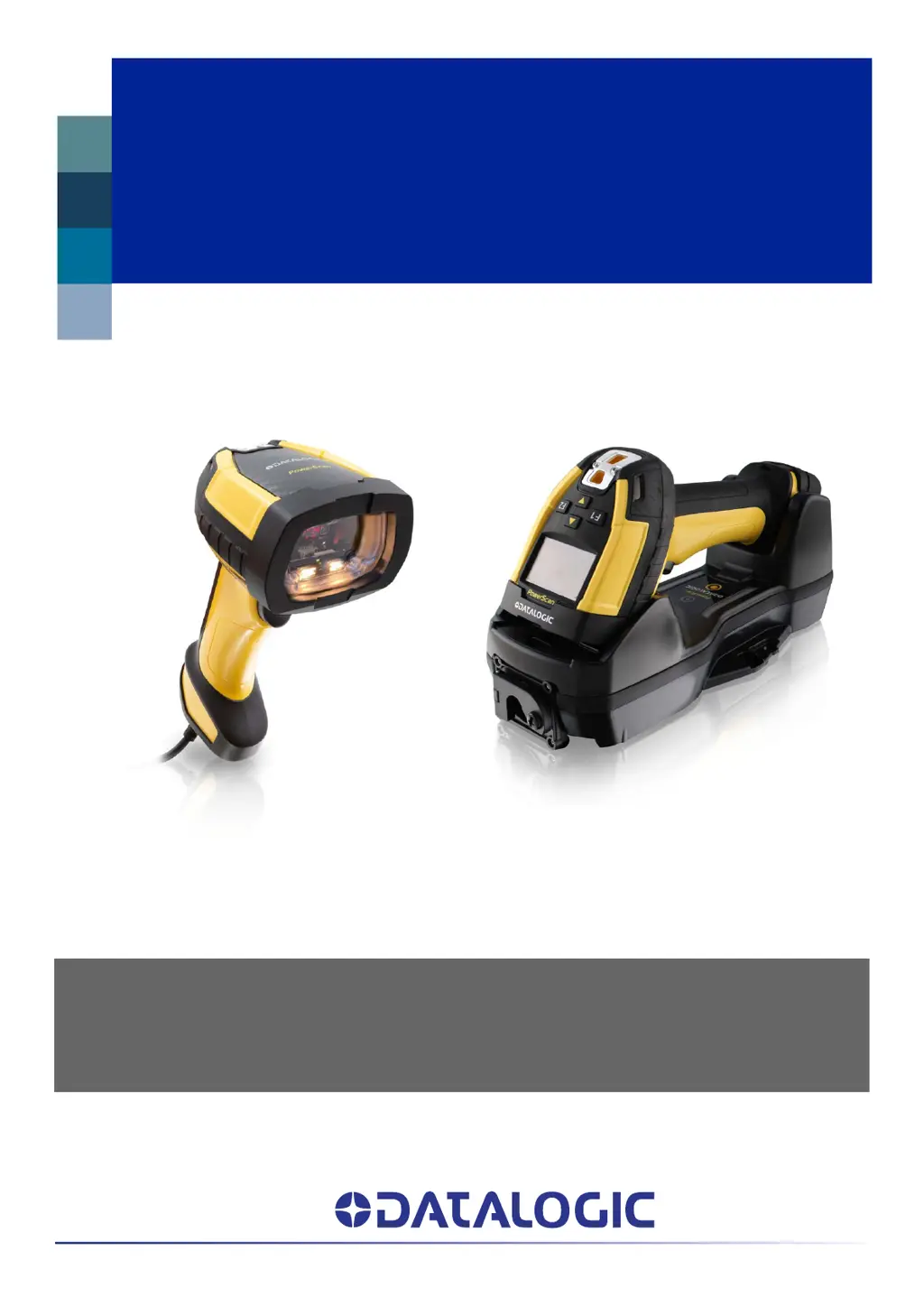
PowerScan™ Family
PD/PM96XX
PRODUCT REFERENCE GUIDE
Industrial Corded and Cordless Handheld
Area Imager Bar Code Reader

Table of Contents

Other manuals for Datalogic PowerScan PD9630-SR

Questions and Answers

  • V
    vmatthewsAug 14, 2025
    What to do if Datalogic PowerScan PD9630-SR Barcode Reader LED is on but barcode does not decode?
    • P
      Paul FryeAug 14, 2025
      If the LED is on but the Datalogic Barcode Reader isn't decoding, consider these possibilities: * The reader might not be programmed for the bar code type you're scanning. Ensure it's properly programmed. * The bar code label could be damaged or unreadable. Check the label's condition and try scanning a different bar code. * The distance between the reader and the bar code might be incorrect. Adjust the distance by moving the reader closer or further away from the bar code.
  • G
    gwagnerAug 17, 2025
    How to fix Datalogic PowerScan PD9630-SR Barcode Reader when barcode is decoded but not transmitted to the host?
    • P
      powersbrandonAug 17, 2025
      If the Datalogic Barcode Reader decodes the barcode but doesn't transmit it to the host, the reader might not be programmed for the correct host type. You should scan the appropriate host type bar code.
  • T
    Tabitha GarzaAug 20, 2025
    What to do if Datalogic PowerScan PD9630-SR Barcode Reader LED is on but barcode doesn't decode?
    • E
      Emily McneilAug 20, 2025
      If the LED is on, but the bar code doesn't decode, it could be due to several reasons: * The reader might not be programmed for the correct bar code type. In this case, ensure the reader is programmed to read the type of bar code scanned. * The bar code label may be unreadable. Check the label to ensure it is not defaced. You can also try scanning another bar code type. * The distance between the reader and the bar code might be incorrect. Try moving the reader closer to or further from the bar code.
  • S
    Sherry SavageAug 25, 2025
    Why Datalogic Barcode Reader does nothing when I pull the scan button?
    • A
      Austin KelleyAug 25, 2025
      If nothing happens when you pull the scan button on your Datalogic Barcode Reader, the issue might be due to: * No power to the reader. Check the system power and ensure the power supply is connected. * Loose interface or power cables. Make sure all cable connections are secure.
  • E
    Erik MartinAug 27, 2025
    What to do if Datalogic Barcode Reader LED is on but barcode won't decode?
    • P
      Phillip RiveraAug 27, 2025
      If the LED is on but the barcode doesn't decode, it could be due to several reasons: * The reader might not be programmed for the correct barcode type. Ensure the reader is programmed to read the type of barcode you are scanning. * The barcode label may be unreadable. Check the label to ensure it is not damaged. You can also try scanning another barcode. * The distance between the reader and the barcode might be incorrect. Try moving the reader closer to or further away from the barcode.
  • L
    lopezshelleyAug 30, 2025
    Why Datalogic Barcode Reader doesn't work when I pull the scan button?
    • K
      kathleen52Aug 30, 2025
      If nothing happens when you pull the scan button on your Datalogic Barcode Reader, it could be due to the following reasons: * There may be no power to the reader. Check the system power and ensure the power supply is connected. * The interface or power cables might be loose. Ensure all cable connections are secure.
  • C
    Cindy TorresSep 3, 2025
    Why nothing happens when I pull the scan button on my Datalogic PowerScan PD9630-SR Barcode Reader?
    • E
      Eric LambSep 3, 2025
      If nothing happens when you pull the scan button on your Datalogic Barcode Reader, check the following: * Ensure the system has power and the power supply is correctly connected. * Make sure all cable connections are secure, as loose interface or power cables can cause this issue.
  • J
    Jennifer MooreSep 6, 2025
    How to fix Datalogic PowerScan PD9630-SR that decodes but doesn't transmit to host?
    • A
      Amy ChavezSep 6, 2025
      If the bar code is decoded but not transmitted to the host, the Datalogic Barcode Reader may not be programmed for the correct host type. To resolve this, scan the appropriate host type bar code.
  • M
    Molly FriedmanSep 9, 2025
    What to do if Datalogic Barcode Reader decodes but doesn't transmit to the host?
    • J
      Jared JacksonSep 9, 2025
      If the barcode is decoded but not transmitted to the host, the reader might not be programmed for the correct host type. Scan the appropriate host type barcode to resolve this.

Summary

PREFACE

ABOUT THIS MANUAL

Describes the purpose and content of the manual.

OVERVIEW

Provides a summary of the manual's chapters and structure.

CHAPTER 1 INTRODUCTION

ABOUT THE READER

Introduces the PowerScan family of bar code readers and their features.

General Features

Details the common features and capabilities of the PowerScan readers.

BATTERY SAFETY (ONLY FOR PM96 XX)

Battery Safety Precautions

Lists critical safety guidelines for handling and using the battery pack.

PROGRAMMING THE READER

Configuration Methods

Outlines the methods available for configuring the reader, including bar codes and software.

CHAPTER 2 SETUP

SETTING UP THE POWERSCAN PD96 XX READER

Step-by-step guide to connect and establish communication with the reader.

CONNECT HOST INTERFACE

Details on connecting the reader to a host system via different interfaces.

RS-232 Serial Connection

Specific instructions for establishing an RS-232 serial connection.

USB Connection

Guidance on connecting the reader via a USB interface.

LINKING THE READER

Link Datalogic RF Devices to Base

Steps to establish a wireless connection between the handheld reader and the base station.

MOUNTING INSTRUCTIONS

Wall Mounting

Details on how to orient and mount the base station on a wall.

SYSTEM CONNECTIONS

CONNECTING AND DISCONNECTING THE CABLES

Step-by-step instructions for connecting and disconnecting various cables.

INTERFACE SELECTION

CONFIGURING THE INTERFACE

Steps to scan programming bar codes for interface type selection.

CUSTOMIZING CONFIGURATION SETTINGS

Interface Settings

Information on configuring global and interface-specific settings.

CHAPTER 3 CONFIGURATION WITH BAR CODES

CONFIGURATION PARAMETERS

Describes how to change reader parameters to meet application needs.

Parameters common to all interface applications:

Details common parameters applicable across all interface types.

GLOBAL INTERFACE FEATURES

Host Commands - Obey;Ignore

Setting to control whether the reader obeys or ignores host commands.

CONFIGURATION | RS-232 INTERFACE

RS-232 STANDARD SETTINGS

Parameters for standard RS-232 communication settings like Baud Rate, Data Bits, etc.

RS-232;USB COM PARAMETERS

Intercharacter Delay

Specifies the delay between transmitted characters in milliseconds.

ACK NAK Options

Enables/disables support for the RS-232 ACK/NAK protocol.

CONFIGURATION | KEYBOARD INTERFACE

COUNTRY MODE

Specifies the country/language supported by the keyboard layout.

OTHER KEYBOARD PARAMETERS

Encoding Type

Selects the character encoding type for keyboard data transmission.

CHAPTER | READING PARAMETERS

SCANNING FEATURES

Parameters controlling how the reader scans and detects codes.

LED AND BEEPER INDICATORS

Settings for the reader's LED and beeper feedback.

CHAPTER | 1 D SYMBOLOGIES

UPC-A

Options specific to the UPC-A symbology.

CODE 39

Options specific to the Code 39 symbology.

CODE 128

Options specific to the Code 128 symbology.

CHAPTER | 2 D SYMBOLOGIES

AZTEC CODE

Options specific to the Aztec Code symbology.

DATA MATRIX

Options specific to the Data Matrix symbology.

CHAPTER | DISPLAY AND KEYBOARD FEATURES

Key Programming

Configures user-assigned functions for function keys.

CHAPTER | MOTION FEATURES

Motionless Timeout

Sets the time before the reader is considered motionless.

CHAPTER | POWER MANAGEMENT

BATTERY PROFILES

Allows selection of different usage profiles for the reader's battery.

CHAPTER | WIRELESS FEATURES

BATCH FEATURES

Settings for storing and sending labels in batch mode.

RF ADDRESS STAMPING

Source Radio Address Transmission

Enables/disables transmission of source radio address information.

FEATURES FOR STAR MODELS ONLY

STAR Radio Protocol Timeout

Sets the wait time before transmission between reader and base station is considered failed.

CHAPTER 4 REFERENCES

RS-232 PARAMETERS

Explanations and examples of RS-232 parameters.

DATA FORMAT

Explanations and examples for data formatting features.

SCANNING FEATURES

Explanations and examples of scanning features.

CHAPTER 5 MESSAGE FORMATTING

MESSAGE FORMATTING

Rules and formats for messages exchanged between the host and the base station.

APPENDIX A TECHNICAL SPECIFICATIONS

PD96 XX TECHNICAL SPECIFICATIONS

Lists physical, electrical, and optical characteristics of PD96XX models.

RADIO CHARACTERISTICS

Information on frequency, speed, range, and device limits for radio communication.

TROUBLESHOOTING

APPENDIX B STANDARD DEFAULTS

DEFAULT EXCEPTIONS

Lists default exceptions based on interface type.

APPENDIX C SAMPLE BARCODES

1 D Barcodes

Displays sample 1D barcodes for common symbologies.

2 D Barcodes

Displays sample 2D barcodes for various symbologies.

APPENDIX E SCANCODE TABLES

CONTROL CHARACTER EMULATION

Details control character sets and their interface applicability.

APPENDIX F ASCII CHART

Datalogic PowerScan PD9630-SR Specifications

General IconGeneral
Scanning TechnologyLaser
Scan Rate100 scans per second
Ambient Light Immunity100, 000 Lux
IP RatingIP65
Light SourceLaser Diode
InterfaceUSB, RS-232
Resolution0.1 mm
Operating Temperature-20°C to 50°C
Storage Temperature-40°C to 70°C
Decode Capability1D, 2D
Power Supply5V DC
Humidity5% to 95% (non-condensing)
TypeHandheld Barcode Scanner

Related product manuals