15 / 24
Facelook X1 User’s Manual
Site Map Configuration
Passing Site Map: The default is enabled. If set at disable, the individual’s pictures
will not be saved in access record when recognizing face.
Temp. Detection Settings
Temp. Mode: Depend on the environment, set the detection sensitivity as [Outdoor],
[Indoor] or [Customize]. If select [Customize], manually adjust the sensitivity.
Enable: Select to enable temperature detection
Prohibit Abnormal Temp.: Select to prohibit abnormal temperature person’s access.
Temp. Unit: Select temperature unit as [Celsius] or [Fahrenheit]. The values in
“Normal Temp Range” need to be manually revised as shown in hit when changing
the unit.
Normal Temp. Range: Set normal temperature range.
Device Display Temp: Show detected temperature on screen.
Mask Detection Settings
Enable: Select to enable mask detection.
Prohibit No Mask: Select to prohibit no mask.
Live Detection
Select to recognize real human face. This option increases the possibility of
preventing fake images from pictures or mobile screens.
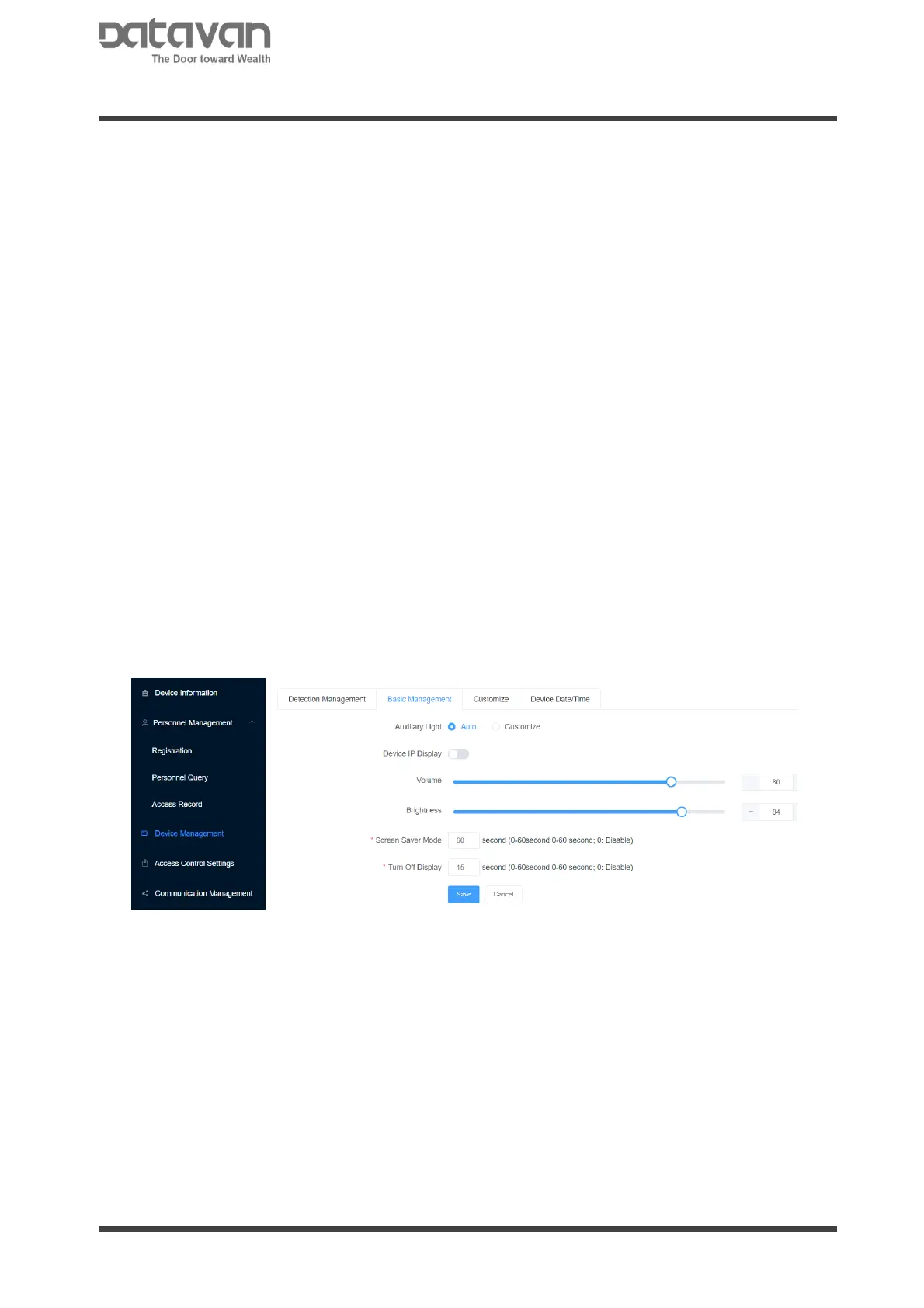
2. Basic Management
This configures general setting for device, such as light, volume, and display.
Auxiliary Light
[Auto]: Select this option to enable automatically emitting auxiliary light in case the
ambient light is dimming.
[Customize]: Specify the time to emit auxiliary light.
[Device IP Display]: Select to show device IP address on screen.
[Volume]: Set the speaker volume.
[Brightness]: Set the display brightness.
[Screen Saver Mode]: Set the time to enter screen saver. The range is 0~60
seconds. Set 0 for disable.
[Turn Off Display]: Set the time to turn off display. The range is 0~60 seconds. Set 0
for disable.



 To Next Page