PTZ TELEPROMPTER KIT TP-900
38
Synchronizing Multiple Devices
Via HDMI
The TP-900 features HDMI input and output ports, multiple TP-900 units can be connected in a daisy chain by
connecting the HDMI output of one TP-900 to the HDMI input of another. The HDMI output port is located
next to the Ethernet port.
To use the HDMI input:
1. Connect the supplied USB mouse
2. Right click to close the dvPrompter Plus application
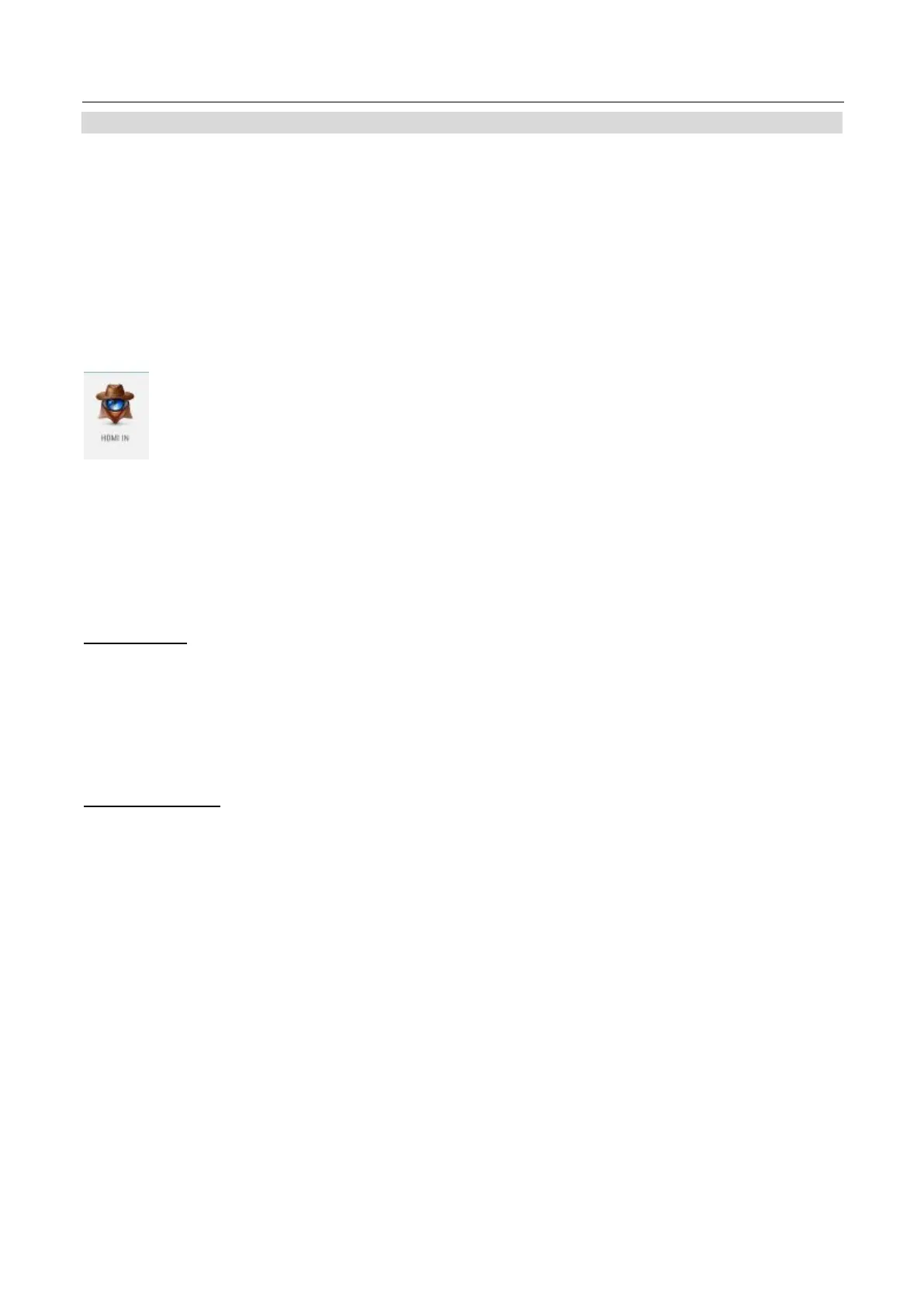
3. Left click the ‘HDMI IN’ application
4. To exit the ‘HDMI IN’ application, right click the mouse
Please Note: The scrolling refresh rate will be reduced when driving external displays via HDMI, you may
notice a slight jitter when scrolling at higher speeds.
Via Ethernet
The feature allows you to synchronize the scrolling text on two or more TP-900s via an Ethernet network.
Requirements
All devices must be identical for synchronization to work (devices with identical screen heights may
work but this cannot be guaranteed).
Slave devices will place additional load on the master device, the number of slave devices that can be
connected is dependent on the performance of the master device.
All slave devices must be connected to the same local network as the master device.
Setup Instructions
1. The master and slave devices must all have unique IP addresses on the same network.
We would recommend connecting all TP-900s to a DHCP network/router so that all
devices are assigned a unique IP address automatically. Please see page 12 for
instructions on switching the TP-900 into DHCP mode.
2. Obtain the IP address of the master device by navigating to the network menu.
3. Open the settings menu on the slave device, enable slave mode and enter the IP address
of the master.



 To Next Page