PTZ TELEPROMPTER KIT TP-900
14
Connect a PC/Laptop for control and monitoring over IP
The TP-900 has the Datavideo dvPrompter Plus app built in. The TP-900 can be monitored and controlled
from any ethernet connected device with a modern web browser.
Direct ethernet connection
1. Connect an Ethernet cable between the TP-900 and your PC/Laptop
2. Power on the TP-900, the dvPrompter Plus app will open automatically
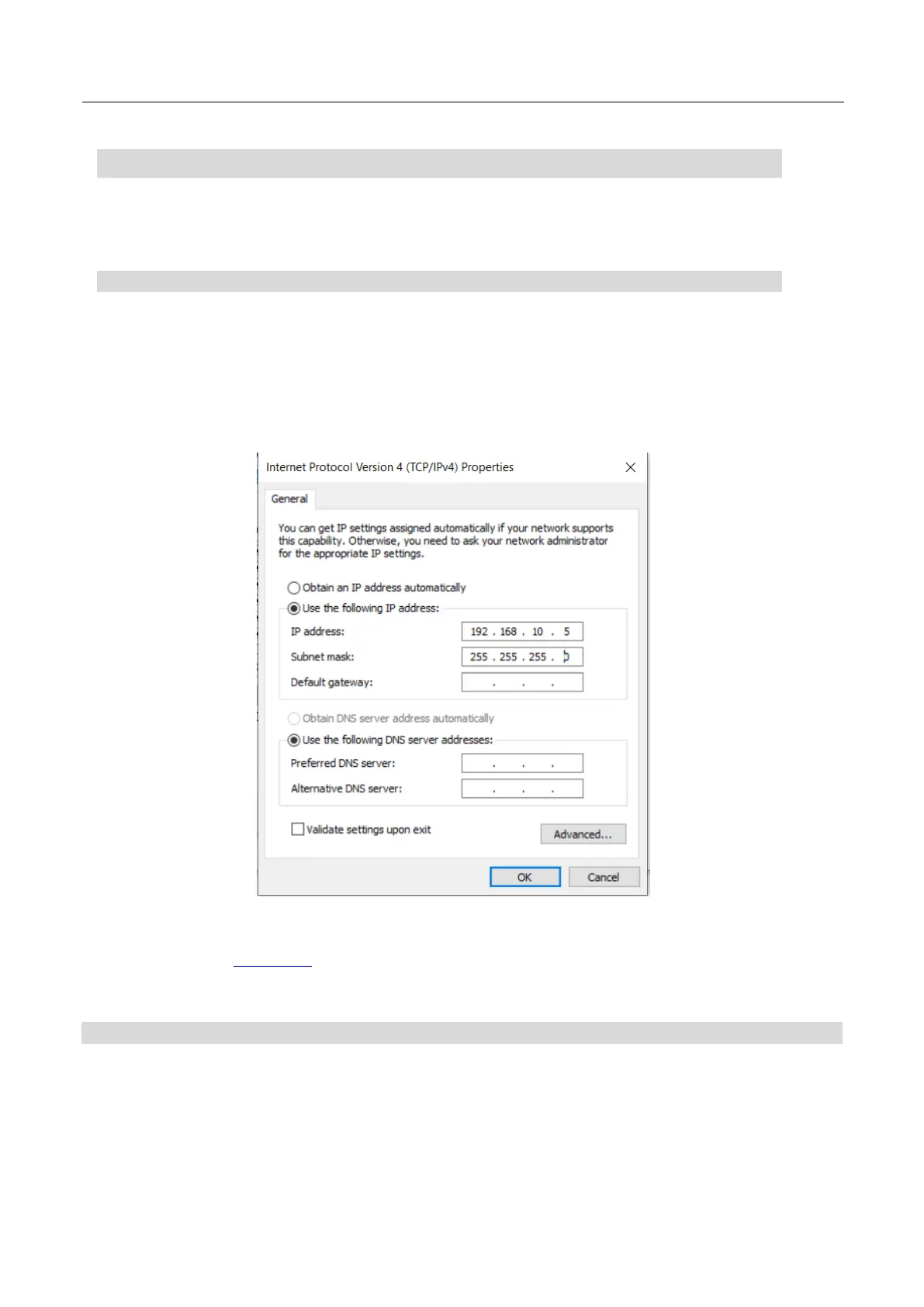
3. The TP-900 has the static IP address 192.168.10.10 by default, we must also set a static IP
address on the PC/Laptop
4. Turn on the Windows computer and set it to static IP set up within the Windows Network and
Sharing Centre. In our example the computer is given the following IP settings so that the
computer matches the same IP range as the TP-900.
5. Open a web browser and navigate to http://192.168.10.10:9789, you will see the main control
page shown below
6. Please see the appropriate section of this manual for software operation instructions
Connection via a router / DHCP LAN
1. Connect the supplied USB mouse to the TP-900 and power it on
2. Once the TP-900 has booted, right click to close the dv Prompter Plus app
3. Navigate to Settings > More > Ethernet
4. Change the ‘Ethernet IP mode’ from static to DHCP
5. Connect the TP-900 to your existing LAN
6. Open the dv Prompter Plus app



 To Next Page