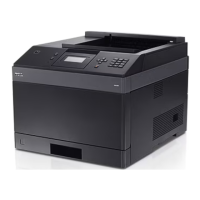
A local printer is a printer attached to one computer using a USB or parallel cable. If your printer is attached to a network instead of your computer, go to
Installing Drivers for Network Printing.
A printer driver is software that lets your computer communicate with your printer.
Use the following table to find the instructions you need for your operating system.
Windows
Some Windows operating systems may already include a printer driver that is compatible with the printer.
Installing the Printer Software
1. Turn on your computer and insert the Drivers and Utilities CD. The Drivers and Utilities CD should automatically launch. This may take a few seconds.
If the CD doesn't launch automatically, browse to the CD drive, and double-click setup.exe.
2. When the Drivers and Utilities CD screen appears, click Personal Installation - Install the printer for use on this computer only.
3. Select your printer from the drop-down box.
4. Select Typical Installation (recommended), and then click Install.
When all of the files are installed on your computer, the Congratulations! screen appears and prompts you to connect your printer.
5. Click Finish, and then connect the printer to the computer using a USB or parallel cable, and turn the printer on.
Microsoft's Plug-N-Play finishes installing the printer and prompts you when setup is complete.
Installing Additional Printer Drivers
If you wish to install additional printer drivers on your computer, follow these steps.
1. Turn on your computer and insert the Drivers and Utilities CD. If the Drivers and Utilities CD appears, click Cancel.
2. In Windows XP, click Start®Control Panel®Printers and Other Hardware®Printers and Faxes.









 To Next Page