Operating the monitor | 45
Dell ethernet/web management for monitors
Before accessing the Dell Display Web Management feature, ensure the Ethernet is
working normally.
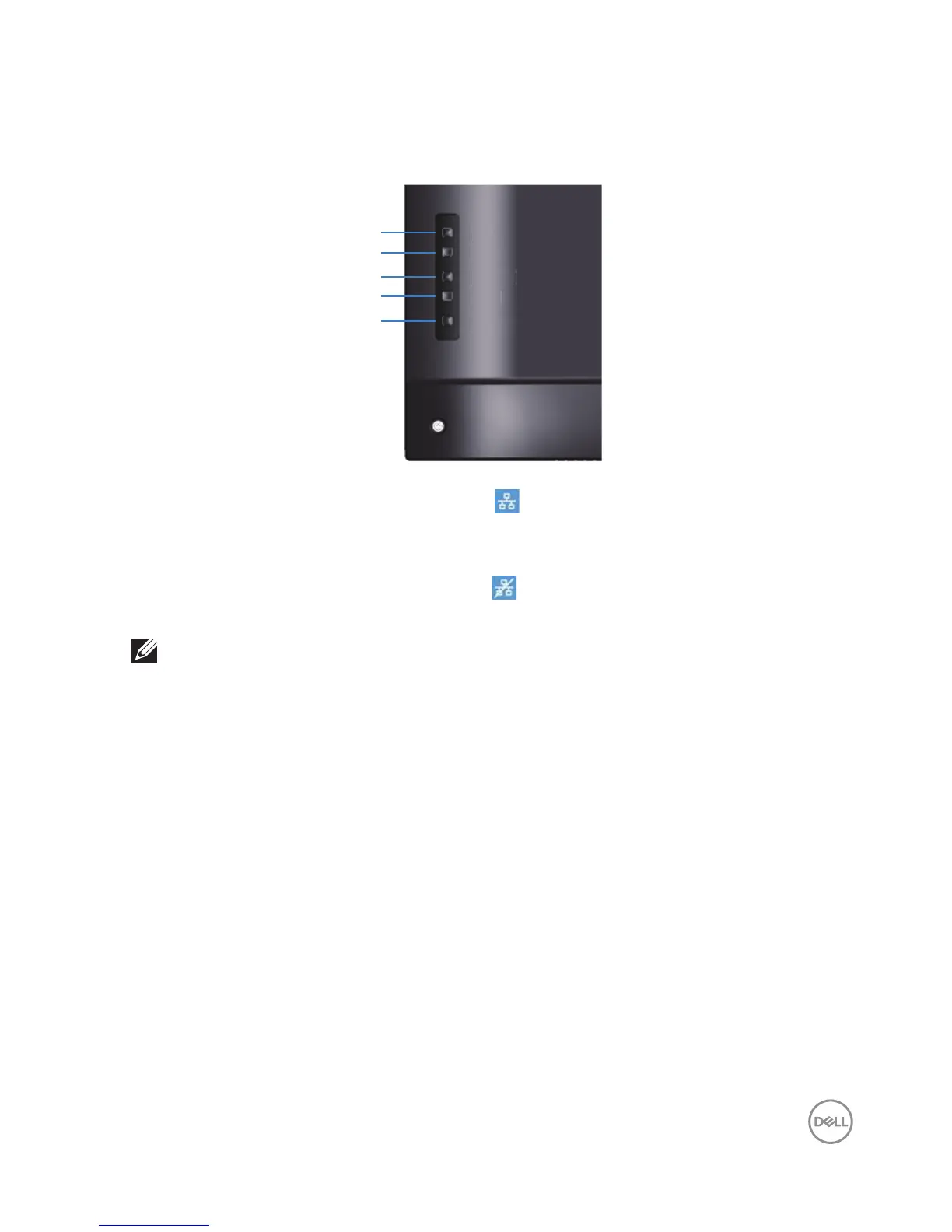
Menu
Exit
Power
Down
Up
Ethernet Enable:Hold the Up key (button 1) for 4 seconds to enable Ethernet
(when Ethernet disabled), A network icon appears and is shown on center of
display screen for 4 seconds.
Ethernet Disable:Hold the Up key (button 1) for 4 seconds to disable Ethernet
(when Ethernet enabled), A network icon appears and is shown on center of
display screen for 4 seconds.
NOTE:
RS232 remains enabled, whether Ethernet is enabled or dis-
abled.
This monitor comes with networking capability which lets you remotely access and
change settings such as Input Source Selection, Brightness and Volume.
To access the Dell Display Web Management tool you need to set the IP Addresses
for your computer and the monitor.
1. Press the Menu key on the remote control to display the IP Address of the
monitor, or by navigating to OSD Menu > Others. By default, the IP Address is
10.0.50.100










 To Next Page