EasyManua.ls Logo

Dell Inspiron 15 3525 - User Manual

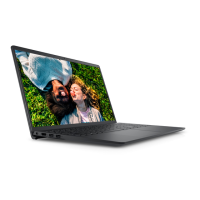
Dell Inspiron 15 3525
97 pages
Print Icon
To Next Page IconTo Next Page
Loading...
Inspiron 15 3525
Service Manual
Regulatory Model: P112F
Regulatory Type: P112F005/P112F006
February 2022
Rev. A00

Table of Contents

Other manuals for Dell Inspiron 15 3525

Questions and Answers

  • J
    Javier RandallAug 18, 2025
    What to do if my Dell Inspiron 15 3525 Laptop says 'No memory/RAM detected'?
    • K
      Karen MoranAug 19, 2025
      If your Dell Laptop is not detecting memory/RAM, first confirm that the memory module is installed properly. If the problem persists, the memory module may need to be replaced.
  • J
    jonesnicoleAug 21, 2025
    How to fix a Dell Inspiron 15 3525 memory/RAM failure?
    • B
      Benjamin FletcherAug 21, 2025
      To address a memory/RAM failure in your Dell Laptop, try resetting and swapping the memory modules among the slots. If the issue continues, consider replacing the memory module.
  • M
    Marc PerkinsAug 23, 2025
    What should I do if my Dell Laptop has invalid memory installed?
    • J
      Jesse FlowersAug 23, 2025
      If your Dell Laptop indicates that invalid memory is installed, attempt to reset and swap the memory modules among the slots. If the problem persists, replacing the memory module might be necessary.
  • M
    Megan DavisAug 26, 2025
    What to do if my Dell Inspiron 15 3525 Laptop has a system board failure (including BIOS corruption or ROM error)?
    • C
      Christine FrederickAug 26, 2025
      If your Dell Laptop is experiencing a system board failure, including BIOS corruption or a ROM error, flash the latest BIOS version. If the problem continues, the system board will need to be replaced.
  • B
    Benjamin EdwardsAug 27, 2025
    How to fix CPU failure on Dell Inspiron 15 3525?
    • R
      Richard LopezAug 28, 2025
      To address CPU failure on your Dell Laptop, run the Dell Support Assist/Dell Diagnostics tool. If the problem persists, replacing the system board is recommended.
  • A
    Andrew WilliamsAug 30, 2025
    How to fix a Dell Inspiron 15 3525 with System board/Chipset Error?
    • H
      huangbenjaminAug 30, 2025
      If your Dell Laptop is showing a System board/Chipset Error, the suggested solution is to replace the system board.
  • W
    Wendy MillerSep 1, 2025
    What to do if my Dell Laptop has a BIOS Recovery image not found?
    • S
      smithtonyaSep 1, 2025
      If your Dell Laptop displays a message indicating that the BIOS Recovery image was not found, flash the latest BIOS version. If the problem persists, replace the system board.
  • M
    mckenziechristopherSep 4, 2025
    What to do if my Dell Inspiron 15 3525 Laptop has a BIOS Recovery image found but invalid?
    • T
      Thomas JohnsonSep 4, 2025
      If your Dell Laptop indicates that the BIOS Recovery image was found but is invalid, flash the latest BIOS version. If the issue persists, the system board should be replaced.
  • R
    Randall PerezSep 6, 2025
    How to fix LCD failure (SBIOS message) on Dell Laptop?
    • D
      dustindyerSep 6, 2025
      If your Dell Laptop is experiencing an LCD failure with an SBIOS message, replace the LCD module.
  • D
    Dr. Elizabeth Herrera MDSep 8, 2025
    How to fix Flash corruption detected by SBIOS on Dell Laptop?
    • R
      Rebecca JonesSep 8, 2025
      If your Dell Laptop detects flash corruption via SBIOS, press the power button for over 25 seconds to perform an RTC reset. If the problem persists, replace the system board. Alternatively, disconnect all power sources (AC, battery, coin cell) and drain flea power by pressing and holding down the power button for 3-5 seconds to ensure all power is drained.

Summary

Working Inside Your Computer

Safety Instructions

General safety guidelines for protecting the computer and ensuring personal safety during repairs.

Before Working Inside Your Computer

Steps to prepare the computer before performing any internal maintenance or repairs.

Safety Precautions

Precautionary measures to follow before performing any disassembly or break/fix procedures.

Electrostatic Discharge (ESD) Protection

Measures to prevent damage to electronic components from electrostatic discharge.

Removing and Installing Components

Battery

Precautions and procedures for handling and replacing the laptop's Lithium-ion battery.

Lithium-ion Battery Precautions

Essential safety guidelines for handling Lithium-ion batteries to prevent damage or injury.

Removing the 3-cell Battery

Step-by-step guide to safely remove the 3-cell battery from the computer.

Installing the 3-cell Battery

Step-by-step guide to safely install the 3-cell battery into the computer.

Removing the 4-cell Battery

Step-by-step guide to safely remove the 4-cell battery from the computer.

Installing the 4-cell Battery

Step-by-step guide to safely install the 4-cell battery into the computer.

Memory Modules

Procedures for removing and installing RAM modules.

Removing the Memory Modules

Step-by-step guide to safely remove memory modules from the computer.

Installing the Memory Modules

Step-by-step guide to safely install memory modules into the computer.

M.2 Solid-State Drive

Procedures for removing and installing M.2 solid-state drives.

Removing the M.2 2230 Solid State Drive

Step-by-step guide to remove the M.2 2230 SSD from the computer.

Installing the M.2 2230 Solid State Drive

Step-by-step guide to install the M.2 2230 SSD into the computer.

Removing the M.2 2280 Solid State Drive

Step-by-step guide to remove the M.2 2280 SSD from the computer.

Installing the M.2 2280 Solid State Drive

Step-by-step guide to install the M.2 2280 SSD into the computer.

Hard Drive Assembly

Procedures for removing and installing the hard drive assembly.

Removing the Hard Drive

Step-by-step guide to safely remove the hard drive assembly from the computer.

Installing the Hard Drive

Step-by-step guide to safely install the hard drive assembly into the computer.

Heat Sink

Procedures for removing and installing the heat sink.

Removing the Heat Sink - UMA

Step-by-step guide to remove the UMA heat sink.

System Board

Procedures for removing and installing the system board.

Removing the System Board

Step-by-step guide to remove the system board from the computer.

Installing the System Board

Step-by-step guide to install the system board into the computer.

BIOS Setup

Updating the BIOS

Step-by-step guide for updating the BIOS on a Windows operating system.

Troubleshooting

Handling Swollen Lithium-ion Batteries

Critical safety guidelines and procedures for handling swollen lithium-ion batteries.

Dell SupportAssist Pre-boot System Performance Check Diagnostics

Overview and steps for running system diagnostics before the OS loads.

Running the SupportAssist Pre-Boot System Performance Check

Detailed steps to initiate and run the SupportAssist pre-boot diagnostic tests.

Built-in Self-Test (BIST)

Information on built-in diagnostic tools for system board and LCD testing.

M-BIST

Manual initiation and interpretation of the Motherboard Built-In Self-Test.

LCD Power Rail Test (L-BIST)

Procedure to test the LCD power rail for potential failures.

LCD Built-in Self Test (BIST)

How to run the LCD Built-In Self Test to diagnose screen abnormalities.

Drain Residual Flea Power (Perform Hard Reset)

Instructions for draining residual power to perform a hard reset on the computer.

Dell Inspiron 15 3525 Specifications

General IconGeneral
ProcessorAMD Ryzen 5 5625U
RAM8GB DDR4
Storage256GB SSD
Display15.6-inch FHD (1920 x 1080)
GraphicsAMD Radeon Graphics
Operating SystemWindows 11 Home
Battery3-cell, 41 Whr
Ports2 x USB 3.2 Gen 1, 1 x USB 2.0, 1 x HDMI 1.4, 1 x Headphone/Microphone Combo, 1 x SD Card Reader
WirelessBluetooth
Weight1.68 kg (3.70 lbs)

Related product manuals