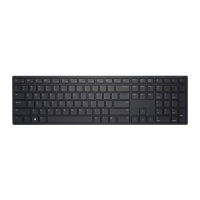
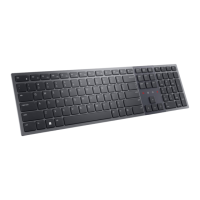
Pairing your wireless keyboard
17
Pairing your wireless keyboard using Dell Pair
NOTE: Dell Pair is available with select accessories, commercial & consumer computers. Availability and functionality vary by model.
For more details visit Dell.com/support/kbdoc/000201693.
1. Ensure that Bluetooth of computer is turned on.
2. Place your wireless keyboard near your computer. Then press the connection-mode key to switch to the Bluetooth pairing mode (
).
3. Press the connection-mode key for three seconds. Ensure that the Bluetooth channel LED (
) blinks white, indicating the Bluetooth
pairing is initiated.
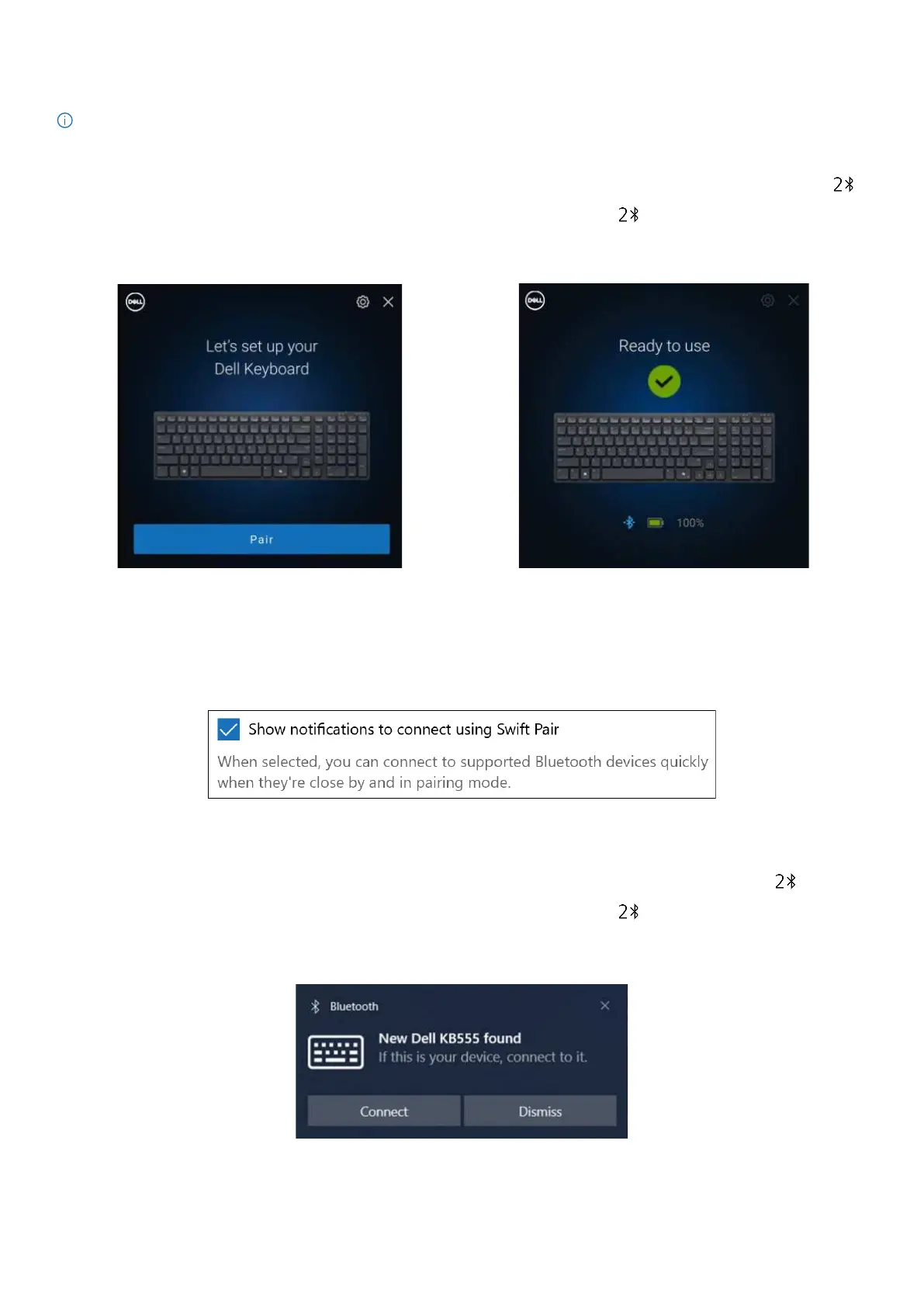
4. The Let’s set up your Dell Keyboard window appears. Click Pair.
Figure 27-1. Pairing your wireless keyboard using Dell Pair Figure 27-2. You will see this when pairing success.
Pairing your keyboard using Swift Pair
1. In Windows Search, type Bluetooth.
2. Click Bluetooth and other devices settings. The Settings window appears.
3. Select the Show notifications to connect using Swift Pair check box.
Figure 28. Enable Swift Pair
4. Turn on the Bluetooth.
5. Place your wireless keyboard near your computer. Then press the connection-mode key to switch to the pairing mode (
).
6. Press the connection-mode key for three seconds. Ensure that the Bluetooth channel LED (
) blinks white, indicating the Bluetooth
pairing is initiated
The New Dell KB555 found window appears.
Figure 29. Pairing your wireless keyboard with Swift Pair
7. Click Connect to confirm the pairing process between the wireless wireless keyboard and your computer.


 To Next Page