Dell Peripheral Manager
7
Dell Peripheral Manager
Dell Peripheral Manager software enables you to perform the following:
•
Assign program shortcuts to device programmable buttons or keys through the Action tab.
- Set primary mouse button (left or right) (for mouse only).
- Adjust mouse sensitivity through DPI setting (for mouse only).
- Adjust polling rate (for mouse only).
•
View device information such as firmware version and battery status through the Info tab.
•
Upgrade the latest firmware updates on your devices.
•
Pair additional devices through the Dell Secure Link USB Receiver or directly to your computer through Bluetooth.
For more information, see Dell Peripheral Manager User’s Guide on the product page at
www.dell.com/support.
Setting up your wireless mouse
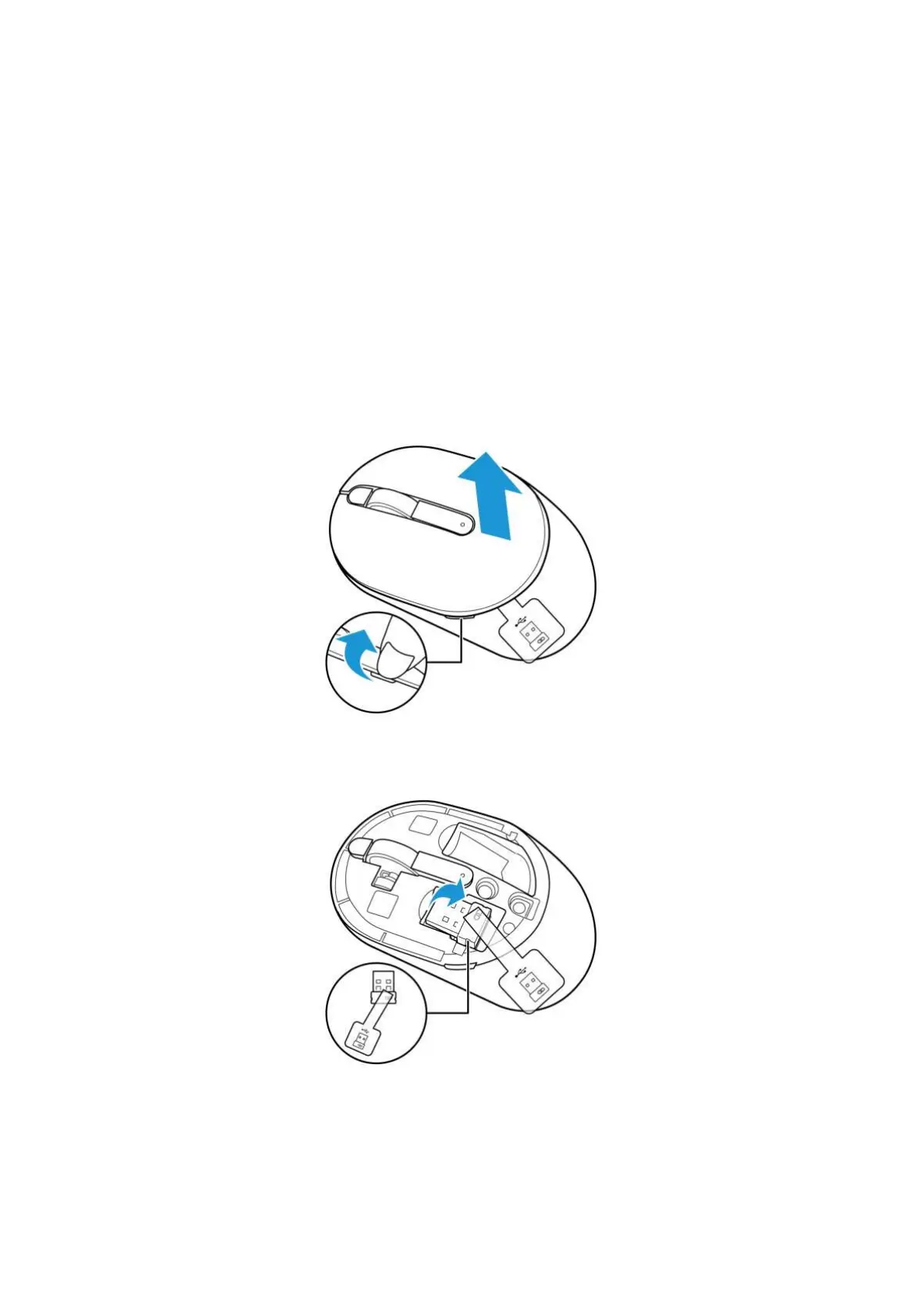
1. Locate the slot on the side of the mouse cover. Using your fingertip, lift the mouse cover.
Figure 3. Removing the mouse cover
2. Remove the Dell Secure Link USB Receiver from its compartment.
Figure 4. Removing the Dell Secure Link USB Receiver


 To Next Page