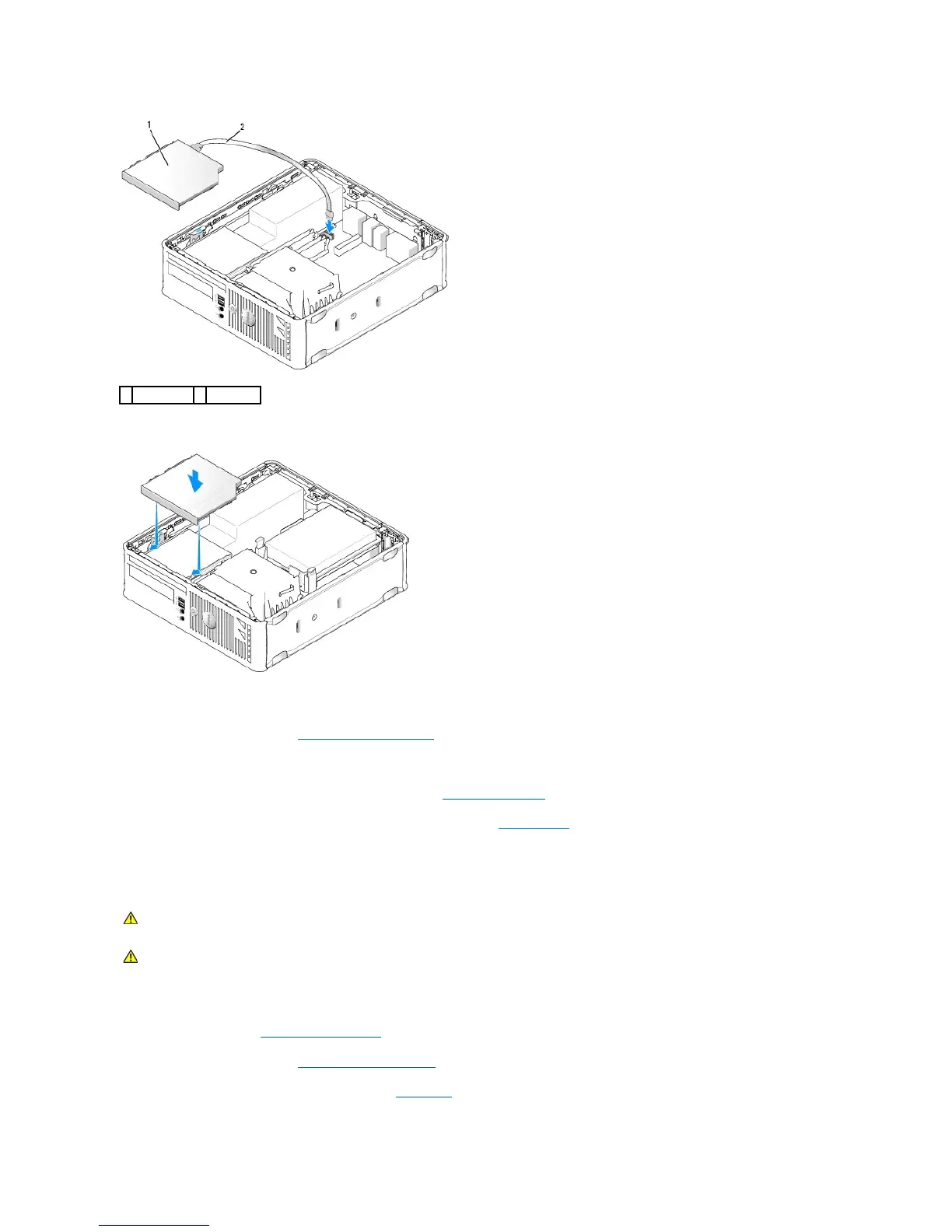
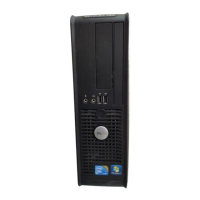
7. Gently position the drive until it clicks into place.
8. Check all cable connections and fold cables out of the way to provide airflow for the fan and cooling vents.
9. Replace the computer cover (see Replacing the Computer Cover).
10. See the documentation that came with the drive for instructions on installing any software required for drive operation.
11. Enter system setup and select the appropriate Drive option (see Entering System Setup).
12. Verify that your computer works correctly by running the Dell Diagnostics (see Dell Diagnostics).
Floppy Drive
Removing a Floppy Drive
1. Follow the procedures in Working on Your Computer.
2. Remove the computer cover (see Removing the Computer Cover).
3. Remove the optical drive and carefully set it aside (see Optical Drive).
WARNING: Before working inside your computer, read the safety information that shipped with your computer. For additional safety best
practices information, see the Regulatory Compliance Homepage at www.dell.com/regulatory_compliance.









 To Next Page