EasyManua.ls Logo

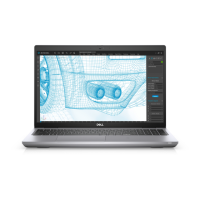
Dell Precision 3561 - User Manual

Dell Precision 3561
117 pages
Print Icon
To Next Page IconTo Next Page
Loading...
Precision 3561
Service Manual
Regulatory Model: P104F
Regulatory Type: P104F003/P104F004
August 2021
Rev. A02
Questo manuale d’istruzione è fornito da trovaprezzi.it. Scopri tutte le offerte per Dell Precision 3561
X2CND o cerca il tuo prodotto tra le migliori offerte di Notebook

Table of Contents

Other manuals for Dell Precision 3561

Questions and Answers

  • A
    Aaron SmithJul 28, 2025
    What to do if my Dell Precision 3561 battery is swollen?
    • R
      Renee HillJul 28, 2025
      If you notice a swollen battery in your Dell Laptop: * Discontinue using the laptop. * Disconnect the AC adapter and allow the battery to drain to prevent further damage to the device or internal components. Swollen batteries should not be used and should be replaced and disposed of properly. It is recommended to contact Dell product support for options to replace a swollen battery under warranty or service contract, including options for replacement by a Dell authorized service technician.
  • Q
    qhowellAug 2, 2025
    What to do if my Dell Precision 3561 has Memory / RAM failure?
    • K
      Kirsten WilliamsAug 2, 2025
      If your Dell Laptop experiences a memory or RAM failure, try these steps: * Reset and swap the memory modules among the slots. If the problem continues, replace the memory module.
  • M
    Michelle HooverAug 7, 2025
    What to do if my Dell Precision 3561 has Invalid memory installed?
    • C
      campbelljohnAug 7, 2025
      If your Dell Laptop indicates that invalid memory is installed, try resetting and swapping the memory modules between the slots. If the issue persists, you may need to replace the memory module.
  • J
    Jamie DiazAug 11, 2025
    What to do if my Dell Laptop has No Memory / RAM detected?
    • R
      Robert KellerAug 11, 2025
      If your Dell Laptop is not detecting memory or RAM, first confirm that the memory module is installed properly. If the problem continues, replace the memory module.
  • K
    Kimberly WeaverAug 17, 2025
    How to fix CMOS battery failure in Dell Laptop?
    • J
      John PottsAug 17, 2025
      To address a CMOS battery failure in your Dell Laptop, reset the CMOS battery connection. If the problem persists, replace the RTC battery.
  • L
    Linda BlackwellAug 22, 2025
    How to resolve a power rail failure on a Dell Laptop?
    • K
      Kelly JonesAug 22, 2025
      To resolve a power rail failure on your Dell Laptop, replace the system board.

Summary

Notes Cautions and Warnings

Working on Your Computer

Safety Instructions

Essential safety guidelines to protect your computer and ensure personal safety.

Working Inside Your Computer

Procedures and precautions for safely performing tasks inside the computer.

ESD Protection and Field Service Kit

Guidelines for preventing electrostatic discharge damage and components of an ESD kit.

Service Mode Operations

Instructions for entering, exiting, and using Service Mode for repairs.

Removing and Installing Components

Recommended Tools and Screw List

Lists necessary tools and screw types for component replacement procedures.

Major Components Overview

Identifies and illustrates the major internal components of the computer system.

Media and Wireless Card Procedures

Instructions for SIM, microSD, WLAN, and WWAN cards.

Storage and Memory Replacement

Steps for removing and installing solid-state drives and memory modules.

Battery and System Board Replacement

Procedures for replacing the battery and the main system board.

Keyboard and Display Assembly Procedures

Guidance for replacing keyboard assembly and display assembly components.

Palm Rest Assembly Replacement

Procedures for removing and installing the palm rest assembly.

Drivers and Downloads

Downloading Drivers

Instructions on how to find and download the latest drivers for your computer.

System Setup and BIOS Configuration

BIOS Overview and Navigation

Explanation of BIOS functions and how to navigate setup menus.

System Setup Options

Details on various system configuration settings available in BIOS.

Updating the BIOS

Step-by-step guide for updating the system's BIOS.

System and Setup Passwords

Instructions for assigning, changing, or clearing system and BIOS passwords.

Troubleshooting Computer Issues

Handling Swollen Lithium-ion Batteries

Safety precautions and procedures for handling swollen laptop batteries.

Diagnostics and Self-Tests

Guide for running Dell's pre-boot diagnostics and built-in self-tests.

System Diagnostic Lights and Error Codes

Understanding system diagnostic lights and interpreting LED error codes.

Operating System Recovery

Procedures for recovering the operating system using Dell SupportAssist OS Recovery.

Hard Reset and WiFi Troubleshooting

Steps for performing a hard reset and troubleshooting WiFi connectivity.

Getting Help and Contacting Dell

Self-Help Resources

Information on accessing online support, manuals, and knowledge base articles.

Contacting Dell Support

Information on how to contact Dell for technical support or customer service.

Dell Precision 3561 Specifications

General IconGeneral
WirelessIntel Wi-Fi 6 AX201
BluetoothBluetooth 5.1
Processor11th Gen Intel Core i5/i7/i9 or Xeon
GraphicsIntel UHD Graphics
Display15.6-inch FHD (1920 x 1080) or UHD (3840 x 2160)
MemoryUp to 64GB DDR4
StorageUp to 4TB SSD
Operating SystemWindows 10 Pro
PortsHDMI 2.0
Webcam720p HD
Battery6-cell 97Whr
WeightStarting weight: 1.79 kg (3.95 lb)
DimensionsWidth: 357.80 mm (14.09 in) Depth: 233.30 mm (9.19 in)

Videos

How To Upgrade or Replace Your CMOS Battery | Dell Precision 3561

Related product manuals