14 │ About your monitor
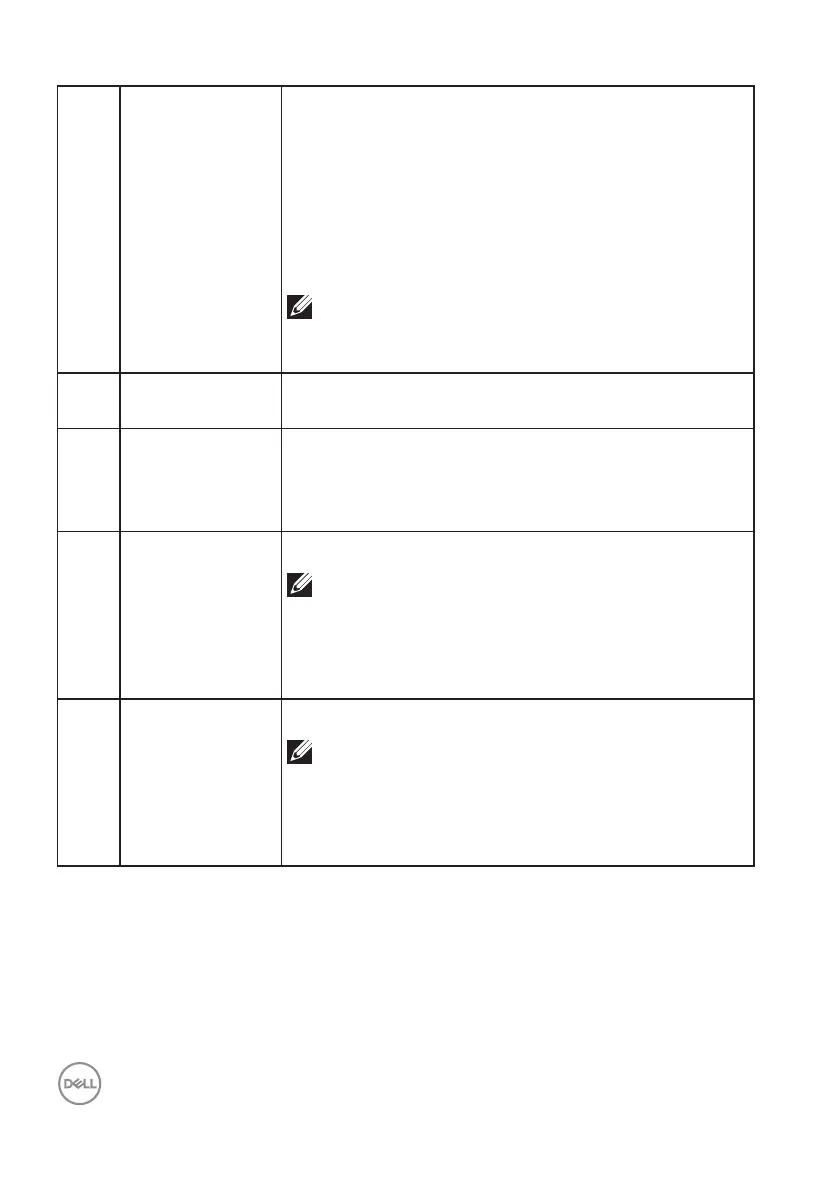
6 USB-C upstream
port
Connect the USB-C cable that came with your monitor
to the computer or mobile device. This port supports
USB Power Delivery, Data, and DisplayPort video
signal. The super speed USB 5 Gbps (USB 3.2 Gen
1) Type-C port offers the fastest transfer rate and
the alternate mode with DP 1.4 supports a maximum
resolution of 3440 x 1440 at 100 Hz, PD 20 V/3.25 A,
15 V/3 A, 9 V/3 A, 5 V/3 A.
NOTE: USB-C is not supported on Windows
versions that were released before Windows
10.
7 Audio line out
port
Connect to an external speaker or a sub-woofer
(purchased separately).*
8 Super speed USB
5 Gbps (USB 3.2
Gen 1) Type-B
upstream port
Connect the USB cable that came with your monitor
to the computer. Once this cable is connected, you
can use the USB connectors on the monitor.
9 Super speed USB
5 Gbps (USB 3.2
Gen 1) Type-A
downstream port
(3)
Connect your USB device.**
NOTE: To use this port, you must connect
the USB-C cable or USB Upstream Cable
(shipped with your monitor) to the USB-C
upstream port or the USB Type-B upstream
port on the monitor and to your computer.
10 Super speed USB
5 Gbps (USB 3.2
Gen 1) Type-A
downstream
port with Power
Charging
Connect your USB device** or charge your device
NOTE: To use this port, you must connect
the USB-C cable or USB Upstream Cable
(shipped with your monitor) to the USB-C
upstream port or the USB Type-B upstream
port on the monitor and to your computer.
*Audio line out port does not support headphones.
**To avoid signal interference, when a wireless USB device has been connected
to a USB downstream port, it is NOT recommended to connect any other USB
devices to the adjacent port(s).



 To Next Page