134 Applications
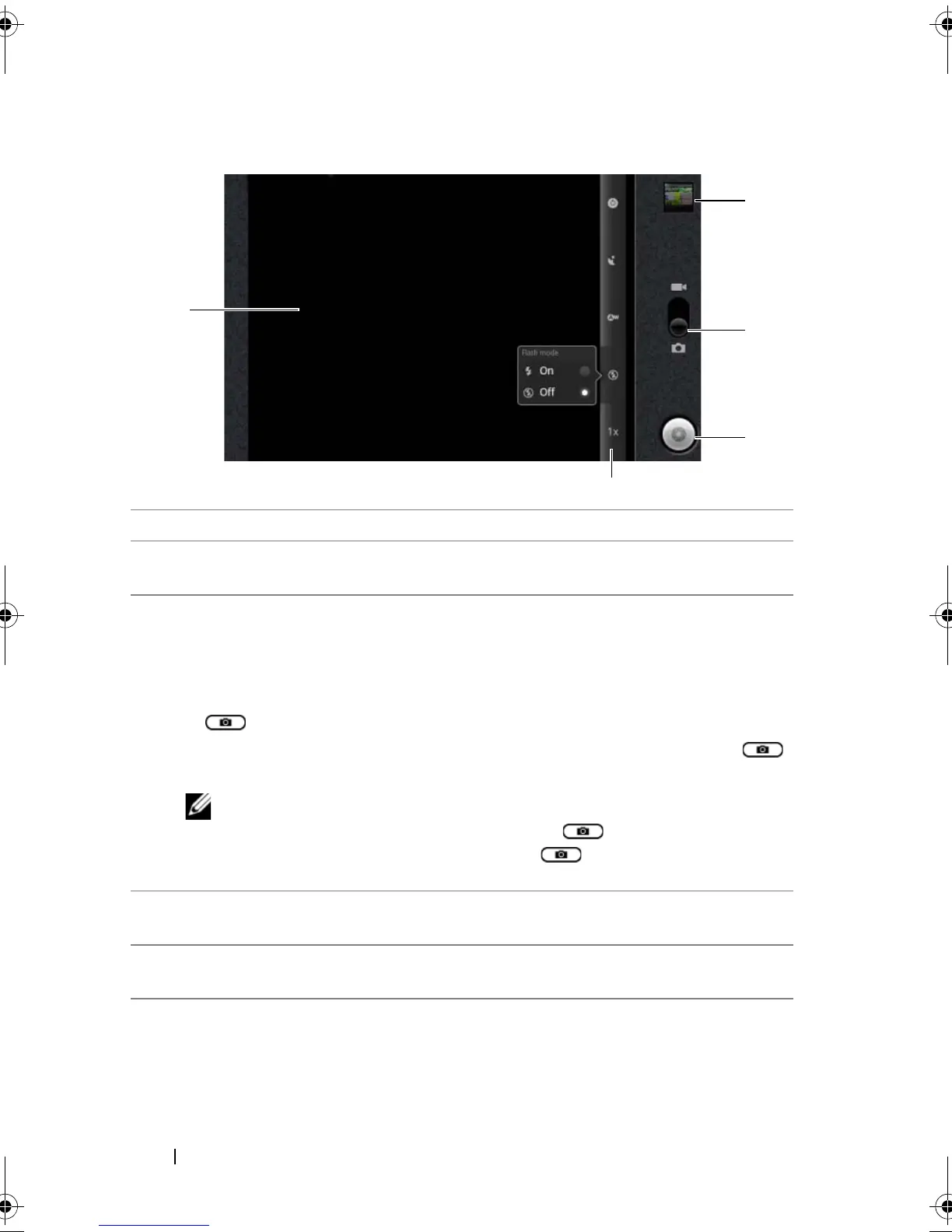
Camera controls
1 Viewfinder screen.
2 Camera setting indicator. Touch each indicator to bring up the camera
settings, and touch to select the desired setting.
3 • On-screen shutter button.
• To capture a picture:
1 Focus on the object in the viewfinder screen.
2 To start the auto focus mode, half-press and hold the camera button
, or touch and hold the on-screen shutter button.
3 Touch the on-screen shutter button or press the camera button
all the way down and release to capture the picture.
NOTE: To achieve optimal focus such as for taking a close shot,
half-press and hold the camera button to use the auto-
focus mode. Then without releasing press it again to take a
picture.
4 Drag this on-screen switch to toggle between the camera mode for
capturing pictures, and the camcorder mode for shooting videos.
5 Touch the thumbnail view of the last taken picture to view and manage
the picture using the Gallery application.
bk0.book Page 134 Friday, November 19, 2010 12:24 PM










 To Next Page