Applications 135
Additional camera settings
Touch the Menu button .
To start the camcorder mode
Touch the Menu button → Switch to video, or touch to switch to
the camcorder screen.
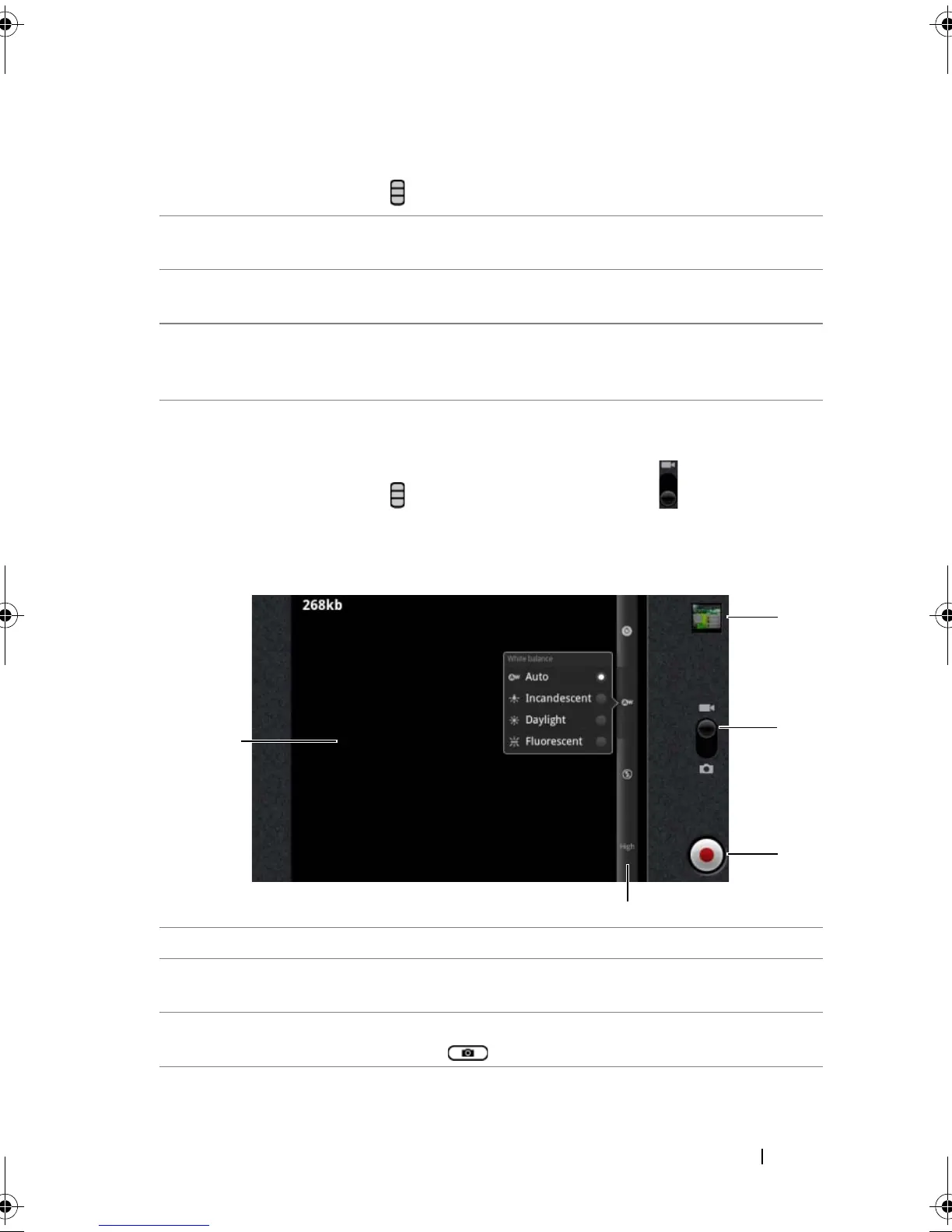
Camcorder controls
Front-Facing/Rear-Facing
Camera
Use the front-facing or rear-facing camera to
take pictures.
Gallery Open the Gallery application to view and manage
pictures.
Switch to video/camera Toggle between the camera mode for capturing
pictures, and the camcorder mode for shooting
videos.
1 Viewfinder screen.
2 Camcorder setting indicator. Touch each indicator to bring up
camcorder settings.
3 To start or stop recording, touch this on-screen video recording button
or press the camera button
bk0.book Page 135 Friday, November 19, 2010 12:24 PM










 To Next Page