EasyManua.ls Logo

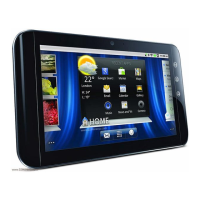
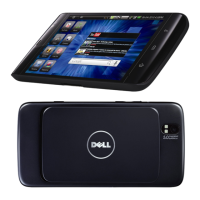
Dell Streak - User Manual

Dell Streak
165 pages
Print Icon
To Next Page IconTo Next Page
Loading...
Dell™ Streak
User's Manual
COMMENT
bk0.book Page 1 Friday, November 19, 2010 12:24 PM

Other manuals for Dell Streak

Questions and Answers

  • D
    Dylan SmithAug 29, 2025
    What to do if I cannot answer incoming calls on my Dell Streak Tablet?
    • C
      Christian WilsonAug 29, 2025
      If you cannot answer incoming calls on your Dell Tablet, move to an open space or closer to a window if you are inside, as the signal may be poor. Also, check if Airplane mode is enabled by touching the status area on the status bar and clearing the Airplane mode check box. Finally, check if the Call barring feature is enabled by touching the Home button, then the Menu button, then Settings, then Call settings, then Additional call settings, then Call barring, and then deactivating all.
  • H
    hernandezgabriellaAug 28, 2025
    What to do if my Dell Streak Tablet says SIM card error?
    • T
      Tony JonesAug 28, 2025
      If your Dell Tablet shows a SIM card error, the SIM card may be malfunctioning or damaged. Take the SIM card to your service provider for testing. The SIM card may also be inserted improperly; ensure you insert the SIM card properly. Dirt or dust on the SIM card’s metal contacts can also cause this issue. Use a soft, dry cloth to clean the SIM card’s metal contacts.
  • S
    Spencer ReynoldsAug 27, 2025
    What to do if I cannot make outgoing calls on my Dell Tablet?
    • K
      Kimberly RobertsAug 27, 2025
      If you cannot make outgoing calls on your Dell Tablet, ensure that a valid SIM card is installed in your device. If the signal is poor, move to an open space, or closer to a window if you are inside. Also, check if Airplane mode is enabled by touching the status area on the status bar and clearing the Airplane mode check box. Additionally, the Call barring feature or Fixed Dialing Numbers may be enabled. To disable Call barring, touch the Home button, then the Menu button, then Settings, then Call settings, then Call barring, and then deactivate all. To disable Fixed Dialing Numbers, touch the Home button, then the Menu button, then Settings, then Call settings, and then Fixed Dialing Numbers, and then disable Fixed Dialing Numbers (FDN).
  • M
    miranda94Aug 27, 2025
    What to do if my Dell Streak has poor reception?
    • R
      romerogregoryAug 27, 2025
      If your Dell Tablet has poor reception, it could be due to a weak network signal at your location. For example, this can happen in a basement or near a tall building. Try moving to a location where the network signal can be properly received. Also, the network may be busy, especially during peak hours. Avoid using the device at such times, or try again after waiting a short time. Finally, you may be too far away from a base station. In that case, you can request a service area map from your service provider.
  • S
    solisnicoleAug 25, 2025
    What to do if my Dell Tablet is unable to turn on?
    • M
      Michael LawsonAug 26, 2025
      If your Dell Tablet is unable to turn on, charge the device, as the battery may be empty. Additionally, ensure that the back cover is firmly secured to the device.
  • A
    Anthony HarrisAug 25, 2025
    How to fix Dell Tablet battery that does not charge?
    • J
      James SmallAug 25, 2025
      If your Dell Tablet battery isn't charging, there might be several reasons. The battery or charger could be damaged, in which case you should contact the dealer. Extreme temperatures can also prevent charging, so avoid charging in environments below 0°C or above 45°C. Finally, check all connectors to ensure they are properly connected, as poor contact between the battery and charger can also be the cause.

Summary

Dell Streak Features

Setting Up Your Dell Streak

Getting Your Device Ready for Use

Steps to prepare the device for initial operation, including SIM and battery insertion.

Using Your Dell Streak

Calling and Making Calls

Guide to opening the phone app, making calls, and managing call logs.

Internet

Customizing Your Dell Streak

Protecting Your Dell Streak

Protect Device Data with Unlock Pattern

Steps to create, disable, or change a screen unlock pattern to protect device data.

Protect Device Data with PIN

Instructions for setting up, changing, or disabling a PIN to secure the device.

Protect SIM Card with SIM Lock Password

How to enable, change, or disable the SIM card PIN to prevent unauthorized use.

Applications

Troubleshooting

Call-related Problems

Solutions for issues like SIM card errors, poor reception, and inability to make/receive calls.

System Problems

Troubleshooting steps for battery issues, device not turning on, or automatic power off.

System Corruption Recovery

Procedures for resetting the device or performing software recovery in case of system corruption.

Dell Streak Specifications

General IconGeneral
Display Size5.0 inches
Resolution480 x 800 pixels
ProcessorQualcomm Snapdragon QSD8250
RAM512 MB
Expandable StoragemicroSD, up to 32 GB
Rear Camera5 MP
Front CameraVGA
Battery Capacity1530 mAh
Operating SystemAndroid 1.6 (Donut), upgradable to 2.2 (Froyo)
Dimensions152.9 x 79.1 x 10 mm
Weight220 g
SIMMini-SIM
WLANWi-Fi 802.11 b/g
Bluetooth2.1, A2DP
GPSYes, with A-GPS
3.5mm jackYes
Display TypeTFT
Internal Storage16 GB

Related product manuals