4. Remove the system-board shield.
About this task
NOTE: Depending on the configuration ordered, your computer may have up to two M.2 2230 or 2280 solid-state drives
installed in the solid-state drive slots on the system board.
NOTE: This procedure is applicable for computers where an M.2 2280 solid-state drive is installed in the solid-state drive
slot (M.2 PCIe SSD 0) on the system board.
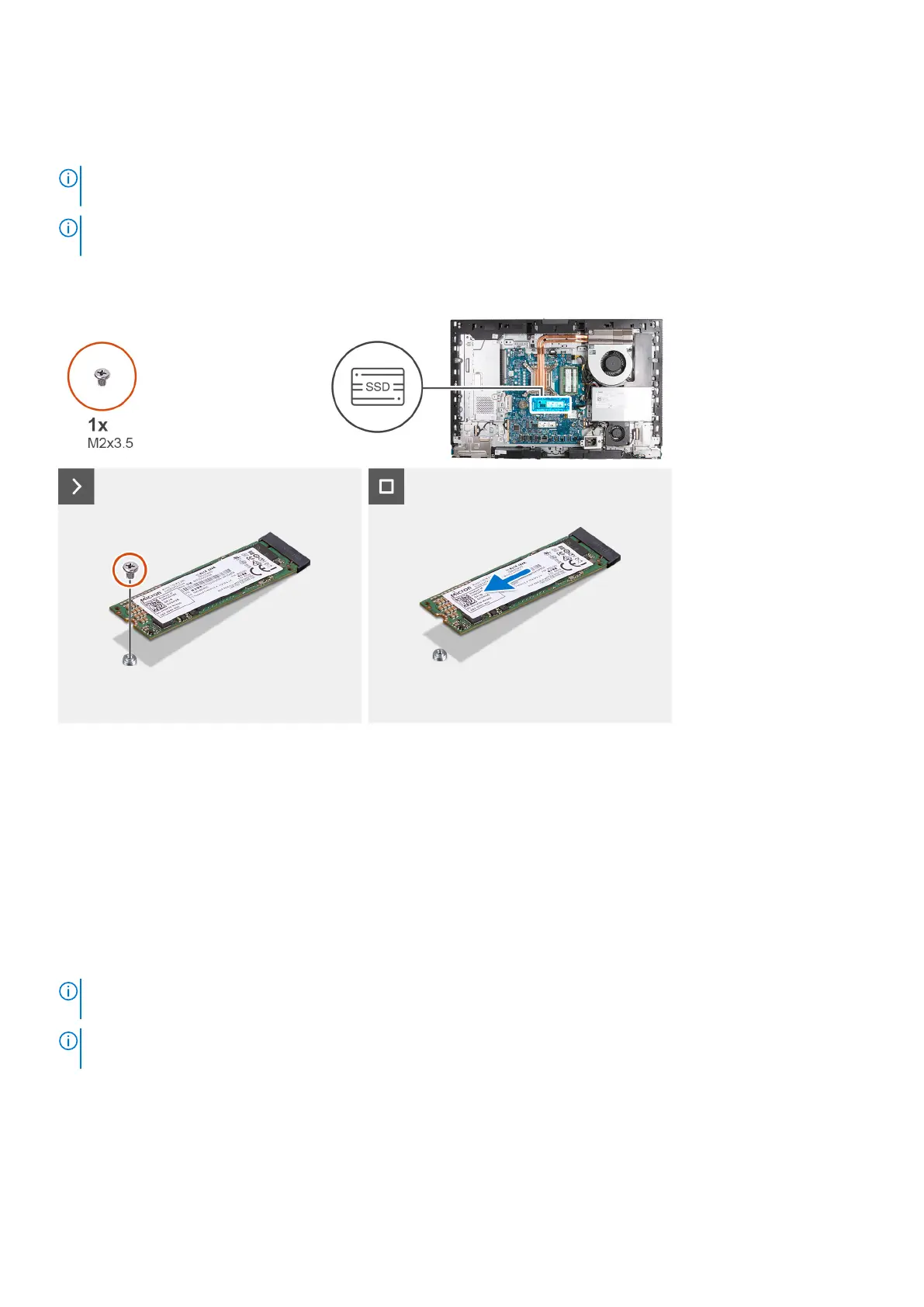
The following image(s) indicate the location of the M.2 2280 solid-state drive in M.2 slot 0 and provides a visual representation
of the removal procedure.
Steps
1. Remove the screw (M2x3.5) that secures the M.2 2280 solid-state drive to the system board.
2. Slide and lift the M.2 2280 solid-state drive from the solid-state drive slot (M.2 PCIe SSD 0) on the system board.
Installing the M.2 2280 solid-state drive in M.2 slot 0
Prerequisites
If you are replacing a component, remove the existing component before performing the installation process.
About this task
NOTE:
This procedure is only applicable if you are installing an M.2 2280 solid-state drive into the solid-state drive slot (M.2
PCIe SSD 0) on the system board.
NOTE: Ensure that the M.2 screw mount is in the proper location to install the M.2 2280 solid-state drive, refer to Location
of the screw mount on M.2 slot 0.
The following image(s) indicate the location of the M.2 2280 solid-state drive in M.2 slot 0 and provides a visual representation
of the installation procedure.
56
Removal and installation procedures for High Performance processors



 To Next Page