5.4 Stopping Sports Mode
To stop a sports mode in progress, simply press
and hold the function button on your tracker for
around 2 seconds.
If you stop a sports mode after less than 1
minute of activity, your session will not be saved
and ‘Short training session! Not saved’ will
appear on screen to confirm this.
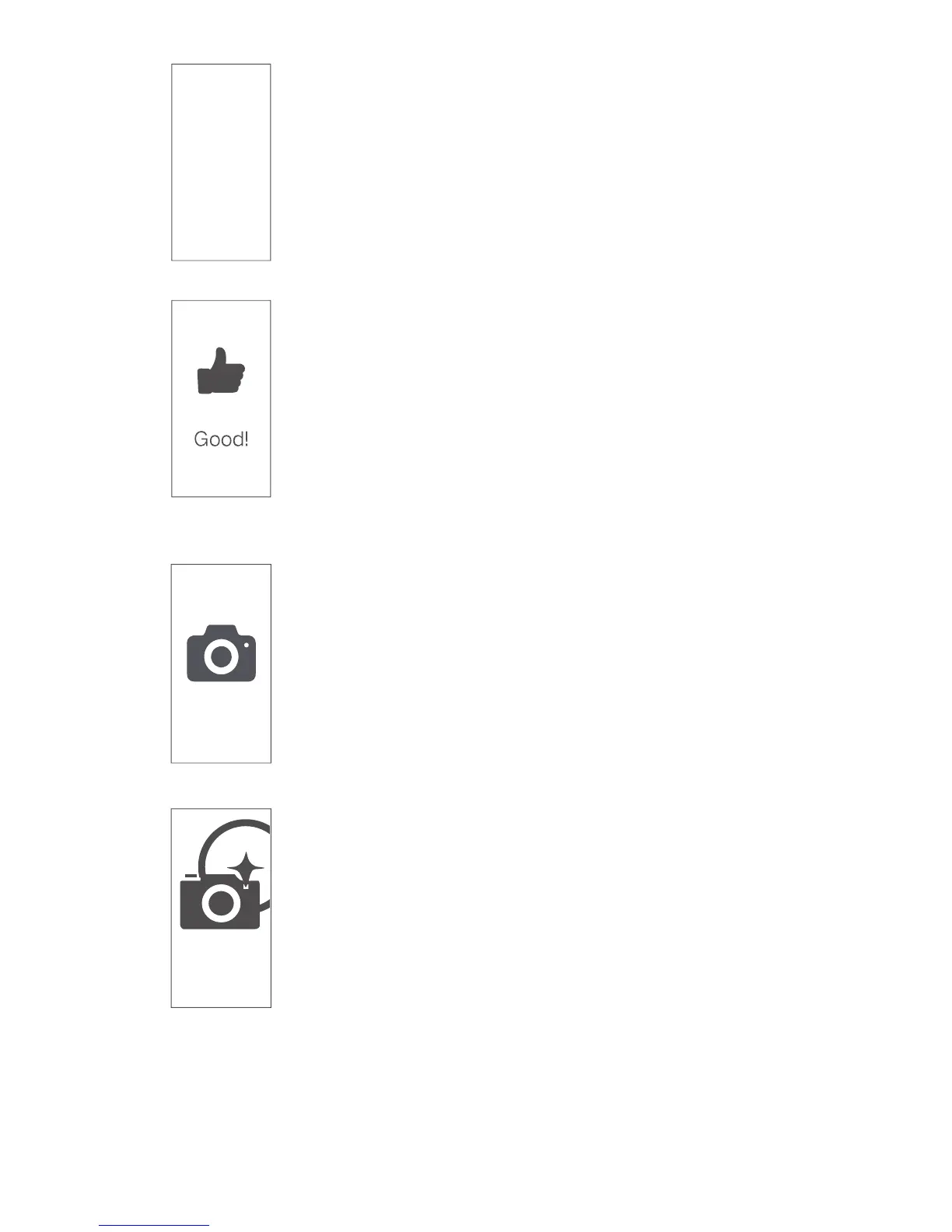
If you stop a sports mode after 1 minute or more
of activity, your training session will be saved
and a thumbs up icon will appear to confirm this.
You can then review your stats for this training
session by repeatedly tapping the function
button.
Short
training
session!
Not
saved
6 Remote Camera Control
To take a photo remotely using your fitness
tracker, open the VeryFitPro app, tap Device >
Camera (allow VeryFitPro access to your
phone/tablet’s camera if prompted). Position
your phone/tablet in the desired location for
taking a photo, then tap the function button on
your tracker to take the shot. If Device > Lift the
wrist bright screen is enabled in the VeryFitPro
app, rotating or flicking your wrist will also
trigger your phone/tablet’s camera.
Tip: Once you have finished taking photos, you
can exit Remote Camera control by pressing and
holding the function button on your fitness
tracker.
09


 To Next Page