7 Call Alerts
If you want to see incoming phone calls
displayed on your fitness tracker, you will first
need to enable this option from within the
VeryFitPro app. To do this, open the app and tap
Device > Call Alert and enable the Call Alert
option. Once enabled, tap the tick button (top
right of the app) to confirm. (Tap ‘Pair’ if
prompted).
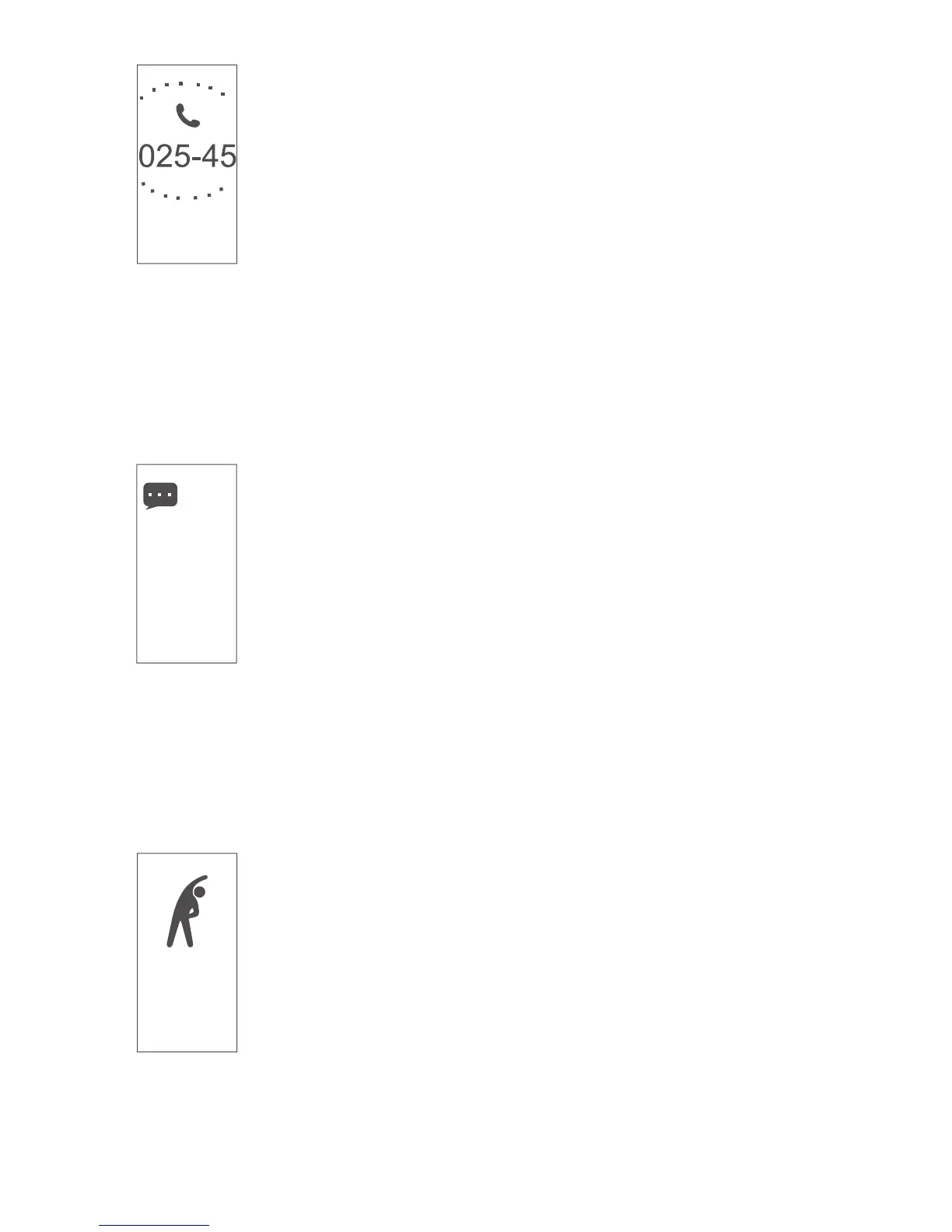
When receiving an incoming call, you can reject it
by pressing and holding your fitness tracker’s
function button.
Long press
hang up
8 Message Alerts
If you wish to see SMS and Social app messages
displayed on your fitness tracker, you will need to
enable this option from within the VeryFitPro
app. To do this, open the app and tap Device >
SNS Alert > Allow Notifications (tap slider), then
tap the slider for SMS to see incoming text
messages. Tap the tick button (top right of the
app) to confirm your selection. Also, tap sliders
for any of the desired social apps and tap the
tick button (top right) to confirm your selection.
(Tap ‘Pair’ if prompted).
Susa..
Are you
still on
for a run
this even
-ing?
Move
your
body
9 Reminders to Move
If you want your tracker to remind you to stay
active throughout the day, you can enable this
option within the VeryFitPro app. To do this, open
the app and tap Device > Sedentary Alert.
Enable the slider and specify how often you
should be reminded to move. Tap the tick button
(top right) to confirm your selection.
10


 To Next Page