06
2.1 Steps
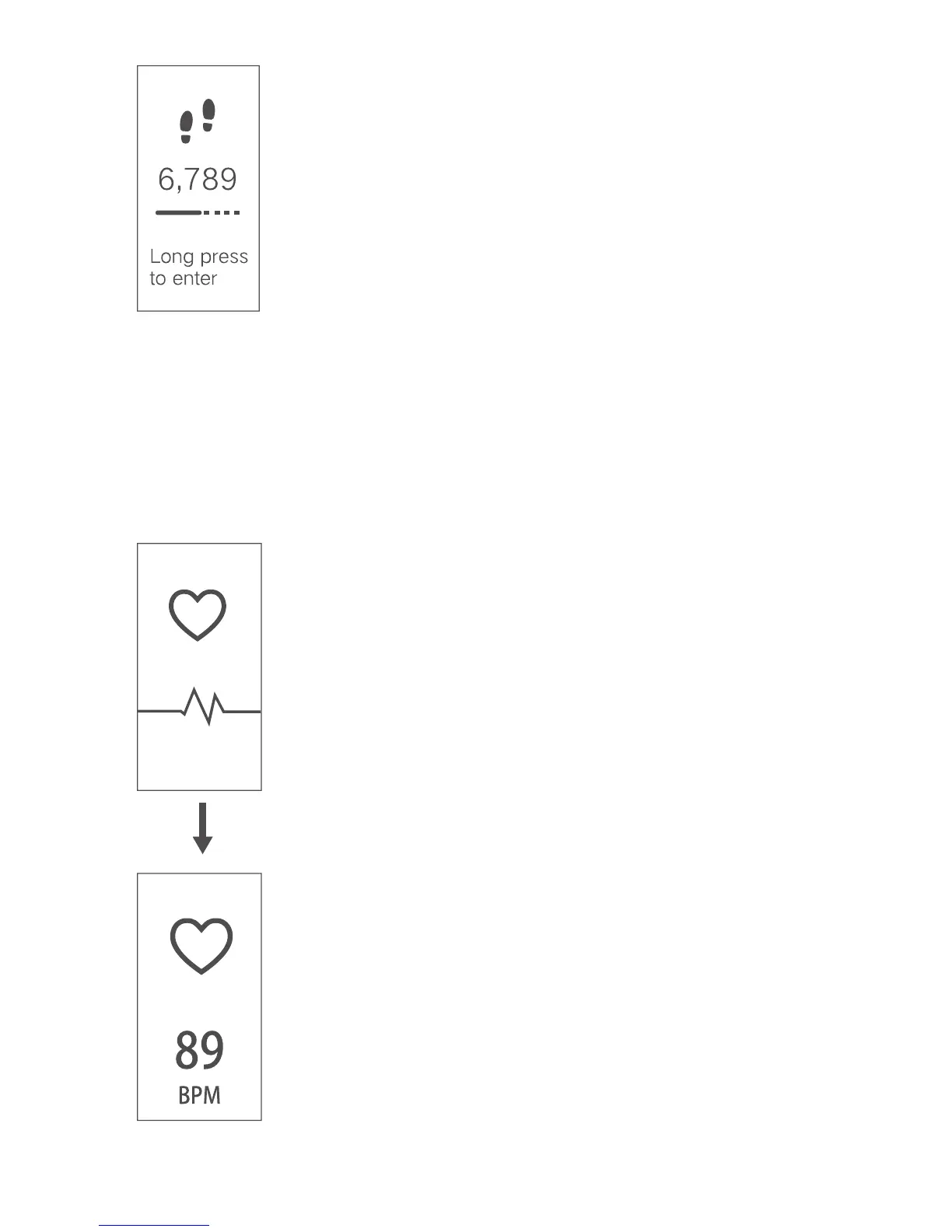
To see how many steps you’ve done for the
day so far, scroll to the Steps page (by tapping
the function button). Beneath the step count is
your goal progress bar. The solid line
represents your completed steps and the
dotted line represents steps required to meet
your daily goal.
2.2 Additional Stats
To access stats for Active Minutes, Distance
and Calories Burned, press and hold the
function button for 2 seconds whilst still on
the Steps page, then tap as normal to scroll
through the information.
3 Heart Rate
To view your heart rate, scroll to the Heart Rate
page (by tapping the function button). Wait
around 2 seconds for your heart rate reading
to appear. The beats per minute (BPM) figure
will then update every 0.5 seconds. It may take
10-15 seconds for the reading to stabilise. It
should be noted that automatic heart rate
monitoring happens throughout the day by
default. If desired, this option can be switched
from automatic to manual-only readings from
within the VeryFitPro app. This can also help to
extend the amount of time between charging.
We recommend when taking a heart rate
reading that you adjust your tracker’s strap so
that it is tighter than normal. You need to
ensure that the sensor on the underside of
your tracker is in good contact with your skin.


 To Next Page