Need help?
Do you have a question about the Denon DN-V310 and is the answer not in the manual?
Explains the basic method of serial communication between controller and DN-V310.
Details the ASCII character code format for commands and messages.
Explains how commands are sent and the DN-V310 replies with status.
Lists and describes the five types of error codes returned by the DN-V310.
Details the structure and parameters of external control commands.
Details the responses issued by the DN-V310 for PR and PS group commands.
Controls the unit using IR remote control key codes via serial interface.
Initiates playback of a specified title or track number on the DVD or CD.
Starts playback of a specific chapter within a given title on DVDs.
Starts playback from a specified time within a DVD title.
Selects the audio stream for playback on DVDs.
Selects the sub-picture stream for display on DVDs.
Controls the display of the On-Screen Display (OSD) and icons.
Locks or unlocks the front panel keys to prevent accidental operation.
Enables or disables the infrared remote control functionality.
Sets the HDMI output resolution for video display.
Requests and retrieves the current operating status of the DN-V310.
Retrieves the type of disc currently loaded in the DN-V310.
Retrieves the currently selected audio stream number on DVDs.
Retrieves the currently selected sub-picture stream number on DVDs.
Retrieves the current title or track number for the loaded media.
Retrieves the current title and chapter number being played.
Notifies when a title or track playback has ended.
Notifies when playback of a new chapter has started.
Notifies when playback of a chapter has ended.
Notifies about changes in the DN-V310's operating status.
Demonstrates JPEG pause playback using digit key commands.
Demonstrates JPEG pause playback using the SKIP key command.
Instructions for physically connecting the PC and DN-V310 using a serial cable.
Steps to start the Hyper Terminal application on Windows.
Configuration steps for establishing a new connection in Hyper Terminal.
Selecting the correct COM port for the serial connection.
Configuring baud rate, data bits, parity, and stop bits for communication.
Configuring terminal properties like emulation and buffer lines.
Configuring ASCII sending and receiving parameters for terminal communication.
Verifying successful two-way communication through specific operations.
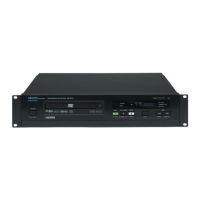
The Denon DN-V310 is a professional DVD player designed for integration into control systems, offering robust serial control capabilities in addition to standard playback functions.
The DN-V310 operates as a versatile DVD player, capable of playing various disc types including DVD, VCD/SVCD, CD-DA, MP3, WMA, CD-ROM/DVD-ROM, and JPEG. Its primary control interface is a serial remote control terminal, allowing external devices such as personal computers to manage its operations. This serial control is categorized into three groups: PC commands for direct control, PS commands for querying the player's operating status, and PR commands for asynchronous notifications of status changes.
The player supports essential playback functions such as playing titles or tracks, selecting specific chapters, and performing time-based searches. It also allows for the adjustment of audio and sub-picture streams, which is particularly useful for multi-language or multi-subtitle content on DVDs. The player can display an On-Screen Display (OSD) for visual feedback, which can be toggled on or off. For security or operational consistency, the local keyboard on the front panel can be locked, preventing unauthorized manual operation. Similarly, the infrared (IR) remote control can be enabled or disabled. For video output, the DN-V310 offers HDMI resolution settings, allowing users to select various resolutions or an automatic setting to match the display.
The serial control protocol is based on ASCII character codes, with commands structured as [group,command,parameterlist] and terminated by a carriage return (<CR>). The player responds to commands with a reply message that includes the sent command and an error code, indicating successful execution or the nature of any error. Error codes cover scenarios such as invalid parameters, invalid commands for the current operating status or disc type, and unknown causes.
The DN-V310's serial remote control is a key feature, enabling seamless integration into professional AV environments where centralized control is required. The use of standard RS-232C communication ensures compatibility with a wide range of control systems. The player's ability to provide asynchronous status updates via PR commands is crucial for dynamic control systems, allowing the controller to react to changes in the player's state (e.g., end of title, start of chapter, pause, stop) without constant polling.
For playback, the DN-V310 offers precise control over content. Users can directly command the player to start a specific title or track, or even a particular chapter within a title. The time search function provides granular control, allowing playback to begin at an exact hour, minute, and second. This is particularly useful for presentations or installations where specific content segments need to be accessed quickly and accurately.
The player's handling of different disc types is robust. While most commands are universally applicable, some, like chapter selection, are specific to DVDs. The system provides clear error codes if an invalid command is issued for the loaded disc type or current operating status, aiding in troubleshooting and robust system design. For example, attempting to play a chapter on a non-DVD disc will result in an error code 10.
The OSD control allows for a clean presentation by disabling on-screen information when not needed, which is important in professional settings where visual distractions should be minimized. The local keyboard lock and IR remote control lock features enhance security and prevent unintended operations, ensuring that the player's state is maintained as programmed by the control system.
The player's behavior in response to stop commands is noteworthy for DVD playback. The first stop command puts the player into a "resume" mode, allowing playback to restart from the exact point it was stopped. A second stop command fully stops the player, resetting the playback position. This two-stage stop mechanism offers flexibility for different use cases.
The manual provides detailed examples of command sequences, such as playing a specific title, setting audio streams, or controlling OSD display, which are invaluable for system integrators. It also illustrates complex scenarios like JPEG pause playback, demonstrating how a sequence of PC RC commands can achieve specific visual effects, such as advancing through still images. The distinction between using digit key codes and SKIP key codes for image navigation, and their respective effects on the folder menu display, highlights the player's nuanced control options.
While the manual primarily focuses on operational control, several aspects contribute to ease of maintenance and reliable operation. The use of standard RS-232C for serial communication simplifies connectivity and troubleshooting, as it is a widely understood and supported interface. The detailed list of error codes and their descriptions is a significant maintenance feature, allowing technicians and system administrators to quickly diagnose issues. For instance, an "Invalid parameter" error (code 2) or "Command not valid for current disc" error (code 10) provides immediate feedback on the nature of a problem, whether it's a programming error in the control system or an incompatibility with the loaded media.
The clear documentation of communication specifications (baud rate, data length, parity, stop bit, flow control) ensures that control systems can be correctly configured, minimizing communication errors. The recommendation to turn off power to both the DN-V310 and the controller when connecting serial cables is a crucial safety and preventative maintenance measure, protecting against potential damage to the devices.
The instructions for setting up Hyper Terminal, a standard Windows utility, provide a straightforward method for testing serial communication and sending commands manually. This is an essential tool for initial setup, debugging, and verifying the player's responses without needing a full control system in place. The step-by-step guide for Hyper Terminal settings, including baud rate, data bits, parity, and flow control, ensures that users can establish a correct connection. The "Checking the connection" section, which describes expected responses when the tray opens or a CD-DA disc is played, offers a simple and effective way to confirm that two-way communication is functioning normally.
The comprehensive status change diagrams for various disc types (DVD, CD, VCD, MP3, JPEG) are invaluable for understanding the player's internal states and how it transitions between them in response to commands or events. This detailed mapping of states and PR commands helps in designing robust control logic that can accurately track and respond to the player's operational status, reducing the likelihood of unexpected behavior or system failures. The explicit mention of how the player handles loading states, where it does not respond to commands, guides integrators to implement appropriate retry mechanisms or waiting periods in their control software.
 General
| Type | DVD Player |
|---|---|
| Disc Formats | DVD-Video, DVD-R, DVD-RW, CD, CD-R, CD-RW |
| Video Formats Supported | MPEG2 |
| Video Output | Composite, S-Video, Component |
| Remote Control | Yes |
| Rack Mountable | Yes |
| Connectivity | RS-232C |
| Power Consumption | 15W |
| Audio Formats Supported | Dolby Digital |
| Playback Formats | DVD-Video, CD-DA |
| Output Video Resolution | 480i |
| Audio Output | Stereo, Coaxial Digital |

 To Next Page