Original User Guide | Impulse 2.0 Pedelec Version 3 EN-43
Unit
To switch between kmh/km (kilometres) and mph/mi (miles), press the
button for three seconds.
Display total kilometres and trip distance
Toswitchthedisplayoftotalkilometresandtripdistance,brieypressthe
SET button.
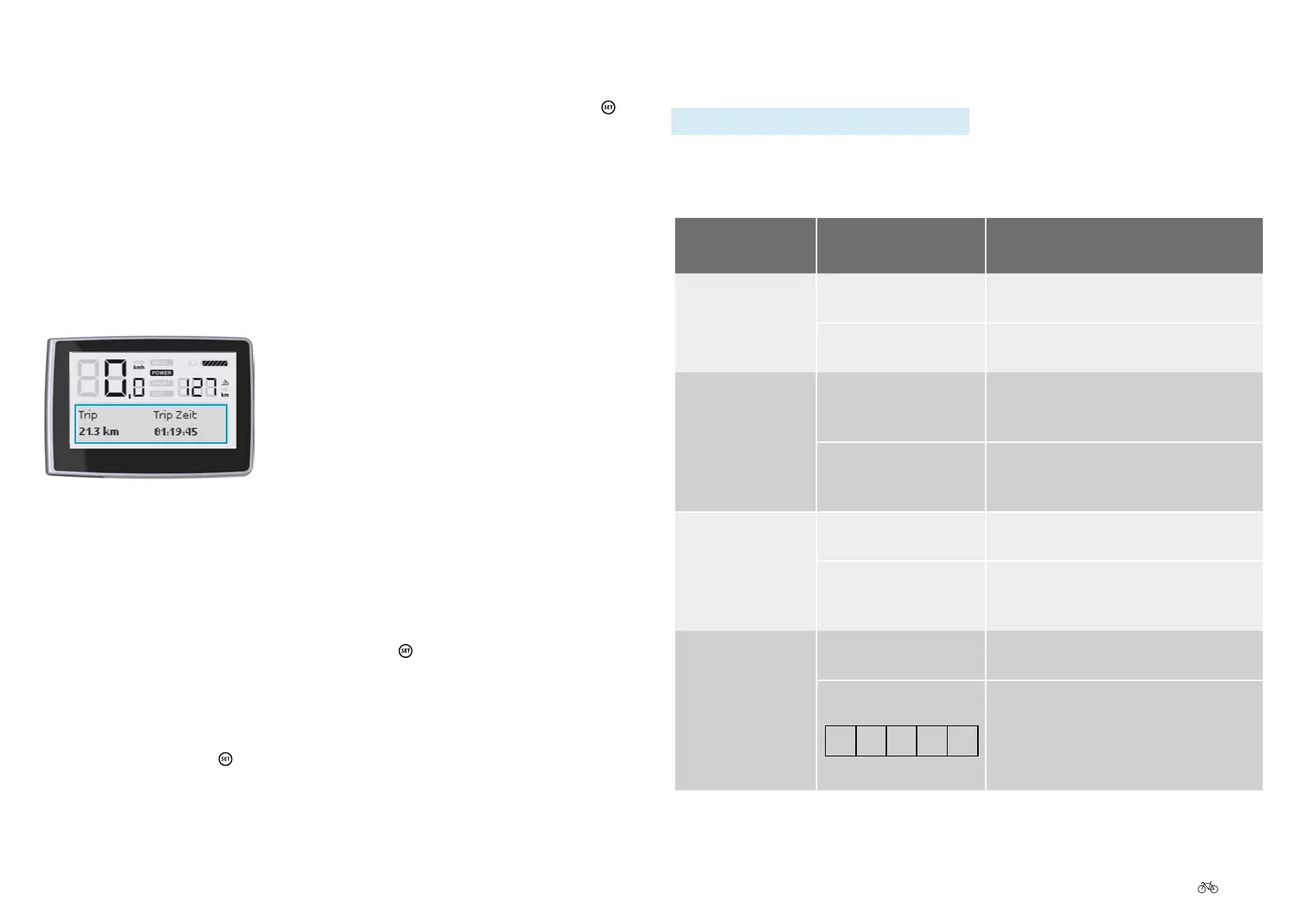
6.7 LCD Big Display: Favourite settings
Favourite settings
6.7.1 Displaying favourite settings
If you are in the start menu and want to change to other favourite settings
proceed as follows:
1. Whileinthestartmenu,brieypressthe
button. If you have
selected several favourite settings in the start menu 6.7.2
Preselecting favourite settings P. EN-43, the next favourite is now
displayed.
2. Keep pressing the
button until the desired favourite setting is
displayed.
6.7.2 Preselecting favourite settings
Path: Personalise I Favourite settings
You can select which of the following favourite settings you want displayed
in the start menu.
Favourite set-
tings
Display Meaning
Trip km/time Trip (in km) Trip (e.g. day trip, short trip) in
kilometres.
Trip time (in 00:00:00
format)
Duration of trip (e.g. day trip, short trip)
in hours, minutes and seconds.
Trip max/Ø Trip max (in km/h) Maximum speed (in kilometres per hour)
achieved on the trip (e.g. day trip, short
trip).
Trip Ø (in km/h) Average speed (in kilometres per hour)
achieved on the trip (e.g. day trip, short
trip).
Tour km/Ø Tour (in km) Tour (e.g. cycle tour over several days) in
kilometres.
Tour Ø (in km/h) Average speed (in kilometres per hour)
achieved on the tour (e.g. cycle tour over
several days).
Cadence/Assistance Cadence (in rpm) The number of crank revolutions per
minute.
Assist
Theveequal-sizedboxesindicatethe
assist level you are currently receiving.
The greater the number of black boxes,
the higher the assist level being
provided.



 To Next Page