1. Ensure Bluetooth on the mobile device is enabled
2. Add and scan the Product ID QR code which is on the rating label on the side of the
product
3. If prompted, enter the unique PIN number
• The PIN can be found on page 3 of this Installation and Operation Manual
• The Product serial number number appears at the top your screen
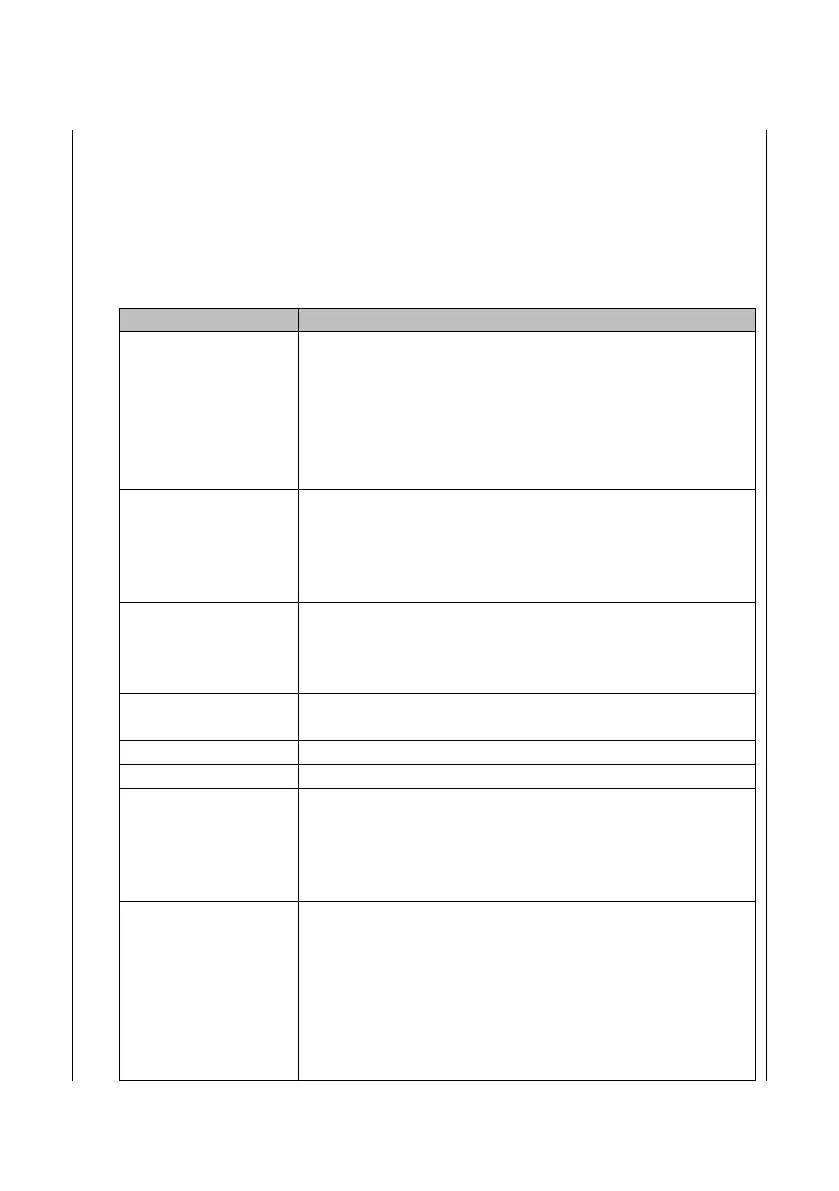
4. Set the following by selecting each parameter:
• If no internet connection, ignore this parameter
• If internet connection is hardwired, ignore this
parameter
• If internet connection is wireless, select ‘Add
Network’ and follow the on screen prompt to add a
wireless network
• Press Back(<) to return to the parameters menu
• Verify the charger location on the map within the APP
(assuming location services switched on), and set as
required
• Select ‘OK’ to save setting and return to the
parameters menu
• Select maximum charging current as determined by
the installation/circuit design
• Select ‘OK’ to save settings and return to the
parameters menu
• This must be set to On
• Press Back(<) to return to the parameters menu
• Check firmware is up to date
OCPP
(Open Charge Point
Protocol)
• This defaults to the Autel® cloud
• Alternative cloud management systems can be chosen
from dropdown menu
• Do not change without consulting eVolo Technical
Support
• This changes the mobile Access Point Network that
the charge point is connected to. If the charge point
is connected to the internet via a 4G data SIM card,
APN settings may need to be manually configured.
• To adjust the APN settings, select the APN menu,
input the APN name as required by the SIM
manufacturer and choose the internet protocol and
authentication type


 To Next Page