DV300/DV301B 30" Multimedia Information Display
Icon Menu Name and Sub-menus Description
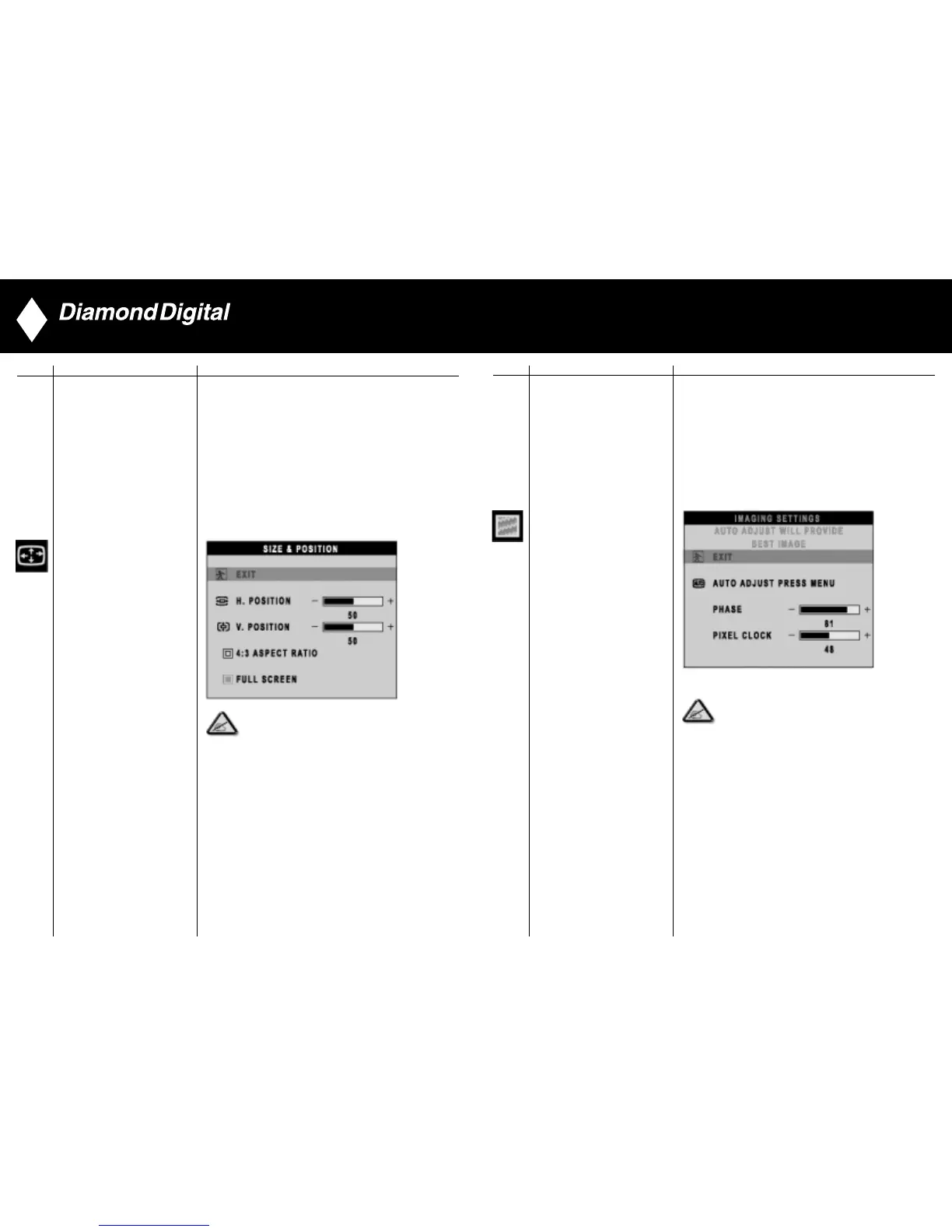
To adjust the image settings.
EXIT: Exit this menu
AUTO ADJUST: Press to select automatic adjustment.
PHASE: Use the and buttons to adjust
from 0 to 100.
PIXEL CLOCK: Use the and buttons to adjust
from 0 to 100.
IMAGING SETTINGS
Note: Operating in DVI mode, the Pixel Clock and
Phase adjustments are not available.
26
Icon Menu Name and Sub-menus Description
Positioning moves the viewing area around on
the monitor screen.
EXIT: Exit this menu
H.POSITION /V.POSITION: When making changes
to either the ‘Horizontal’ or ‘Vertical’ settings, the
image will simply be shifted in response to your
selection/change.
Minimum is ‘0’ ( ). Maximum is ‘100’ ( ).
4:3 ASPECT RATIO: Select 4:3 image display
FULL SCREEN: Select full screen (16:9) image display
SIZE & POSITION
NOTE:
1. When operating in DVI mode, the positioning adjustments
are not available.
2. The 4:3 Aspect Ratio and Full Screen items are not
available in WXGA 1280x768 modes.
25
▼
▲
▼
▲
▼
▲



 To Next Page