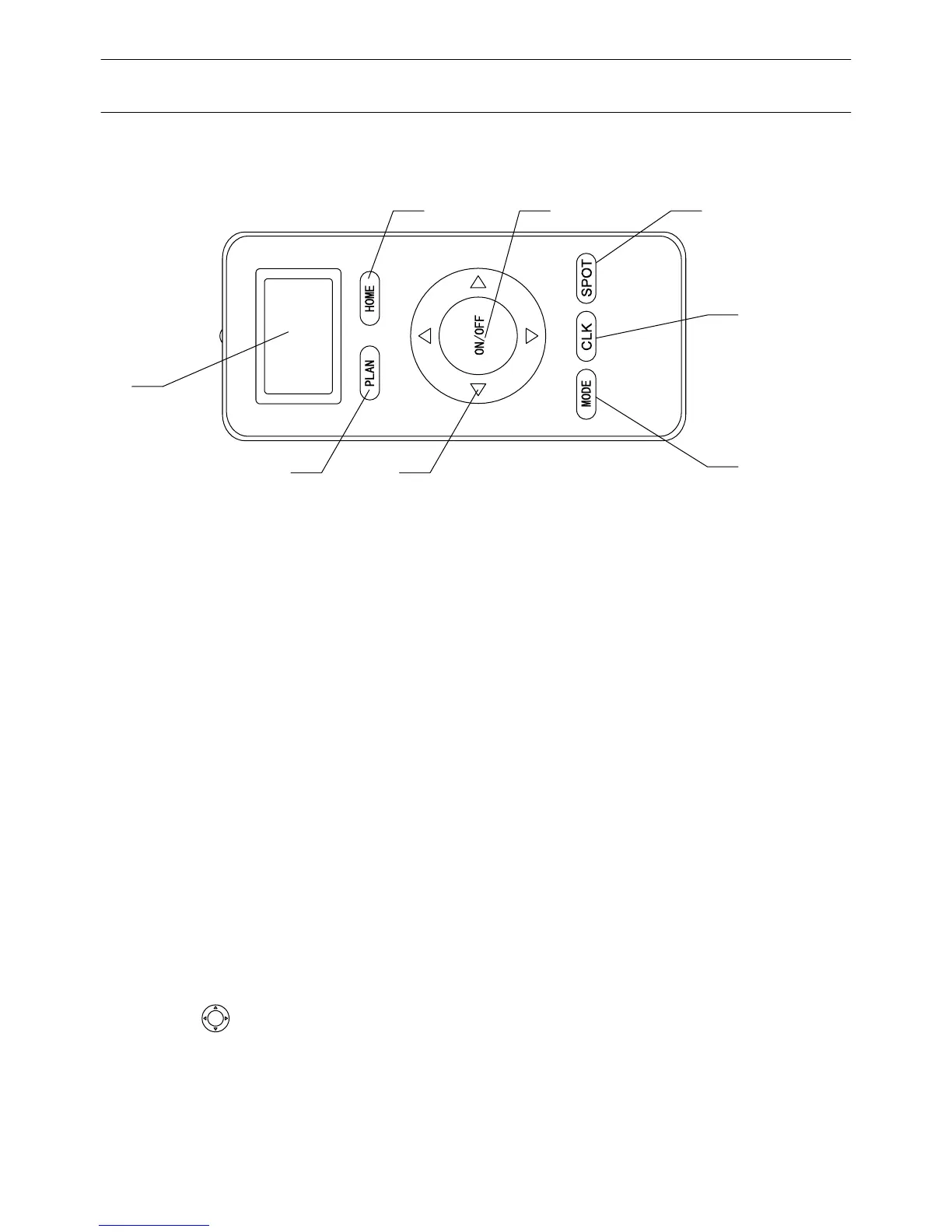
Remote control
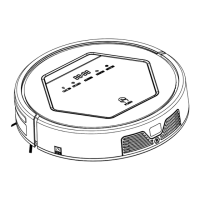
Product Components
8
PLAN HOME
ON/OFF
MODE
CLK SPOT
1.Display screen
shows the time setting, charging status, and error codes
by using numbers, letters or graph.
Buttons
4. " "
a row to change from sleeping mode to standby
mode.
B. In the working status,The machine will stop working when press the button.
C. Confirm schedule setting in scheduling mode.
D. Start cleaning in standby mode.
Display screen
Auto charging
Press HOME button, robot will go charging automatically, press again HOME
button or press ON/OFF button, it will stop there.
3. " " Schedule button
Press PLAN button to set up it and for details operation please see Scheduling
Cleaning section (User can press PLAN button for seconds to check whether
robot has already scheduled.)
5. " "
The direction button
A. Press this button to increase number in scheduling mode.
B. In other mode, press this button to change the direction of the machine.
6. " "
Spot cleaning
In other mode, press this button to start spot cleaning.
1
2
3 5
4 6
7
8
HOME
PLAN
ON/OFF
SPOT
2. " "
Clean button
A. Press this button twice in
Product Components


 To Next Page