1. " "
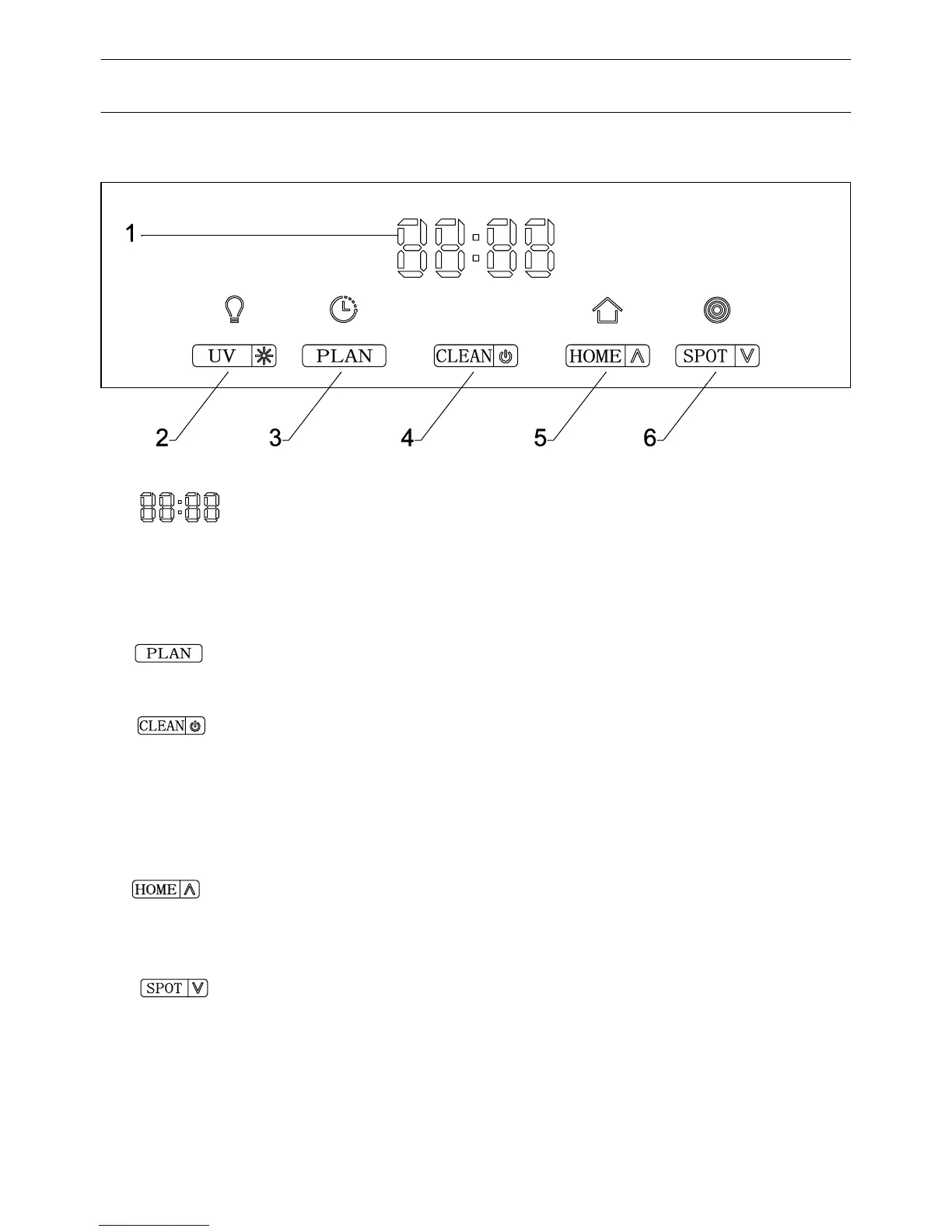
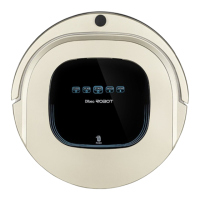
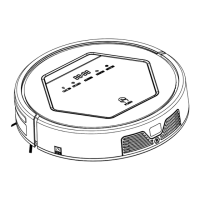
LED panel
LED panel shows the time setting, charging status, and error codes by using
numbers, letters or graph.
Display Panel
2
Buttons
3. " "
Clean button
A. Press this button to change from sleeping mode to standby mode.
B. In standby mode, hold this button for more than 3 seconds to go into sleeping
mode.
C. Confirm schedule setting in scheduling mode.
D. Start cleaning in standby mode.
1
LED Panel
2. " "
Press this button to enter/quit scheduling mode.
4. " "
Auto charging / Number increment button
A. Press this button to increase number in scheduling mode.
B. In other mode, press this button to start auto charging and charging mode.
5. " "
Spot cleaning / Number decrement button
A. Press this button to decrease number in scheduling mode.
B. In other mode, press this button to start spot cleaning.
3 4 5 6
7
SPOT
HOME
CLEAN
PLANUV
PLAN
CLEAN
HOME
SPOT
Schedule button
Product ComponentsProduct Components


 To Next Page