Product Operation
B. Setting the scheduling time
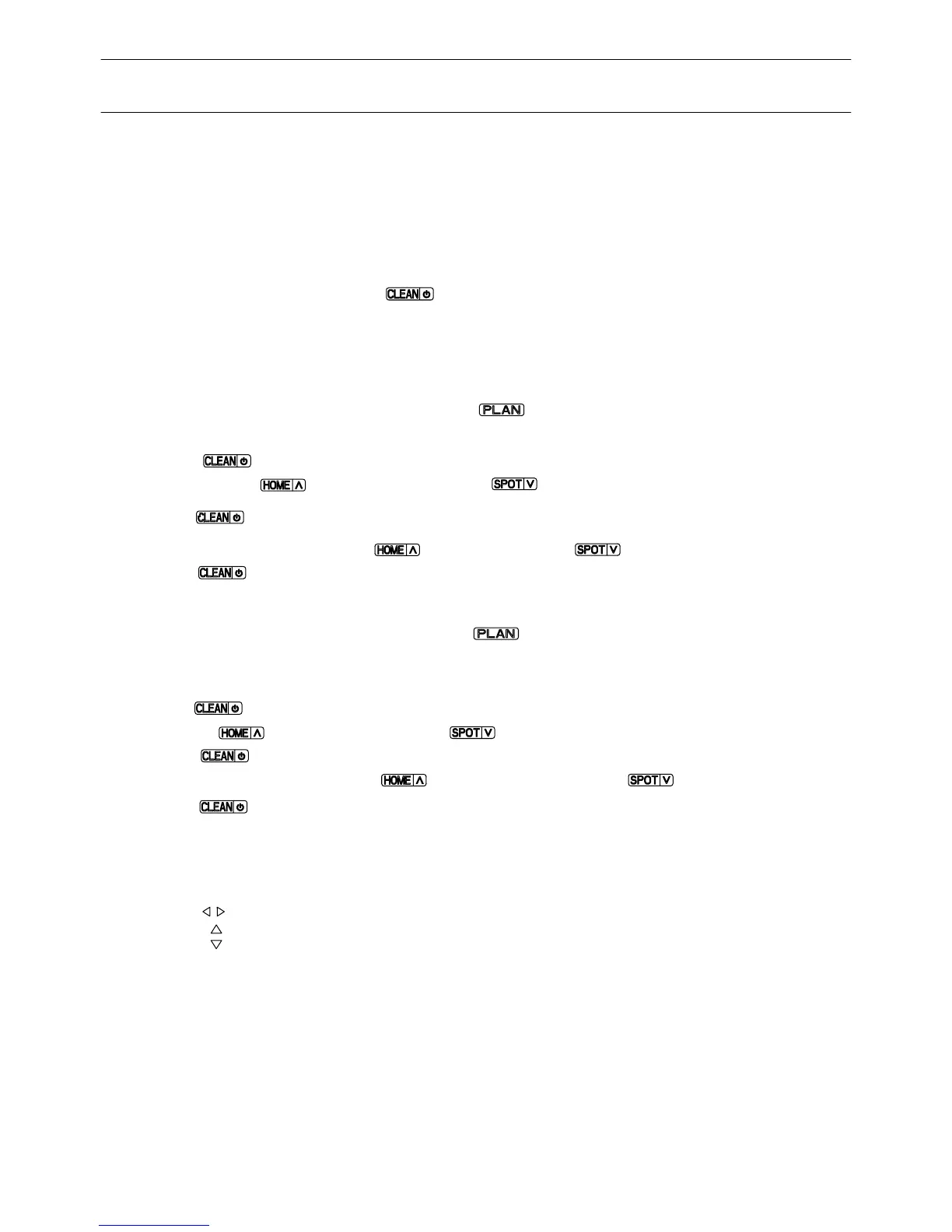
a. In standby or charging status, press twice to start scheduling,
panel will show previous scheduled time
or "00:00" if there is no schedule
settled before.
b. Press to enter hour-setting mode, the left two numbers on LED panel will
flash. Press to increase hour or to decrease it.
c. Press again to enter the minute-setting mode and the right two numbers
on LED panel will flash. Press to increase minute or to decrease it.
d. Press again to confirm the scheduling.
3.Scheduling
You can schedule the robot to make it clean automatically at a certain time every
day.
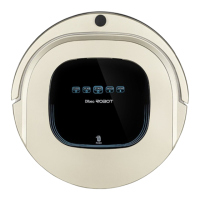
Scheduling by the LED panel on robot.
Note: The robot can only be set when it's in Standby or Charging mode. If the
robot is in sleep mode, press on main body or ON/OFF button on remote
control to wake up the robot. If the robot is in cleaning mode, stop it before
scheduling.
A. Setting Robot Clock
a. In standby or charging status, press to start the clock-setting. The LED
panel will show the current system time.
b. Press to enter the hour-setting mode, the left two numbers on LED panel
will flash. Press to increase hour or to decrease it.
c. Press again to enter the minute-setting mode, the right two numbers on
increase it or to decrease it.
d. Press again to confirm the setting.
C.Setting the scheduling time by
a. To schedule the robot when it is standby or charging on home base.
b. Press PLAN button until the remote displays flashed figure
”
00:00
”
.
c. Press to set the flashing numbers.
d. Press to switch between hour and minute.
e. After time confirmed, press ON/OFF to save scheduled setting
—
robot will have
one beep, and the CLEAN button indicator will be in pink for two seconds
—
robot
is successfully scheduled.
f. Press ON/OFF again, scheduled setting will be cancelled, robot will have two
beeps and the CLEAN button indicator on the robot will be blue.
g. Press PLAN button for seconds, it will get back from scheduling setting.
12
remote control
LED panel will flash.
Press to
Product Operation
the LED


 To Next Page