Digital Ally, Inc. | Device Conguration using VuVault
3-2
FirstVu HD Operation Guide | 860-00177-00 Rev J
Go Back To Table of Contents
3.2 VuVault
®
Software
VuVault
®
is used to manage FirstVu HD settings as well as activate your device for use
within the system.
To take full advantage of all features and enhancements available for your
FirstVu HD be sure to have the latest version of VuVault installed.
Visit http://www.digitalallyinc.com/login.cfm to download the most recent software.
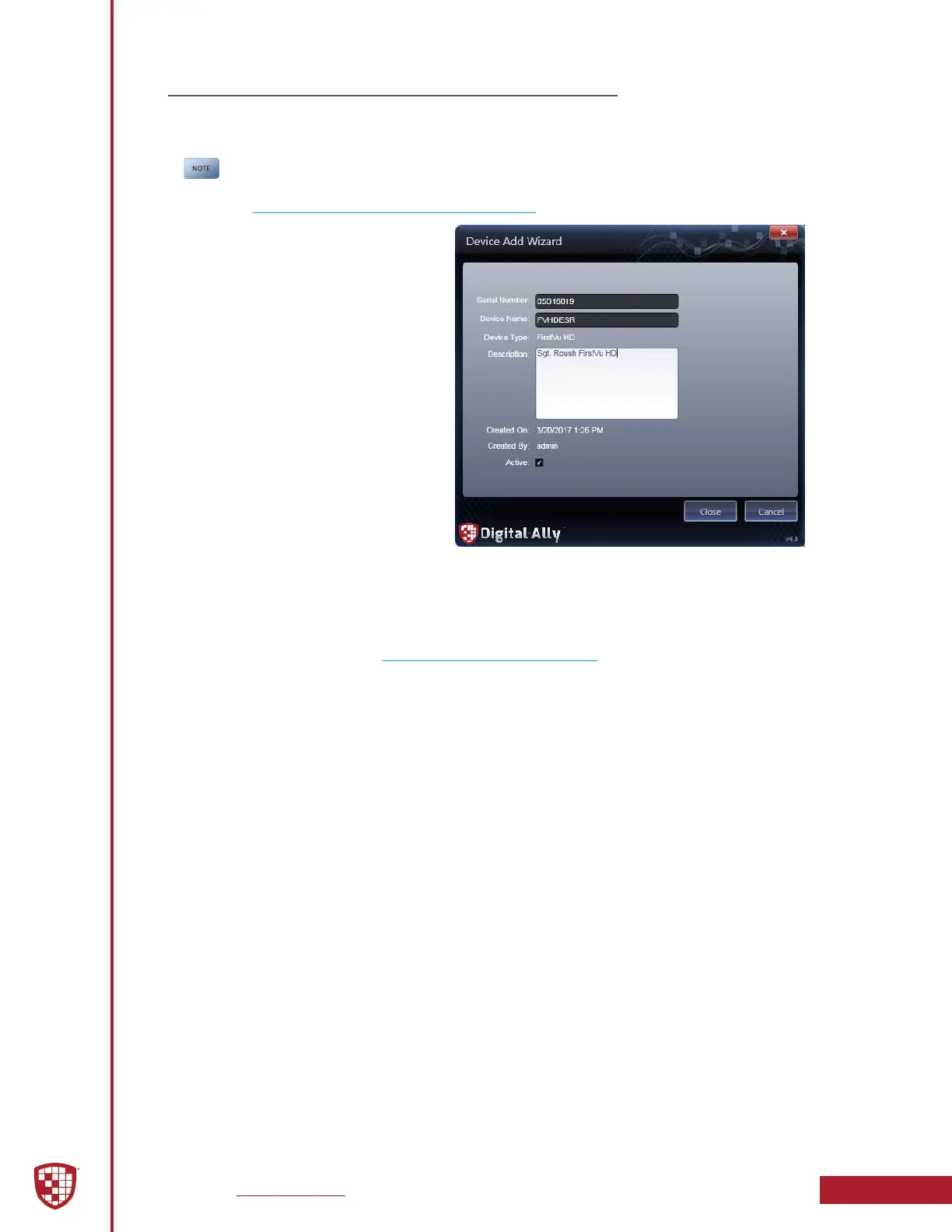
Before you can congure your device
for use within VuVault, the device
serial number must be added into
the system. Add your device into
VuVault by selecting Admin > Devices >
Advanced > Add Device.
Find the device serial number located
behind the battery in the battery
compartment and type it into the
wizard (do not include the hyphen).
Assign it a name and description.
When done, press Close, then Save.
For more information consult the
“VuVault Administrator Guide” Adding
Devices section.
Go to the Admin > Devices tab. A
separate conguration eld for the FirstVu HD will be available once a valid serial
number for the device has been added into the system. These settings will dene
how all users will interface with the FirstVu HD. Click on each sub-heading to reveal the
available conguration options. When nished, press Save.
Next, follow the procedure in 3.4 Activating your FirstVu HD to transfer the new
conguration settings to the device.
The Default button in the lower left-hand area of the main screen can be used to reset
all congurations for this device to the factory settings.



 To Next Page