Page 17
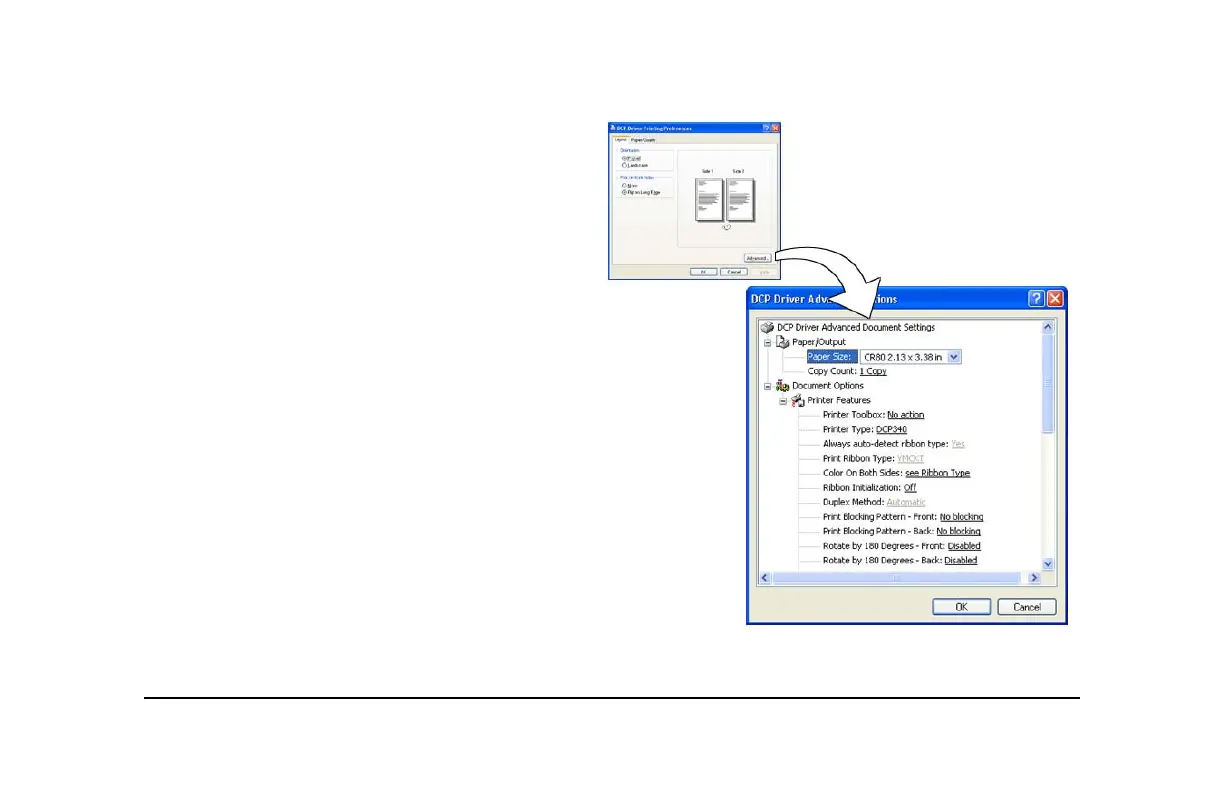
6 View settings or change settings.
— Make sure that driver settings match
printer features and supplies used.
— The Print Ribbon Type setting is read from
the printer and cannot be changed (for
most connection types).
— If you change the card design, review and
update all settings for the new card
design.
— Use the default settings of “Spool printing
so program finishes printing faster.” and
“Enable bi-directional support.”
— To open the Printer Toolbox, choose
“Open Printer Toolbox.”
7 Choose OK to save and close or choose
Cancel to close without saving changes.
See Info Central for detailed setup information,
including information about settings for card
features.
Printing Preferences Dialog Box for
Windows XP and Windows 2000



 To Next Page