Page 16
Opening Properties or Printing Preferences
Begin with the printer connected to the PC and powered on so
values are saved correctly.
1 Choose Start from the Windows task bar.
2 Choose Settings and then Printers (and Faxes). The Printers
(and Faxes) window opens.
3 Click once on the DCP Driver printer icon to select it.
— The driver must be installed for the printer icon to be
present.
— DCP Driver is the default name of the printer.
4 From the menu bar, choose File and then one of the
following:
— For Windows Me or 98, choose Properties.
— For Windows 2000 or XP, choose Printing Preferences,
and then click the Advanced button.
— For Windows NT, choose Default Document Properties
and then click the Advanced button.
It might take a few moments for the dialog box to appear.
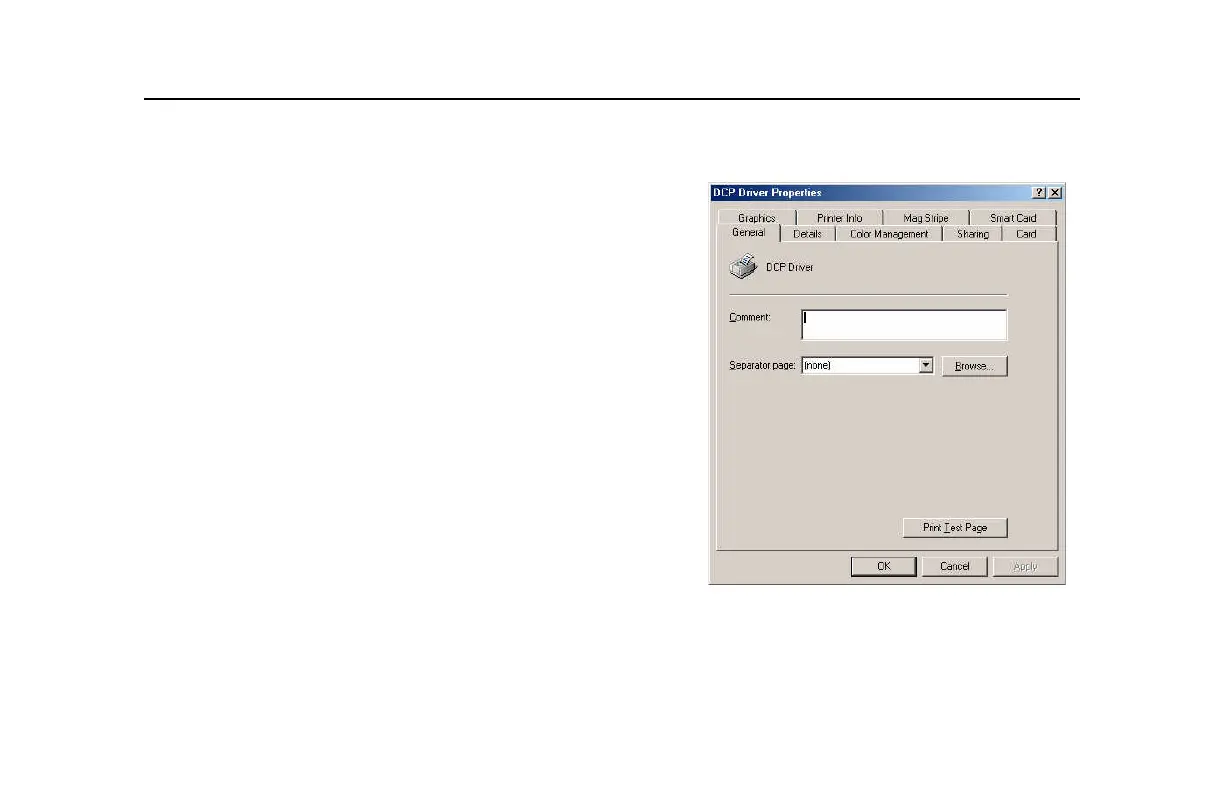
5 The dialog box opens.
Properties Dialog Box for Windows 98 SE
and Windows Me



 To Next Page