27
DS6 User Manual
2. CONTROL / WiFi page
Client mode:
Through the DS DMX app for iOS, it is
possible to connect the DS WiFi handle to
another DS WiFi handle, or to an existing
WiFi network (a wireless router).
If possible connect the DS6 to a DHCP
enabled router. This ensures that the IP
address, gateway, DNS1 and DNS2 are
automatically assigned to the fixture by the
network but If needed the IP address of the
handle can be altered using DS DMX app.
DS WiFi Art-Net handle is DHCP enabled.
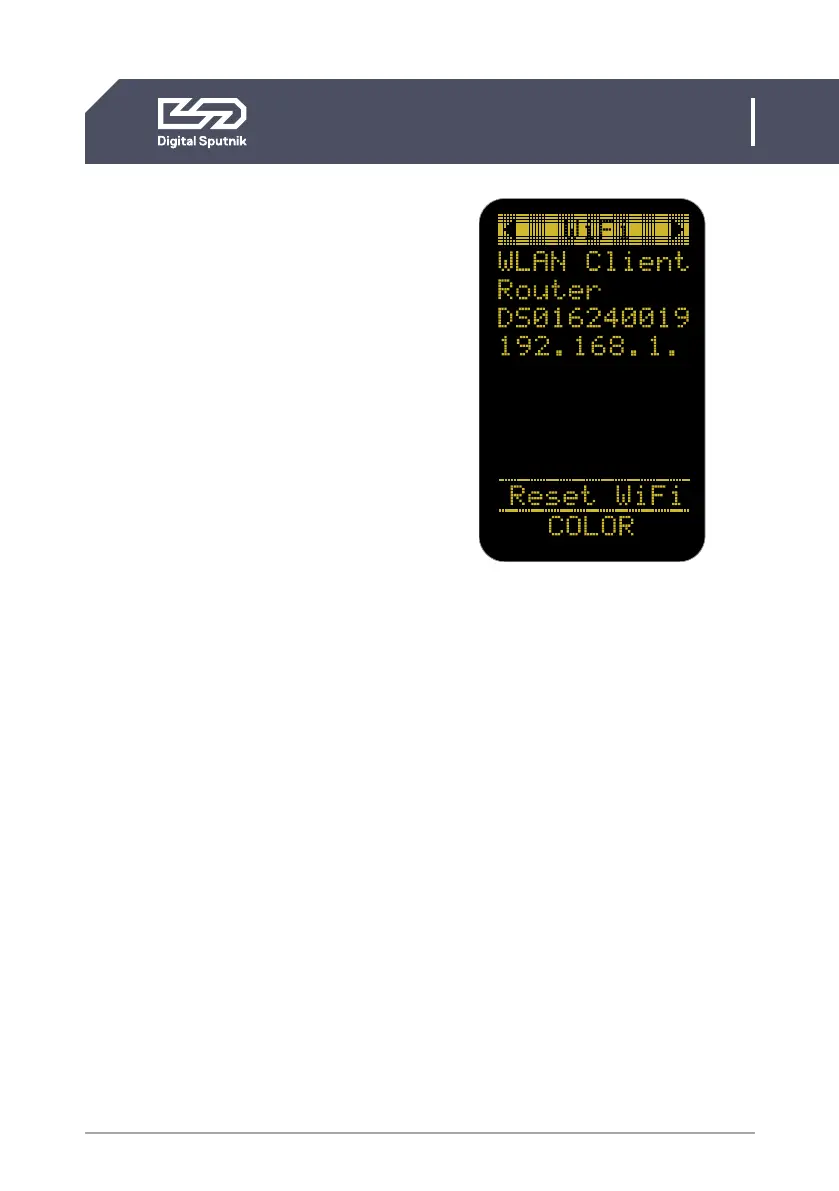
Client mode example
• WLAN Client
WIFI module is in the “Client” mode. It is
connected to another device or a router.
• Router_X
Name (SSID) of the target network
• DS0162400190172
Hostname of this WIFI module
• 192.168.1.101.
IP address of this WIFI module
Refreshing the WiFi page:
When the “WiFi” page selection is high-
lighted and the rotary knob is pushed
down, the network information on this
page will be refreshed.
“AWAITING WIFI”
This text is displayed when the WiFi module
has not yet finished acquiring its settings. It
is also displayed whenever “Remote” is set
to “WiFi”, but no WiFi handle is present. If
“AWAITING WiFi” is displayed indefinitely
while the WiFi handle is mounted, there
may be issues with communication.
“CAN’T JOIN” / “WRONG PASS”
This is displayed on the bottom of the WiFi
page when the module is unable to connect
to the assigned Access Point either due to
a name mismatch, the Access Point being
unavailable, or a wrong password. The DS
WiFi module will try to periodically recon-
nect to the appointed Access Point using its
last known settings. If the issue cannot be
rectified, “Reset WiFi” must be performed.


 To Next Page