Page 36
Reflections Collection
E. Keypad Color
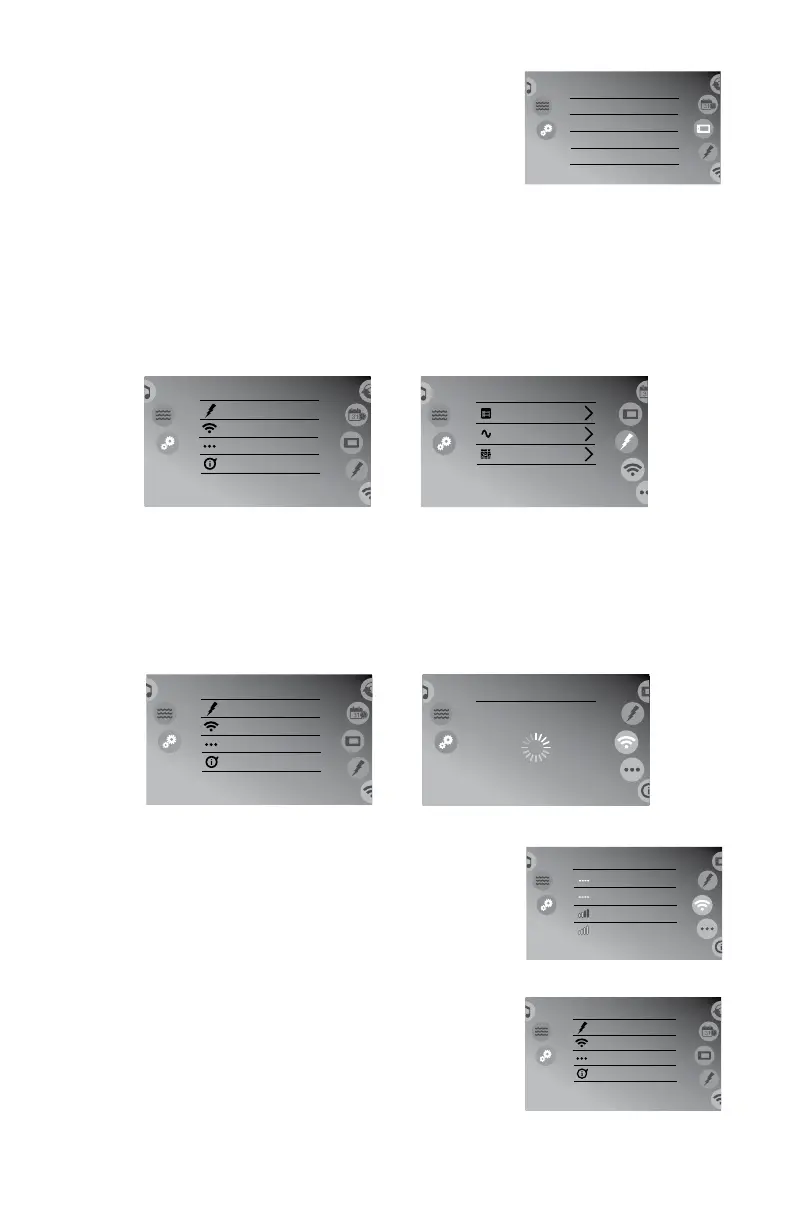
When you tap the “Keypad Color” tab, the display
changes to Figure 12.4g. This feature allows you
to select the back-lighting color for the control
panel. Scroll the color list to view all the available
colors.
12.5 Electrical Configuration Menu
Theelectriccongurationmenuisafeaturethatshouldonlybeaccess
byyourdealeroraqualiedtechnician.
Note:Donotmakeanychangestothecongurationoncethehottub
has been installed and running. Contact your local dealer if you have any
questions.
12.6 Wi-Fi Menu (Optional)
IMPORTANT: The hot tub must have the optional Wi-Fi module installed.
Tap the “Wi-Fi” tab, Figure 12.6a, to load the available networks, Figure
12.6b. Make sure that you have the D1 Spa Connect app installed on
your device.
1. Tap the network you want to connect to,
Figure 12.6c.
2. The display will exit back to Figure 12.6a, and
continue the process.
3. Once connected, the display will change to
Figure 12.6d to show the connection was
successful.
Compatible devices
• iPod touch (3rd generation and later)
• iPhone (3GS and later)
• iPad Requires iOS 5.0 and higher
• Android 2.2 and higher, compatible with Google Play
Settings
8:01 am
Keypad Color
No Color
Red
Yellow
Green
Figure 12.4g
Settings
Settings
Wi-Fi
8:01 am
About
Not connected
Electrical Config.
Miscellaneous
Settings
Electrical Config.
8:01 am
1
1
40
Config.
Phases
Current
Figure 12.5a
Figure 12.5b
Settings
Settings
Wi-Fi
8:01 am
About
Not connected
Electrical Config.
Miscellaneous
Settings
Wi-Fi
8:01 am
Looking for networks
Figure 12.6a
Figure 12.6b
Settings
Settings
Wi-Fi
8:01 am
About
HotTubTime
Electrical Config.
Miscellaneous
Settings
Wi-Fi
HotTubTime
Netgear
MyNetwork
Infusion
8:01 am
Figure 12.6c
Figure 12.6d



 To Next Page