34
DIRECTV
®
HD DVR RECEIVER USER GUIDE
When your receiver IS connected to the Internet:
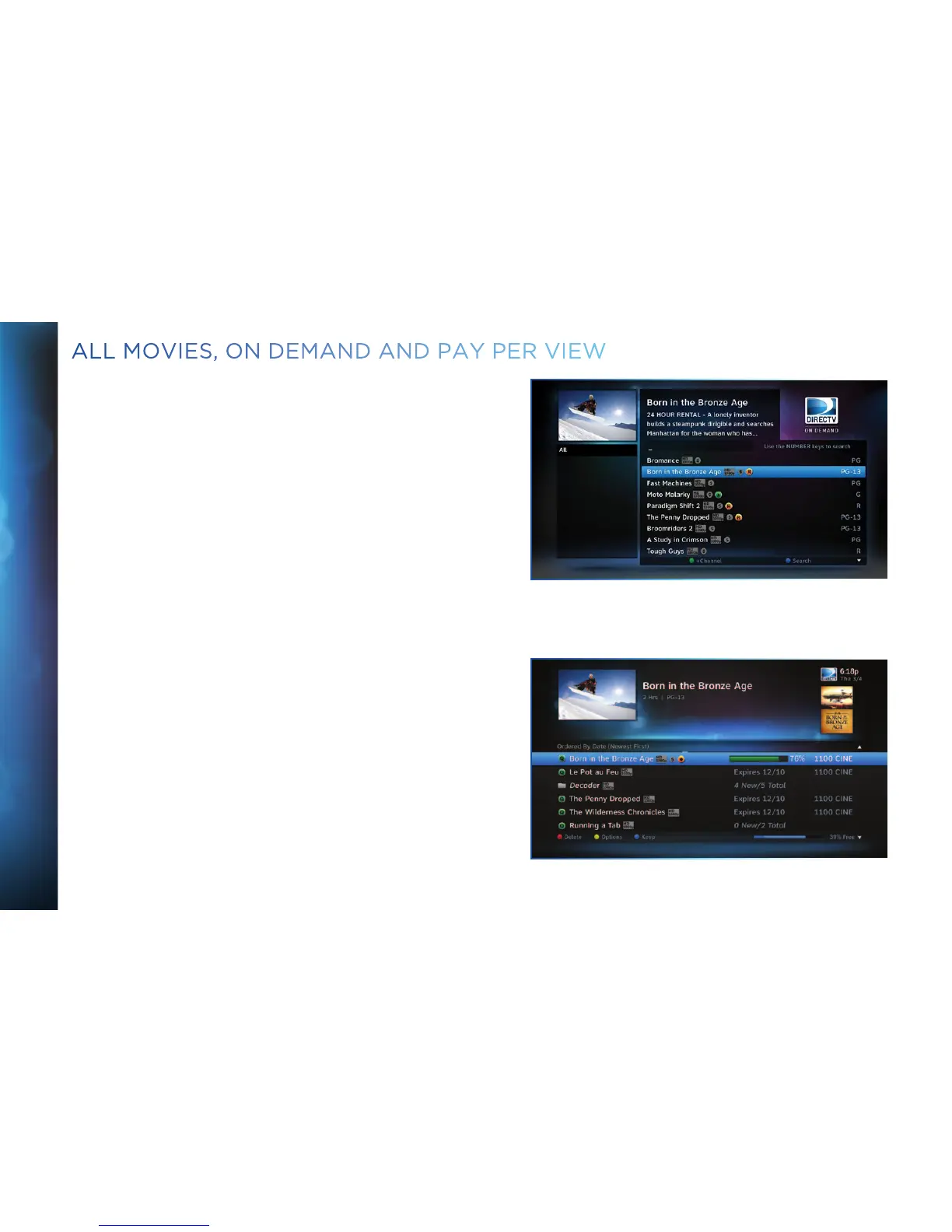
You can record from both “All Movies” and “On Demand” menus.
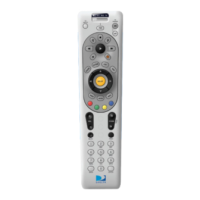
To record a program, highlight a title, then press the orange REC
(Record) button. An orange “R” icon next to the title indicates it’s
scheduled to record/download.
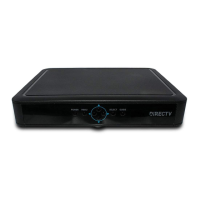
All scheduled records/downloads (with the exception of “In
Theaters” titles), as well as those that are ready to watch, are
displayed in the Playlist.
Press LIST to display the Playlist. Programs are downloaded
in the order they were scheduled. If a movie is currently
downloading, it appears at the top of your Playlist with a
progress bar displaying the % complete. You can start watching
the movie while it’s downloading after the download progress bar
turns green. Movies scheduled, but waiting to record/download,
are labeled “Pending Download”.
To watch a movie, highlight the title and press PLAY button on
your remote. If it’s a pay title, a confirmation message with
the price of the program will display, asking if you‘re sure you
want to watch it. Delete or cancel a title from your Playlist by
highlighting the title and pressing the RED button on
your remote.
ALL MOVIES, ON DEMAND AND PAY PER VIEW
34



 To Next Page