Page 29
Ordering Pay-Per-View Programs
2. Change the channel:
• Enter the channel number for the program that you
want, using the NUMBER PAD buttons.
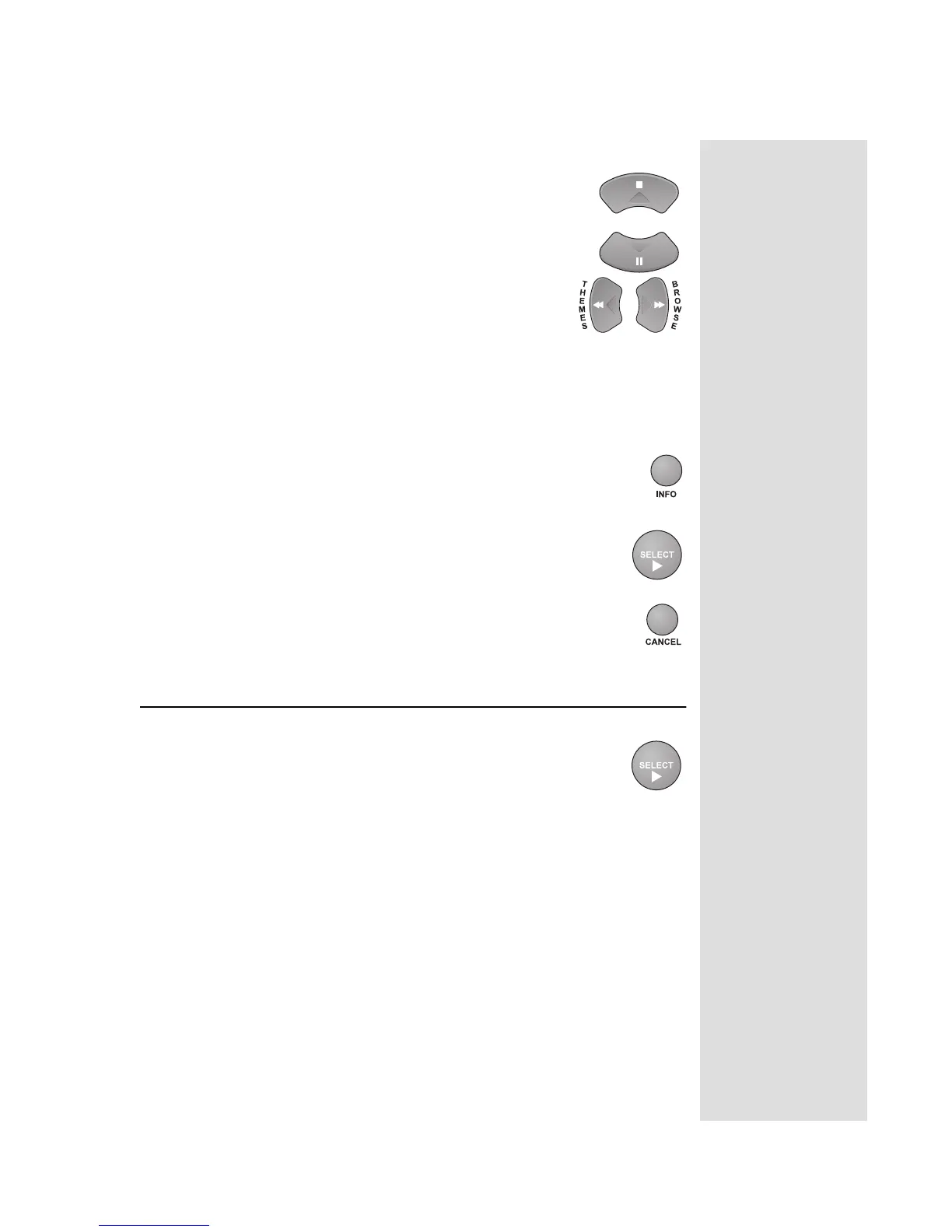
• Press the UP or DOWN ARROW button to
display the channel that you want.
3. Press the RIGHT ARROW button to display the next
program. Press the LEFT ARROW button to return
to the current program.
Note: The Browse Banner displays programs that are
on now. If you press the RIGHT ARROW, it displays information on
the program that is on next on the same channel. It does not display
information for any other programs in the future and cannot display
programs that have ended.
4. You can press the INFO button for more information about
the highlighted program.
5. Press the SELECT button to change to the highlighted
program.
6. To close the Browse Banner, press the remote control
CANCEL button. The receiver stays tuned to the program
you are watching.
ORDERING PAY-PER-VIEW PROGRAMS
1. Highlight the desired pay-per-view program in the Program
Guide. The pay-per-view programs are listed with the
channel number as PPV in the Program Guide.
Press the SELECT button.
2. Select the
Order option. The receiver displays a confirmation menu.
3. Select the
Yes option on the confirmation popup to confirm the order.
The pay-per-view fee will be added to your bill.
Note: Once you confirm an order for a pay-per-view program, you
cannot cancel the order, and you will be billed for it.
Tip: If the
program is on
some time in the
future, the
receiver opens
the Create An
Event Timer
menu.
Tip: If any lock is
in effect that
covers the pay-
per-view program,
you must enter
the password
using the
NUMBER PAD
buttons. As soon
as you enter the
fourth digit of the
password, the
receiver highlights
OK.






 To Next Page