YOUR DTVPAL DIGITAL-TO-ANALOG TV CONVERTER
AUDIO SETUP
System SetupmTV Guide Setup
If your analog TV supports TV Guide On Screen or Guide Plus, use this option
to set up your DTVPal to continue using the TV Guide On Screen and Guide
Plus listings. See page 23 for detailed setup instructions.
AUDIO SETUP
Use the Audio Setup menu to
choose the language setting and
the audio output mode.
• Audio Language: Choose
Primary to hear the primary
audio language. Choose
Alternative to hear the
alternate audio, which may
include an alternate
language, if provided by the broadcaster.
• Output: Sets the audio output type for the composite (RCA-type) audio
outputs. Choose Stereo if you have a stereo TV. Choose Mono if your TV
only supports mono audio output. Refer to your TV's User Guide to
determine if your -iV supports mono or stereo audio.
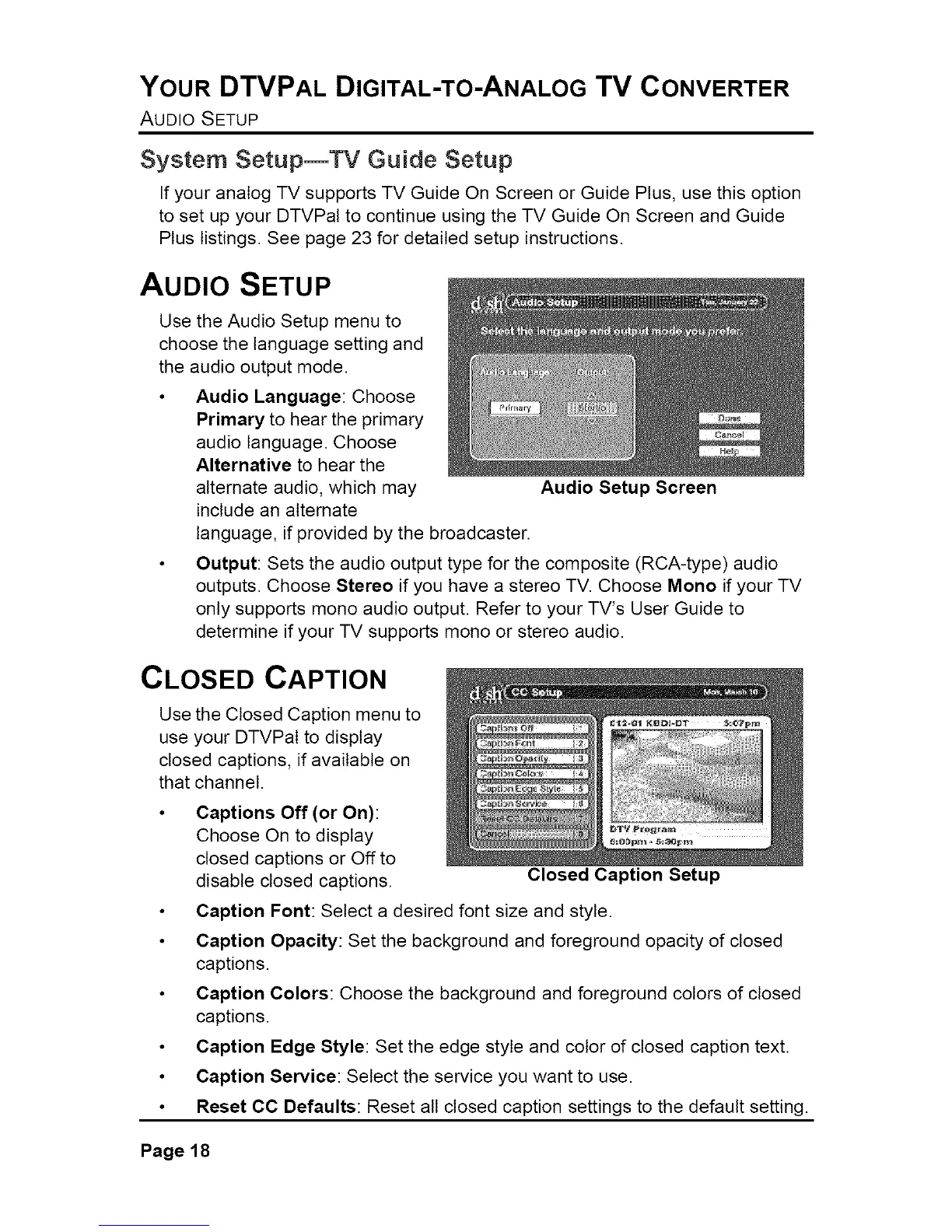
Audio Setup Screen
CLOSED CAPTION
Use the Closed Caption menu to
use your DTVPal to display
closed captions, if available on
that channel,
Captions Off (or On):
Choose On to display
closed captions or Off to
disable closed captions.
• Caption Font: Select a desired font size and style.
• Caption Opacity: Set the background and foreground opacity of closed
captions.
• Caption Colors: Choose the background and foreground colors of closed
captions.
• Caption Edge Style: Set the edge style and color of closed caption text.
• Caption Service: Select the service you want to use.
• Reset CC Defaults: Reset all closed caption settings to the default setting.
Closed Caption Setup
Page18



 To Next Page