Chapter 3
Page 96
Using the System
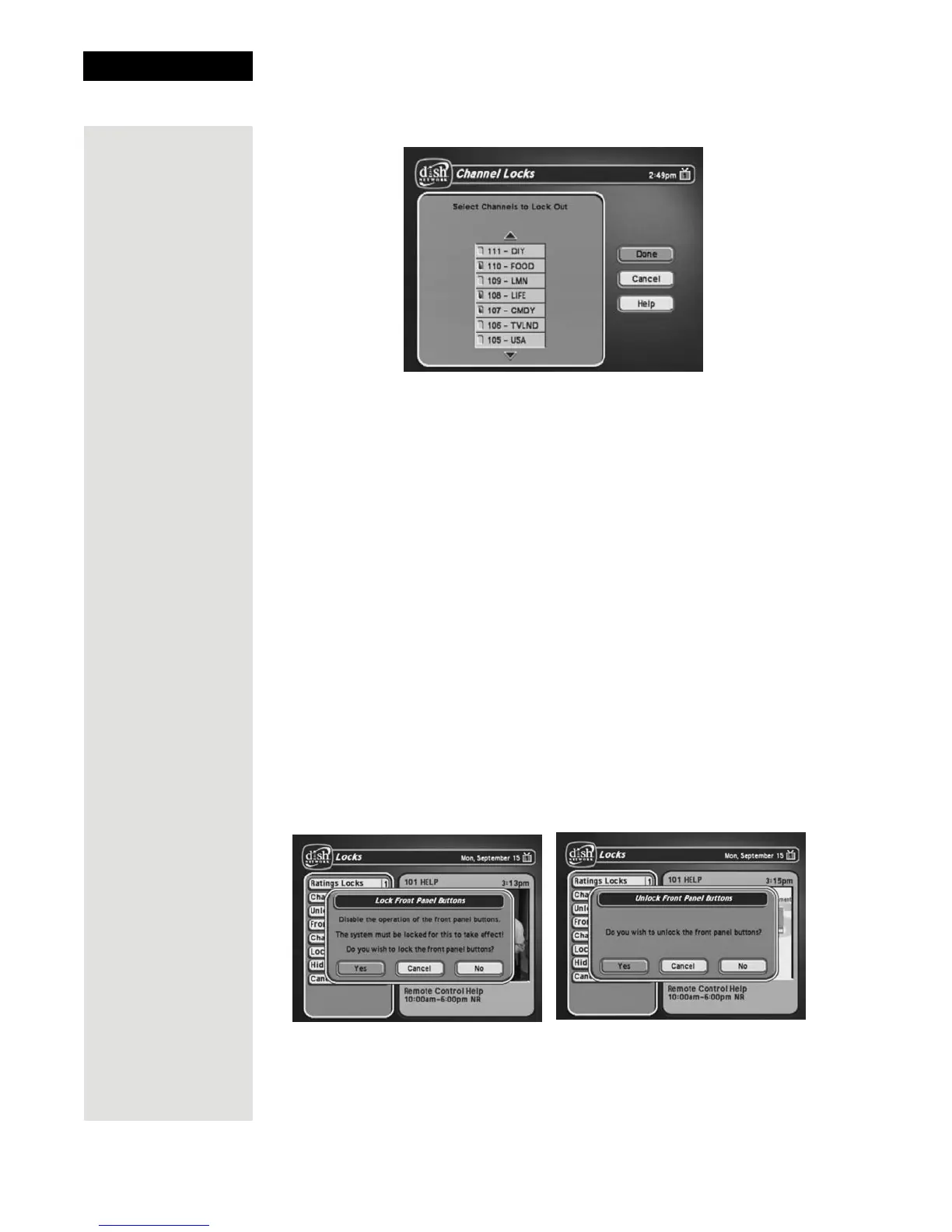
4. Select the Channel Locks option.
5. Highlight the channel that you want to lock. If necessary, press the UP or
DOWN ARROW button to see the channel. You can also enter each
channel number using the NUMBER PAD buttons.
6. Press the SELECT button to lock or unlock the highlighted channel. If the
checkbox next to the channel has a checkmark, the channel is locked.
7. Select the
Done option to save the changes.
8. If the receiver is not already locked, you must lock it to put the locks you
just created into effect.
Locking and Unlocking the Receiver Front Panel (TV1 Only)
T
Tip: Remote
Control 1 is used to
control TV1 menus
on the nearby TV.
Remote Control 2
is used to control
TV2 menus on the
remote TV(s).
his keeps anyone from using the front panel buttons, but it does not lock the
remote control buttons. This option is only available on TV1 menus.
1. Press the MENU button.
2. Select the
Locks option.
3. If the receiver is locked, enter the password using the NUMBER PAD
buttons. The receiver displays stars (*) as you enter the digits of the
password. As soon as you enter the fourth digit of the password, the receiver
highlights the
OK option. Press the SELECT button.
4. Select the
Front Panel Lock option to lock or unlock the front panel.
5. Select the Yes option.
6. To activate the front panel lock, you must lock the receiver.







 To Next Page