Chapter 3
Page 72
Using the System
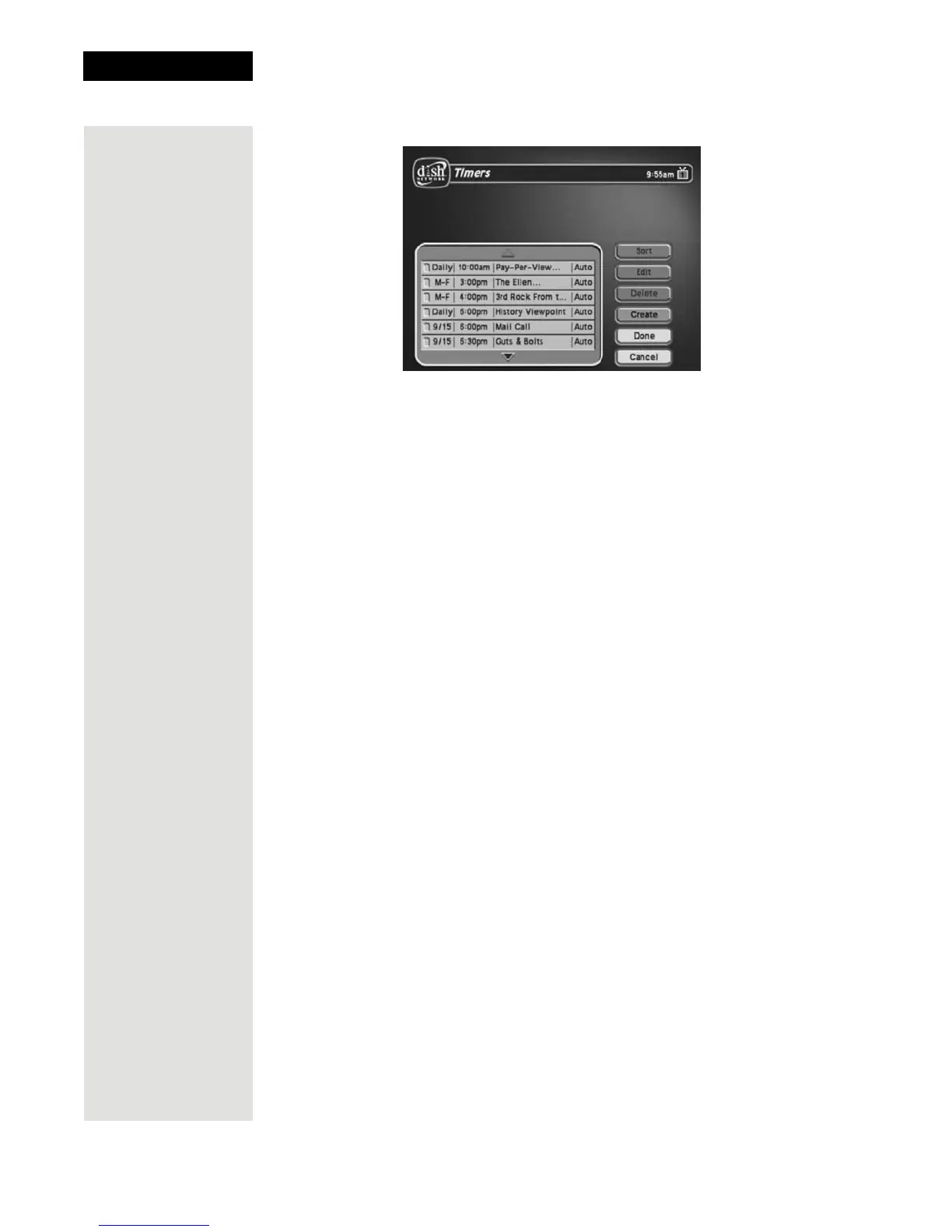
3. Select the event timer that you want to edit. A mark appears in the box next
to the event timer.
4. Select the
Edit option. You may change the Timer Type, Timer Frequency,
or
Channel. To do this, select each option that you want.
5. If you want to change the
Start Time, the End Time, or the Date, select the
Edit Time option to display the Edit Time for Manual Timer menu.
Otherwise, skip to step 8 of this procedure.
6. Use the number buttons to enter the
Start Time (this includes selecting AM
or PM) and the
End Time (this includes selecting AM or PM).
7. Use the NUMBER PAD buttons to enter the
Date.
8. Select the
Create Timer option.
Deleting an Event Timer
1. Press the MENU button.
2. Select the
Timers option.
The receiver displays the
Timers menu.
3. Select an event timer(s) that you want to delete. A check mark appears in
the box next to the event timer(s).
4. Move the highlight to
Delete and press SELECT on the remote.
Special Considerations When Using Event Timers
• For Locked Programs—You must enter the receiver password before you
can create an automatic event timer. You can create a manual event timer for
a locked program without entering the password. However, if you do this,
when the event timer operates the receiver may display only an error or
password entry menu.
•
For Pay Per View Programs—You must order a pay per view program
before you can create a timer for it.







 To Next Page